
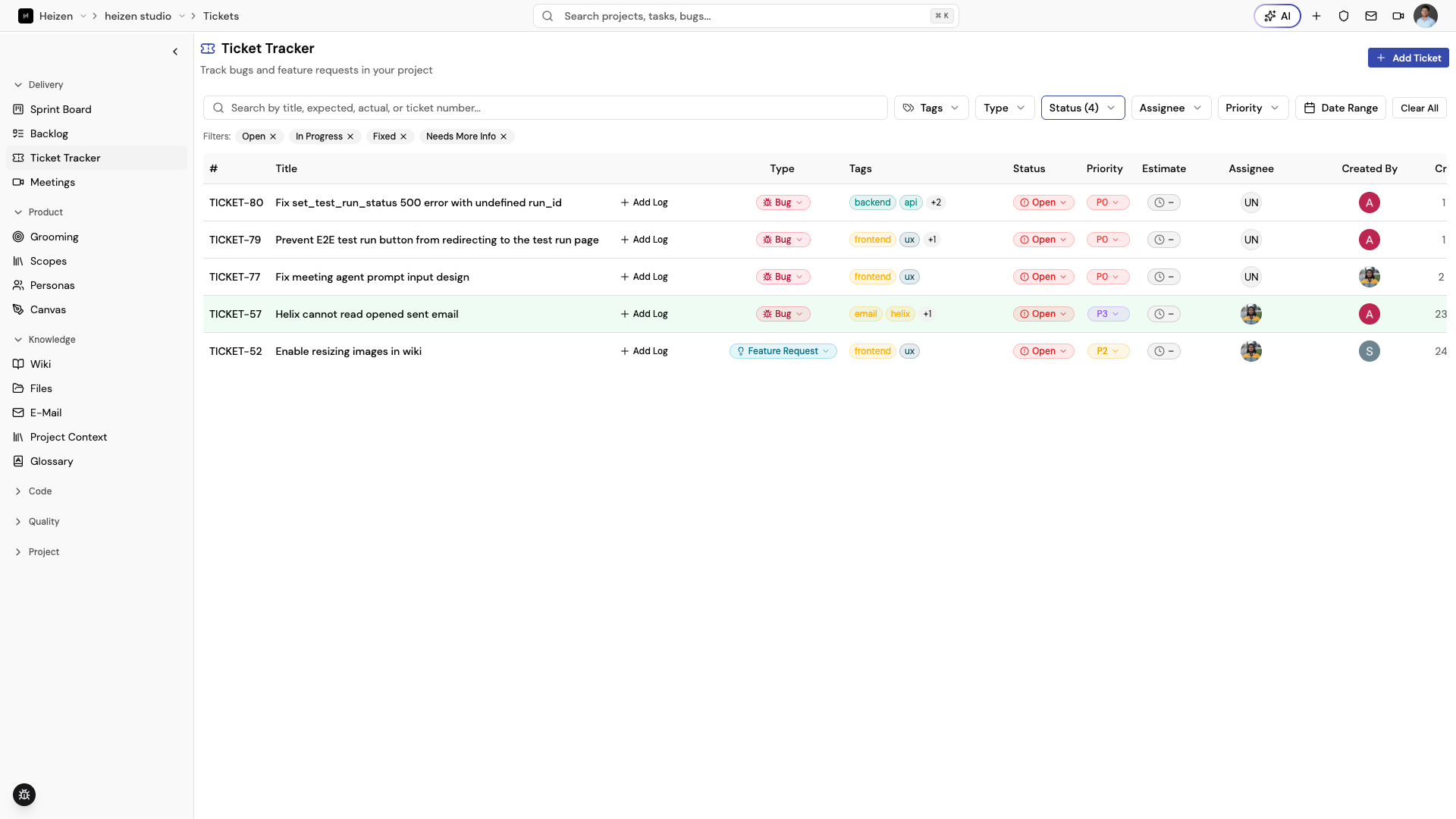
Delivery → Ticket Tracker is the project’s single queue for defects and
feature requests. Every ticket has a Ticket Type (Bug or
Feature Request) so bug fixes and enhancement asks live side by side without
losing their distinct workflow, plus the supporting detail — tags,
screenshots, video, and voice feedback — so the person picking it up does not
need to reconstruct the problem from a short title. Bugs capture an actual
result and an expected result; feature requests capture only the requested
feature.
Report a ticket
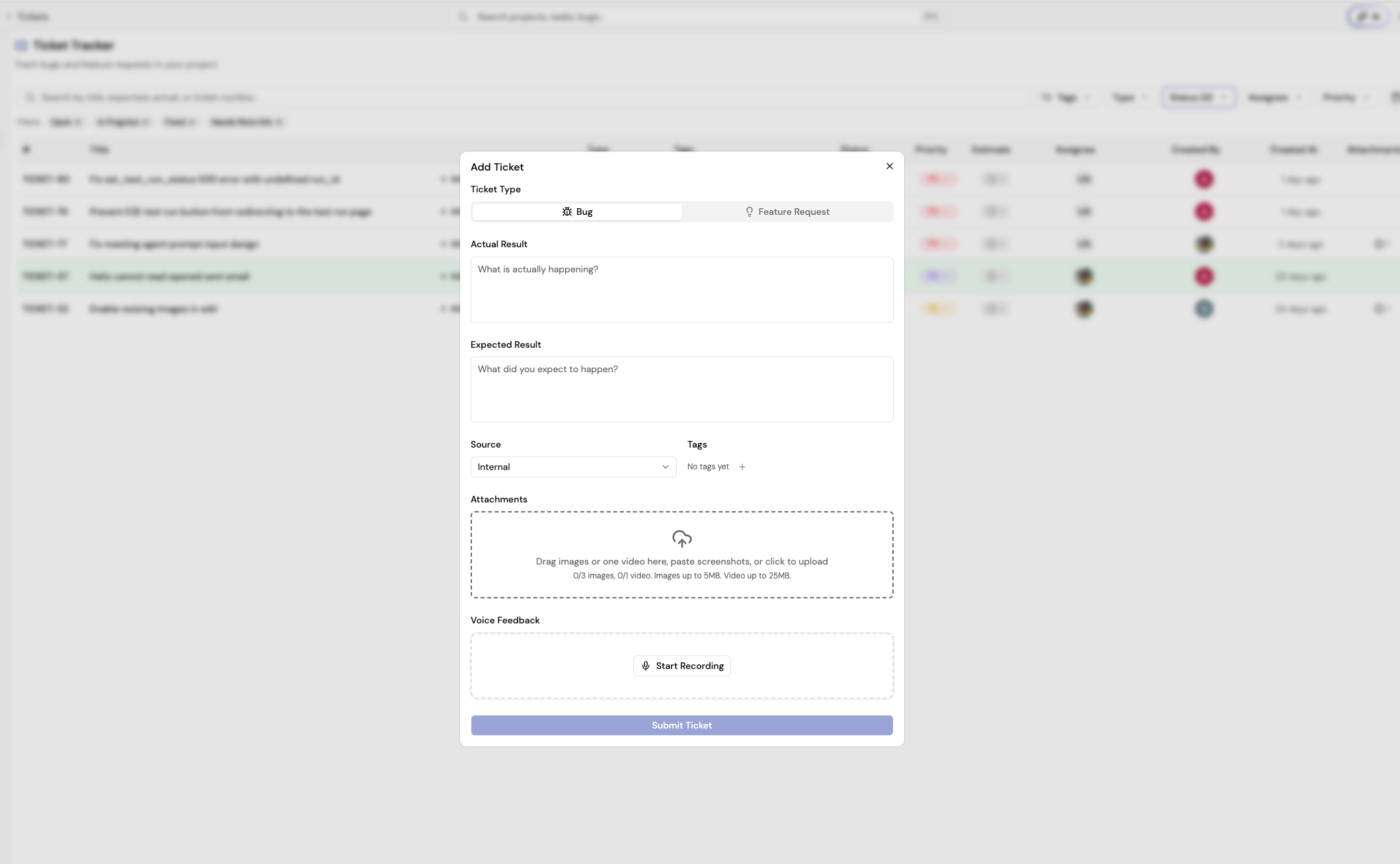
- Choose Report Bug or Request Feature. The dialog opens with that type preselected.
- If you picked the wrong one, switch it under What are you reporting? at the top of the form. The type decides which fields the form shows.
- Describe the work:
- For a Bug, fill in the Actual Result and the Expected Result.
- For a Feature Request, describe the Requested Feature. The actual result field is hidden, because there is no broken behavior to record.
- Choose the Source: Internal or External.
- Add tags such as
frontend,backend, orapi. - Attach screenshots, one video, or voice feedback when it will reduce ambiguity.
- Choose Submit Bug Report or Submit Feature Request.
At least one useful piece of evidence is required. For a bug, a detailed actual/expected pair is the best default; for a feature request, a specific requested-feature description is.
The ticket detail panel follows the same rule: a bug shows both actual and expected result, while a feature request shows only the requested feature. The panel header shows the ticket’s TICKET-{number} at the top left.
You can change a ticket’s type later from the table — choose the type badge on any row to switch between Bug and Feature Request as understanding of the work evolves.
Create a ticket from a repository issue
Tickets can also start from a connected repository’s issues. Open the issue in Source and choose Convert to Ticket. The new ticket is tagged with the provider (GitHub, GitLab, or Bitbucket), includes the issue description and a link back to the source issue, and gets a normal TICKET-{number}. An issue can only be converted once; after that, the issue links to its ticket.
Add in-app reporting with the Bugs SDK
The @heizen-labs/bugs-sdk package adds a floating React bug-report widget.
Users can submit a description with screenshots, screen recordings, uploaded
media, page context, and application metadata directly from your app. Reports
submitted through the SDK land in the Ticket Tracker as Bug tickets.
Install the package
# Install the React bug-report widget
npm i @heizen-labs/bugs-sdk
# Install the React bug-report widget
yarn add @heizen-labs/bugs-sdk# Install the React bug-report widget
pnpm add @heizen-labs/bugs-sdk# Install the React bug-report widget
bun add @heizen-labs/bugs-sdkThe package requires React 19 or later and has no separate CSS import. Render
BugsSdk once near the root of the application:
import { BugsSdk } from "@heizen-labs/bugs-sdk";

export function App() {
  return <BugsSdk apiKey="hzs_your_api_key" />;
}
The widget renders a floating Report bug button in the bottom-right corner by default.
Configure the widget
<BugsSdk
  apiKey="hzs_xxx"
  defaultPosition="bottom-left"
  metadata={{
    userId: "usr_123",
    plan: "pro",
    environment: "staging",
  }}
  source="my-app-dashboard"
/>| Prop | Type | Default | Purpose |
|---|---|---|---|
apiKey |
string |
required | API key used to submit reports. |
defaultPosition |
top-left, top-right, bottom-left, bottom-right, left, right |
bottom-right |
Widget position. left and right are legacy aliases for bottom corners. |
endpoint |
string |
Heizen bug-report endpoint | Override the submission endpoint. |
metadata |
Record<string, unknown> |
— | Attach user, environment, feature-flag, or other context. |
source |
string |
feedback-widget |
Identify the app or surface that submitted the report. |
What reports contain
A submitted report can include:
- the user-written description;
- screenshots, screen recordings, or uploaded image, audio, and video files;
- page URL, title, viewport dimensions, and browser information;
- custom metadata from the
metadataprop; and - the value of the
sourceprop.
Each report supports up to five files, each file can be up to 25 MB, and only one video is allowed. Screen recordings are limited to 60 seconds.
Add it to Next.js
For the App Router, render the SDK from a client component and include that component in the root layout:
// app/bugs-sdk-client.tsx
"use client";

import { BugsSdk } from "@heizen-labs/bugs-sdk";

export function BugsSdkClient() {
  return <BugsSdk apiKey="hzs_xxx" />;
}
// app/layout.tsx
import { BugsSdkClient } from "./bugs-sdk-client";
export default function RootLayout({
children,
}: {
children: React.ReactNode;
}) {
return (
<html lang="en">
<body>
{children}
<BugsSdkClient />
</body>
</html>
);
}The same render-once pattern works with Vite, Remix, Create React App, and other React 19 applications.
Triage the queue
Search by title, requested feature or expected result, actual result, or ticket number. Combine filters for ticket type, tags, status, assignee, priority, and date range. The tracker includes statuses such as Open, In Progress, Fixed, Closed, Working as Intended, Needs More Info, and Deprioritised.
Open a ticket to update status, priority, assignee, tags, comments, attachments, and linked pull requests. Add a comment when the ticket needs clarification or the decision should remain visible to the reporter. Use Add Log on a row to record time spent directly from the table.
A Feature Request ticket can be promoted with Convert to task once it is scoped, moving it into the backlog as a Feature task with a story instead of staying in the ticket queue.
Open a bug and choose Fix with Helix to hand it to an agent run instead of fixing it by hand.
Connect a ticket to delivery and QA
When a bug is confirmed, assign it to the person fixing it and link the pull request when available. When it is fixed, verify the behavior and close it only after the relevant test coverage or regression case is in place.