
A test run is the result of executing one test case. An execution is the batch that groups several test runs from a suite or plan. Use the Test Dashboard to find recent executions, then open an execution or an individual run for the evidence behind its status.
Open an execution or run
You can reach run details from several QA surfaces:
- Open Test Dashboard and choose a recent execution. This opens the aggregate execution detail.
- In the execution detail, find a row in Test Runs and choose its view action to open the individual run.
- Open a case’s latest run from the dashboard status report, a test plan, or Test Sheet.
The aggregate execution answers how a batch performed. The individual run answers what happened inside one test case.
Review an execution
The execution detail includes:
- a back button, execution number, trigger, and platform;
- the environment, person who triggered the execution, start time, and duration;
- summary cards for total, passed, failed, and running tests;
- a Test Runs table with run number, test case, status, start time, and duration; and
- Export PDF for downloading an execution report.
Choose the view action for a run to inspect its steps, evidence, and defects. If the execution has no child runs, the table shows an empty state instead of results.
Review an individual run
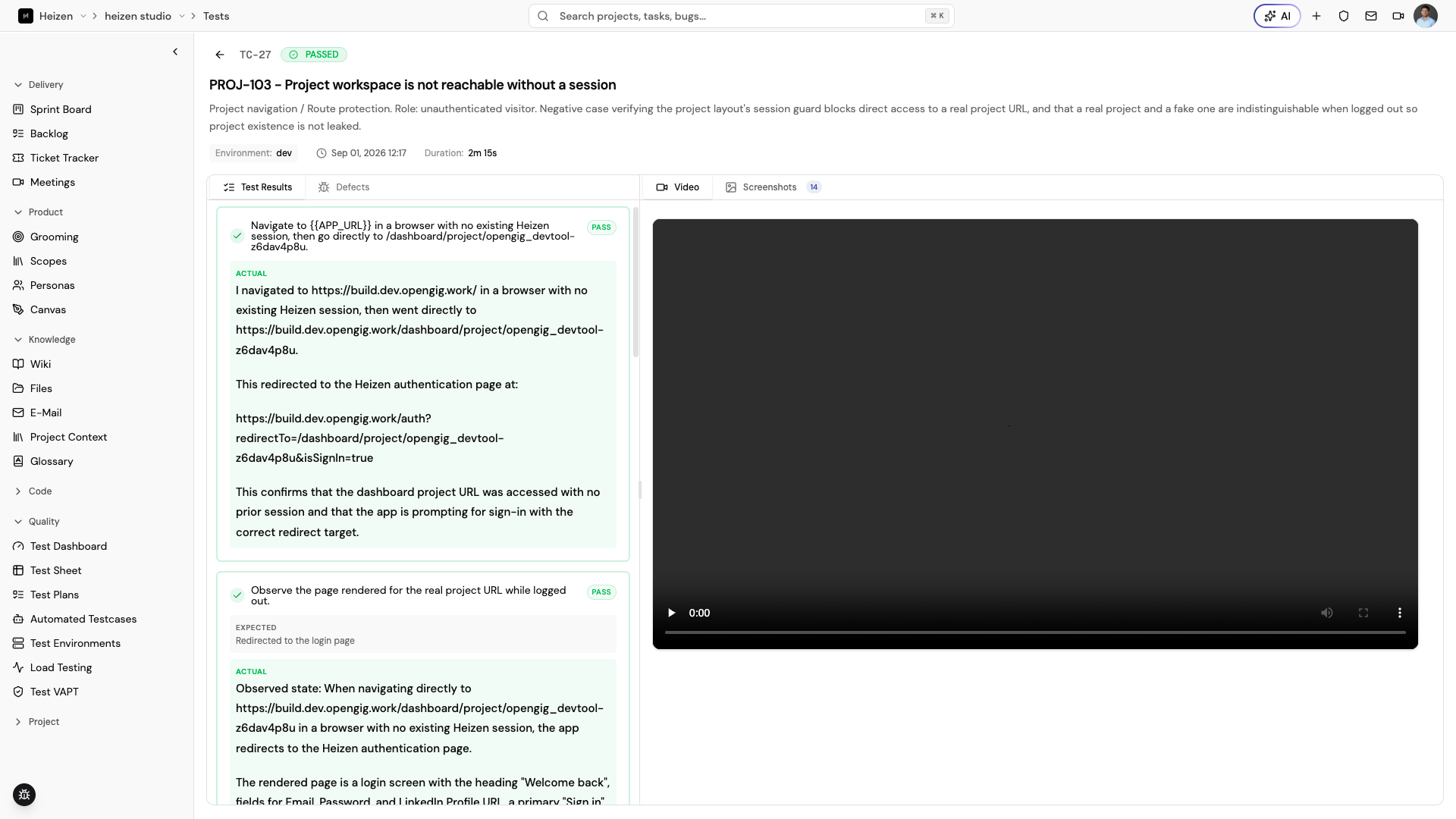
The run header shows the case number, status, test case title and description, environment, start time, and duration. Choose the back button to return to the previous QA surface or the test case in the repository.
Standard test runs
For UI and end-to-end cases, the detail view is split into two panels:
- Test Results lists each step with its action, expected result, actual result, and pass/fail state.
- Defects lists linked defects and their count. When no defects are linked, Studio shows No Defects Found.
- The evidence panel shows recorded video, screenshots, and optional proof attachments. A live WebRTC view can appear while a run is still running.
Use the step results to identify the first failure, then open the linked defect or create a ticket from the appropriate project workflow.
API test runs
API cases use a specialized detail view rather than the standard step-and-media layout. Review the step list and select a step to inspect its Response, Request, Validation, and optional Review details. Depending on the step, the view can show request headers, query parameters, request body, response body, HTTP status, expected versus actual results, extracted variables, task reviews, and recommendations.
API cases share the same Test Sheet run history as other case types; there is no separate API-only surface.
Understand run statuses
Run status badges can show:
- PASSED — the run completed successfully;
- FAILED — one or more checks failed;
- RUNNING — execution is still in progress;
- QUEUED — the run is waiting to start;
- SKIPPED — the run was not executed;
- CANCELLED — the run was stopped before completion; or
- PARTIALLY PASSED — some checks passed and others did not.
A status is a starting point for investigation. Check the step results, media, linked defects, environment, and test data before deciding whether a failure is a product defect, an environment issue, or an unstable test.
Use run evidence in a release decision
- Confirm that the execution used the intended environment and plan.
- Review failed and partially passed runs first.
- Open the individual run to identify the failing step and inspect evidence.
- Check linked defects and create or update a ticket when the failure is a product issue.
- Compare the result with the stories and acceptance criteria in scope.
- Export the execution report when the result needs to be shared.
Load Testing has its own run history and result views for latency, throughput, errors, and SLOs. Use that guide for performance runs rather than the functional test-run detail described here.