
Project settings control the project itself. Open a project, then choose Settings in the project sidebar. The available tabs and actions depend on your role: project admins can manage project configuration, while Members and Guests may have read-only access to some areas. See Organizations, roles, and permissions for the full model.
Project Details
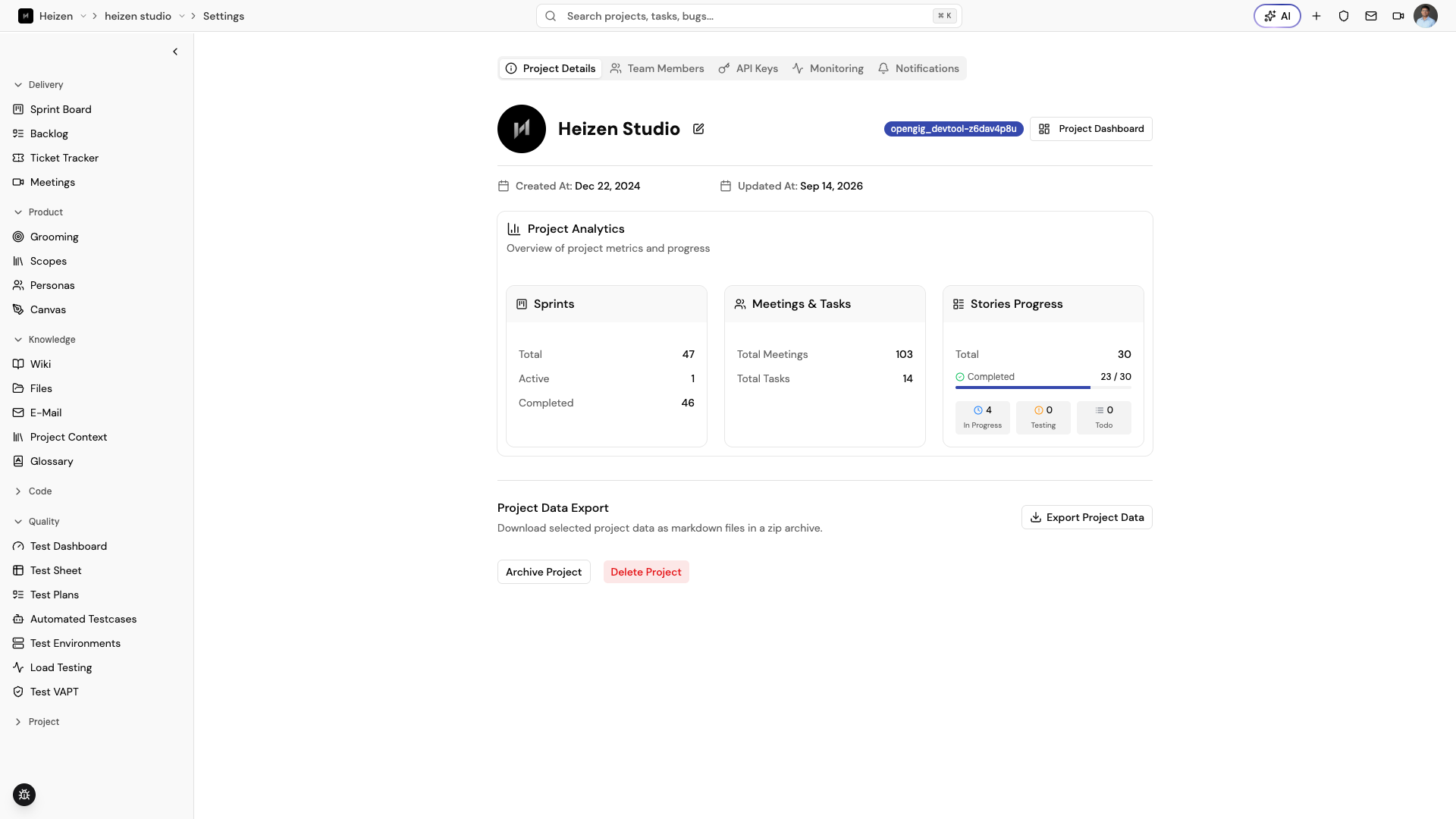
The Project Details tab contains the project profile, project metadata, analytics, export tools, and project lifecycle actions.
Update the project profile
- Select the project avatar to enter a logo URL, then choose Update Logo.
- Select the pencil beside the project title, edit the name, and choose the save button. Choose the cancel button to discard an edit.
- Choose Project Dashboard to return to the project overview.
Read project analytics
The analytics area summarizes the project’s current state:
- total, active, and completed sprints;
- total meetings and tasks; and
- total stories with completed, in-progress, testing, and to-do counts.
Analytics are read-only. They update as the underlying project records change.
Export project data
Project administrators can choose Export Project Data and select any of these sections before downloading a ZIP archive:
- Sprints and backlog — one Markdown file per sprint plus a backlog file;
- Meetings — a summary file and full transcript file for each meeting;
- Wikis — one Markdown file per wiki page; and
- Tickets — Markdown files containing up to 100 tickets per file.
At least one section must be selected. The export starts when you choose Export in the dialog.
Archive or delete the project
A project admin can choose Archive Project to hide the project from the main dashboard while keeping it accessible for later restoration. For an archived project, the same control becomes Unarchive Project.
A project admin can also choose Delete Project. This is permanent: type the exact project title in the confirmation dialog, then choose Delete Project. Export any information the team must retain and revoke API keys that are no longer needed before deleting.
Team Members
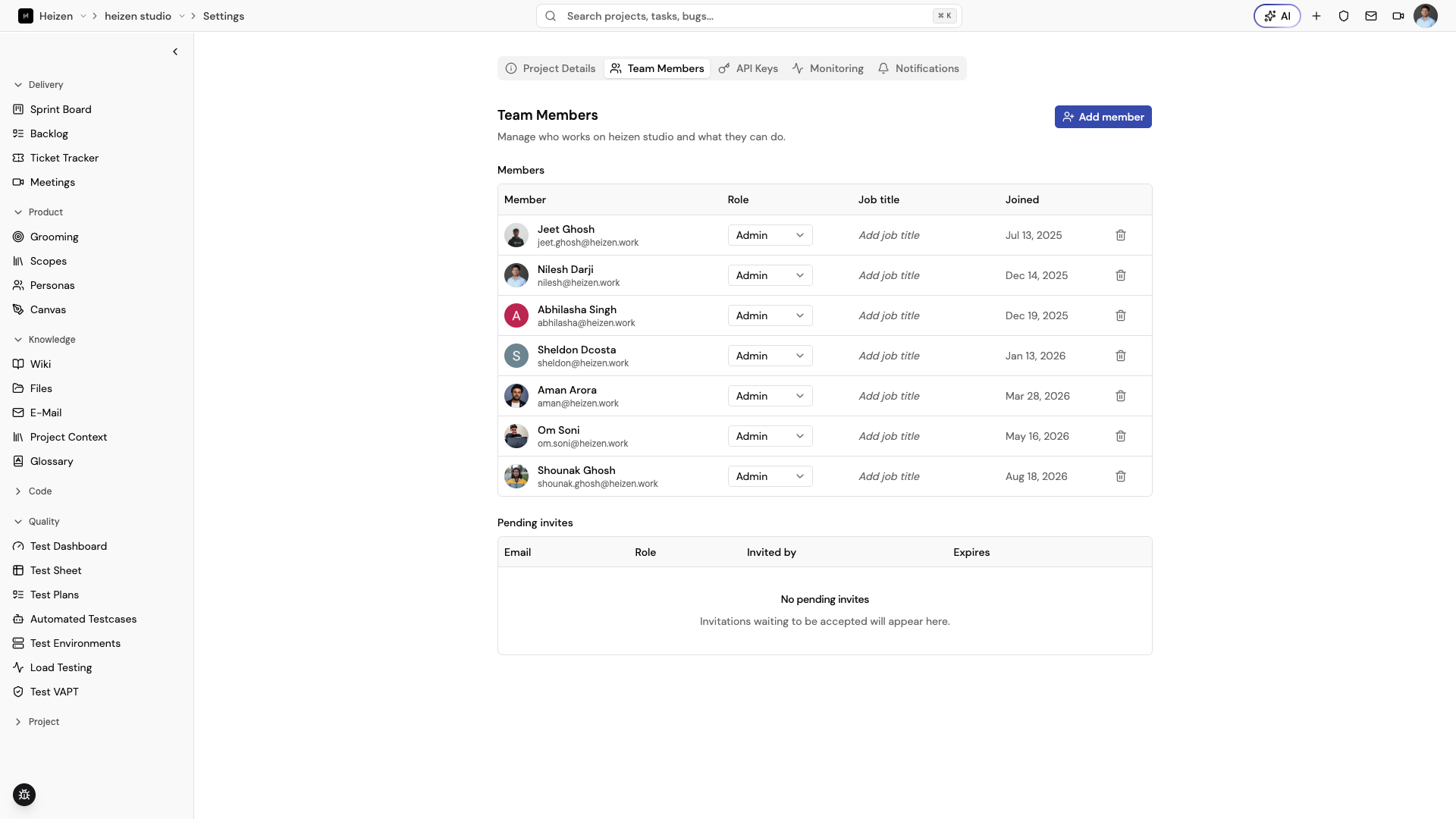
The Team Members tab shows each member’s avatar, name, email address, project role, and join date, plus any invitations still pending below the member list. See Organizations, roles, and permissions for what each role can do.
Add a member
Project admins can:
- Choose Add Member.
- Search for an existing organization member by name, or enter an email address to invite someone new.
- Select a role: Admin, Member, or Guest.
- Choose Send invitation.
An existing user joins the project right away; anyone else receives an email link to sign up.
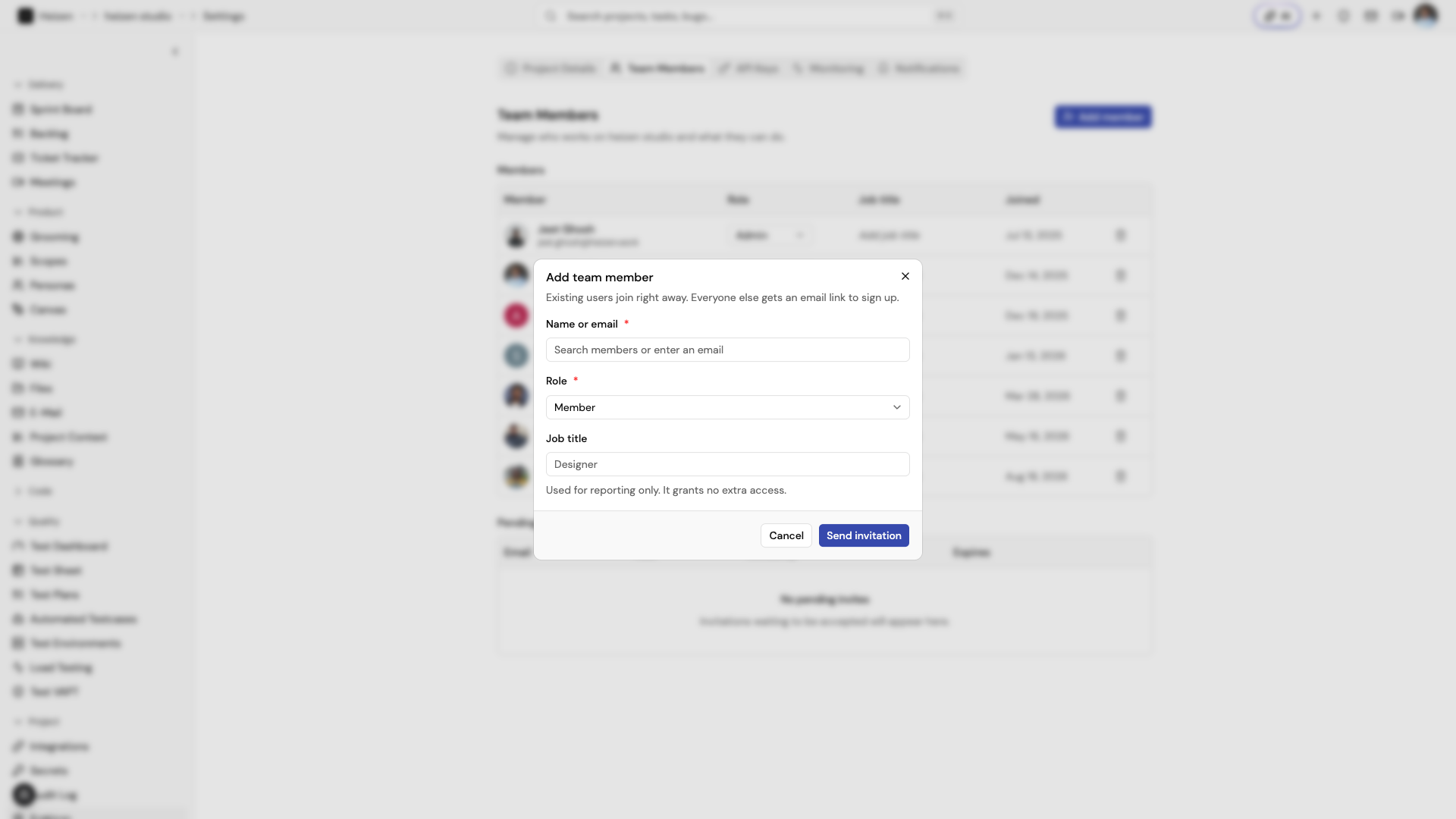
Change a role or remove access
Admins can open a member’s role selector and choose a different project role. To remove someone, choose the trash action, review the confirmation, and choose Remove. Members cannot change their own role from this tab.
Give each person the least access needed for their work — a Guest is usually the right role for someone outside the team. A pending invite has not yet been accepted, so confirm the email address before relying on it.
API Keys
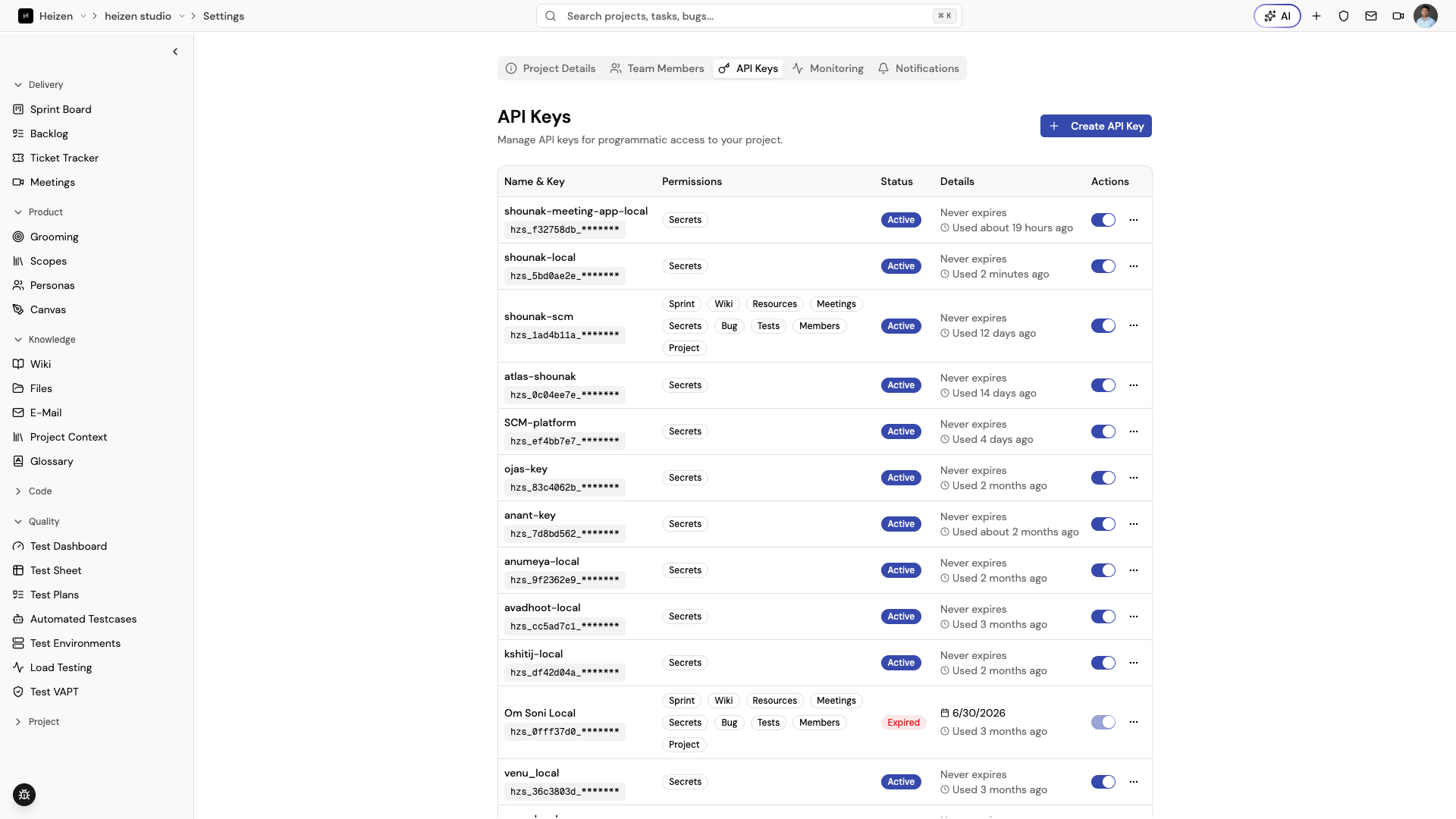
The API Keys tab is visible to project administrators. Use it to create credentials for services that need programmatic access to the project.
Create an API key
- Choose Create API Key.
- Enter a descriptive name, such as
Production APIorMobile App Key. - Optionally choose an Expiration Date. Short-lived keys are safer than keys that never expire.
- Set the Allowed IP addresses. New keys start at
0.0.0.0, which means any address. See Restrict a key to specific IPs. - Select at least one permission. Permissions are grouped by project areas; use Select All or Clear All within a group when useful.
- Choose Create API Key.
- Copy the complete key from the success dialog and store it in a secure secrets manager. The full value is shown when the key is created, not in the key list later.
Use a descriptive name and the narrowest permission set that the integration needs. Never place a key in source control, screenshots, or client-side code.
Restrict a key to specific IPs
A key is only usable from an address on its allow list. Requests from anywhere else are rejected before the key is read, so a leaked key is worthless outside your network.
Each entry is one of:
| Entry | Matches |
|---|---|
0.0.0.0 |
Any address — the default for a new key |
203.0.113.7 |
That exact address |
10.0.0.0/8 |
Every address in the CIDR range |
203.0.113.* |
Every address matching the octet wildcard |
Remove the 0.0.0.0 entry and add your CI runner, VPC, or office range to
lock the key down. Choose My IP to add the address you are browsing from
without looking it up. Existing keys keep 0.0.0.0 until you change them.
Studio reads the caller’s address the way the platform resolved it, not from a header the caller controls, so a request cannot claim to come from an allowed address. The one way around an allow list is to reach the API without passing through Heizen’s load balancer, which is closed off at the network layer.
Matching is textual for IPv6: list the exact form your caller presents.
Rejected attempts against project secrets are recorded in the secret access log, including the IP they came from.
Manage existing keys
The table shows the key name and masked prefix, grouped permissions, status, expiration, and last-used time. A key can be Active, Inactive, Expired, or close to expiration.
- Use the switch to enable or disable an active key. An expired key cannot be re-enabled.
- The Details column shows whether the key is open to any IP or limited to a specific list; hover it to see every allowed entry.
- Open the actions menu and choose Edit to change its name, expiration, allowed IPs, or permissions. Changes take effect immediately.
- Choose Delete, confirm the dialog, and revoke the key immediately. Any application using it will lose access.
URL Monitoring
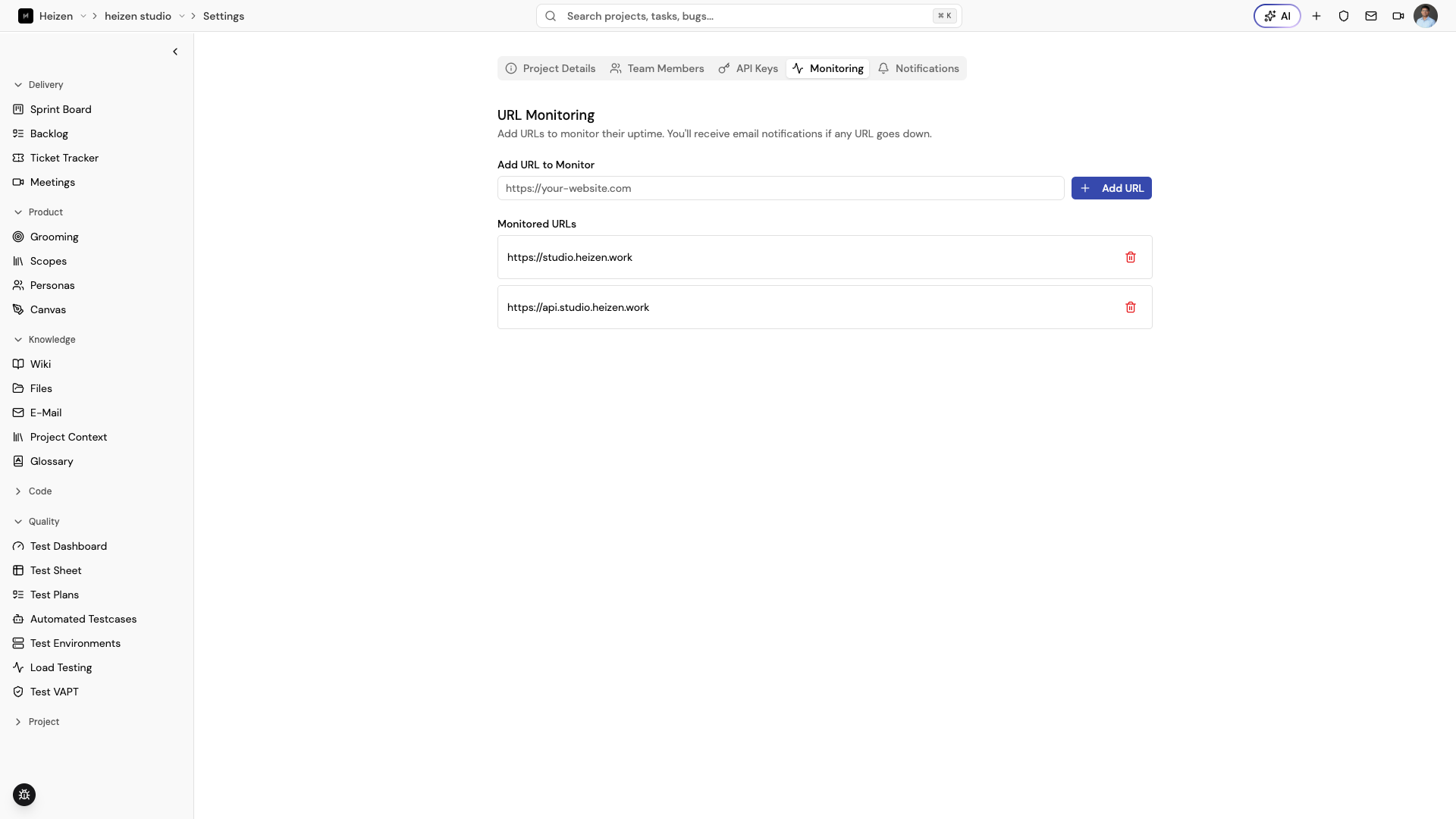
The Monitoring tab, labeled URL Monitoring inside the tab, keeps a list of endpoints whose uptime Studio checks for the project.
Add a URL
- Enter a complete URL in Add URL to Monitor, for example
https://your-website.com. - Choose Add URL.
- Confirm that the endpoint appears under Monitored URLs.
The URL field validates the address before saving. A successful save clears the input and shows a confirmation message. If there are no configured endpoints, the tab shows No URLs being monitored.
Remove a URL
Find the endpoint under Monitored URLs and choose its trash action. The URL is removed from the project after the update succeeds. Removing an endpoint stops it from contributing to future monitoring alerts; it does not change the website itself.
To receive downtime alerts, also enable URL Monitoring Alerts in the Notifications tab.
Notifications
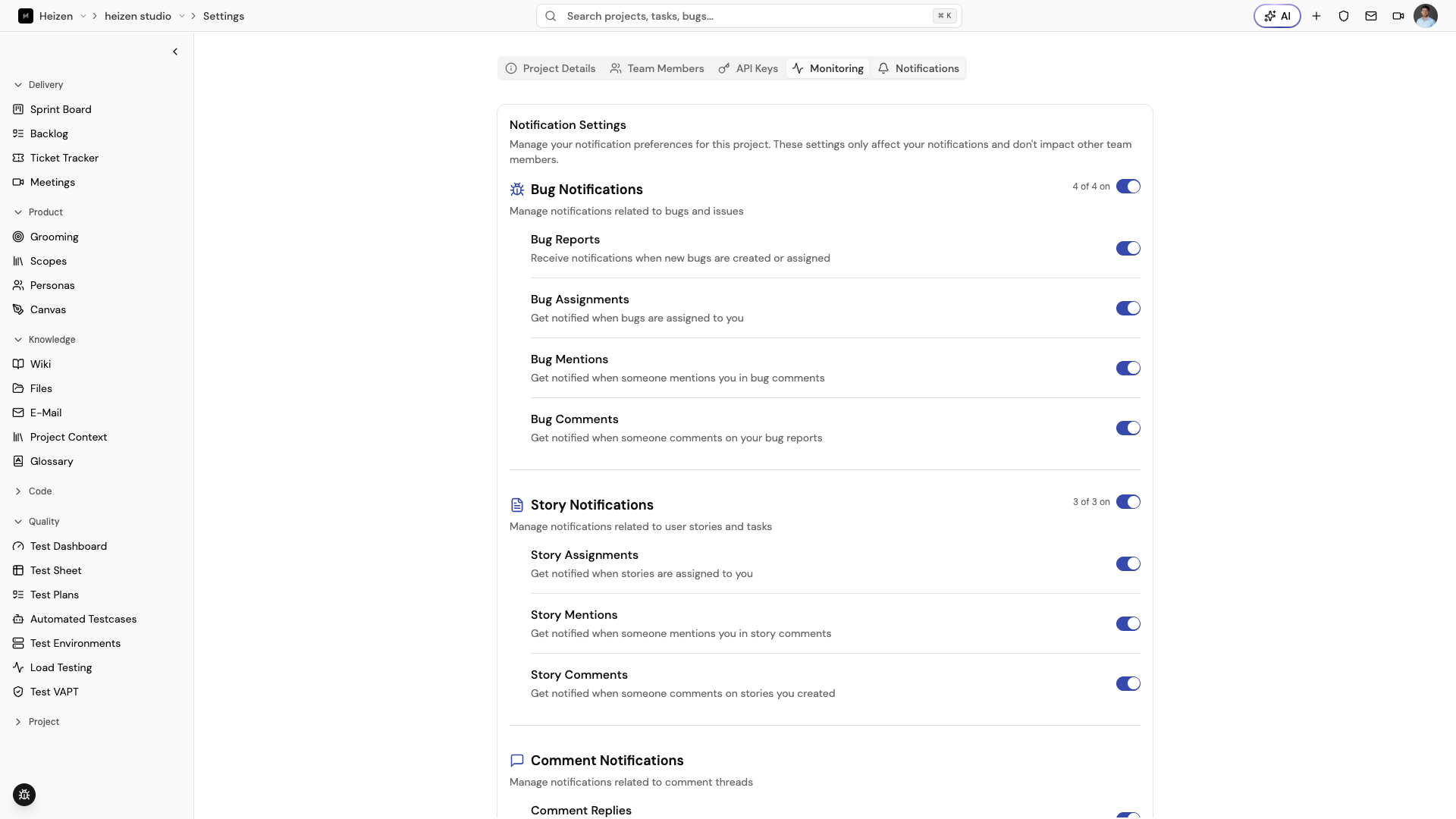
The Notifications tab controls your notification preferences for the current project. Changing a switch affects your account only; it does not change another member’s preferences.
Each switch saves immediately. While an update is in progress, the control is disabled and Studio shows a success or error message when the request finishes.
Ticket Notifications
- New Tickets — notifications when tickets are created or assigned.
- Ticket Assignments — notifications when tickets are assigned to you.
- Ticket Mentions — notifications when someone mentions you in a ticket comment.
- Ticket Comments — notifications when someone comments on a ticket you created.
Story Notifications
- Story Assignments — notifications when stories are assigned to you.
- Story Mentions — notifications when someone mentions you in a story comment.
- Story Comments — notifications when someone comments on a story you created.
Comment Notifications
- Comment Replies — notifications when someone replies to your comment on a story, ticket, or wiki page.
Wiki, monitoring, and resource notifications
- Wiki Mentions — notifications when someone mentions you in a wiki comment.
- URL Monitoring Alerts — notifications when a monitored URL is down or experiencing issues.
- New Resources — notifications when a resource is added to the project.
For sensitive application configuration, use Project Secrets. For personal profile and Google connections, use Account settings. To review who changed what in the project, see the Audit Log.