
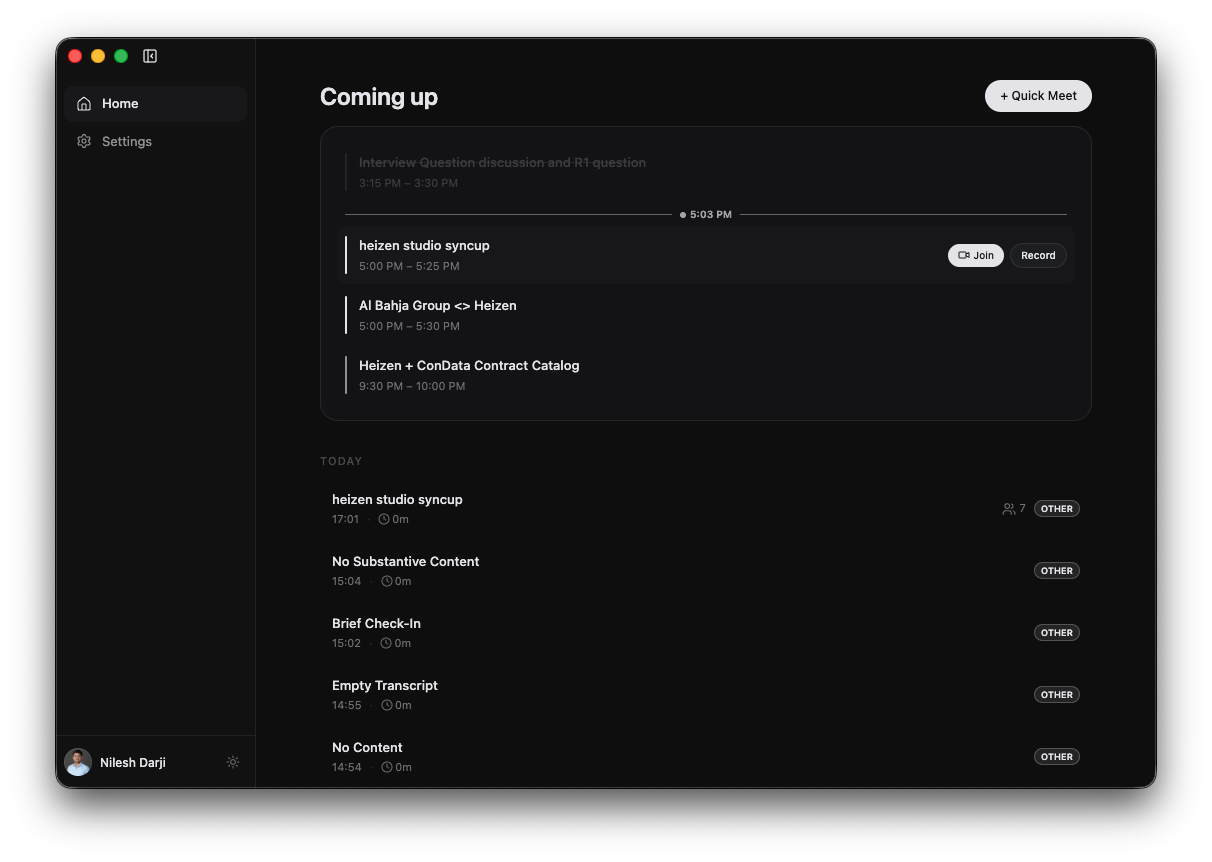
Heizen Meets is a desktop meeting assistant that records your microphone and meeting audio, creates a live transcript, and produces a structured summary. It works alongside your meeting app—no bot joins the call.
What you can do
Set up Heizen Meets
Sign in and grant microphone, screen recording, and system audio access. Get started.
Work from your calendar
See today’s meetings, open a meeting link, or start recording from the same row. Use Home and calendar.
Search meetings
Find a recording by its title, generated summary, or a participant, then open the complete meeting record. Search meetings.
Browse project meetings
Open a Heizen Studio project and review only the meetings linked to it. Browse project meetings.
Record any meeting
Start an unscheduled Quick Meet or attach a recording to a calendar event. Record a meeting.
Get automatic reminders
Let Heizen detect active calls and prompt you to take notes. Use meeting detection.
Use the live assistant
Ask questions, run quick actions, inspect the transcript, and optionally include screen context. Use the live assistant.
Review meeting knowledge
Read the summary, edit personal notes, copy the transcript, and manage meeting metadata. Review a meeting.
Ask AI about a meeting
Generate follow-up emails, decisions, action items, and answers grounded in the meeting. Use meeting AI.
Configure the app
Choose microphones, notifications, recording behavior, permissions, and updates. Configure Settings.
Recommended first recording
Complete setup
Sign in, then grant all three permissions. Permissions you skip can be granted later from Settings.
Check your microphone order
Open Settings → Microphone Priority and put your preferred device above Auto (system default).
Start a Quick Meet
Return to Home and select + Quick Meet. If screen recording is enabled, Heizen automatically records the detected meeting window or falls back to the entire screen.
Use the assistant during the call
Open the floating assistant, use a quick action or ask your own question, and switch to Transcript whenever you need to check what was captured.
Stop and review
Select Stop. Open the meeting from Home after processing finishes to review its summary, transcript, and notes.
Need help?
See Troubleshooting for permission, recording, calendar, microphone, transcript, and notification problems.