
The Sprint Board is the team’s active delivery view. It shows the stories and tasks committed to a sprint, their status, and the details needed to move them forward.
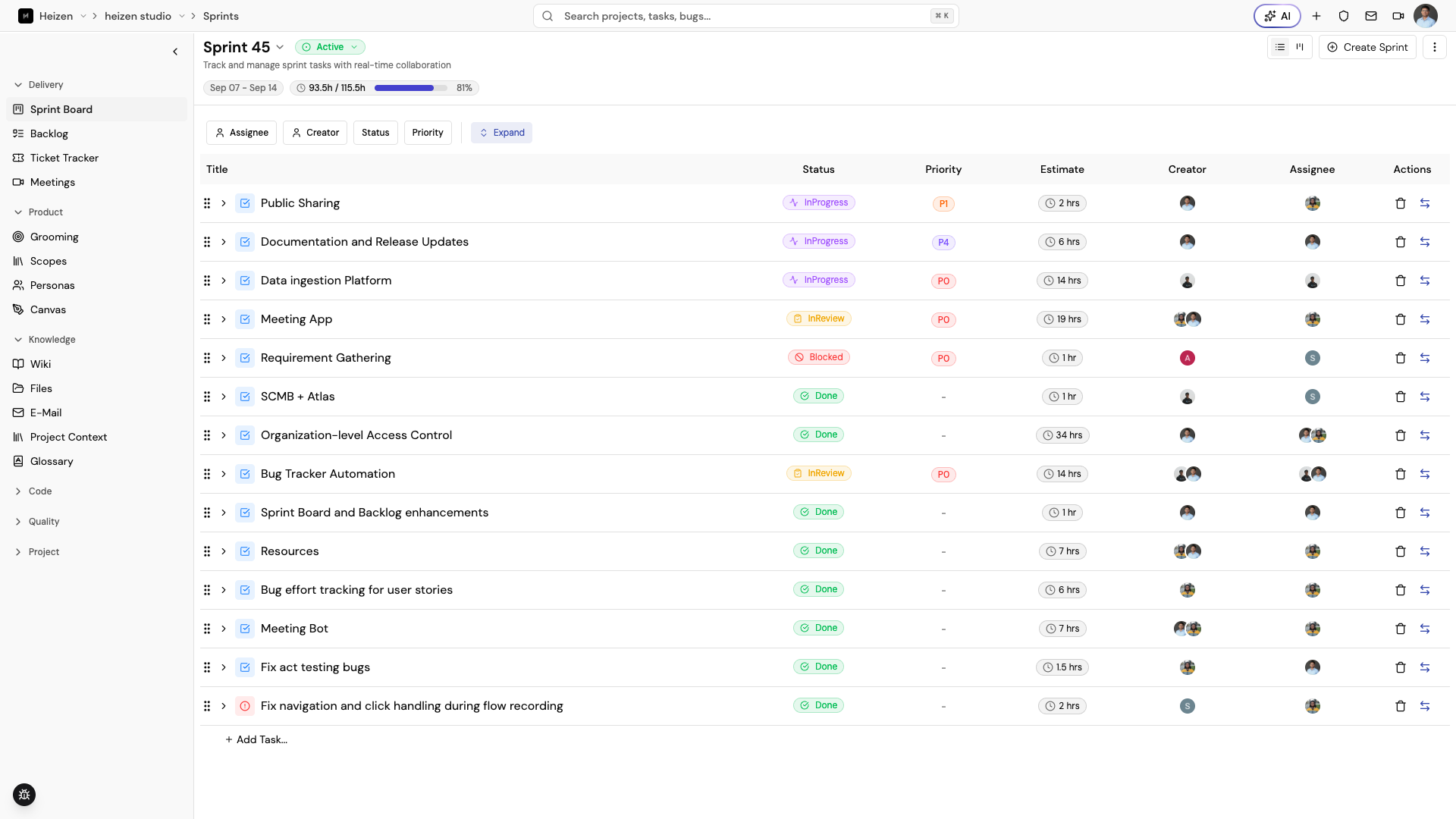
Create or select a sprint
- Open Delivery → Sprint Board.
- Choose Create Sprint when the project has no suitable sprint.
- Enter a name and start/end dates, then save.
- Use the sprint selector to move between active and completed sprints.
The board displays the current sprint’s date range and status. Use the list or Kanban toggle depending on whether you need a compact planning view or a visual flow.
Add and move work
Stories can be pulled from the backlog, added to a sprint, and reordered. Use the status control or drag a story between columns when the team’s workflow allows it. Add tasks beneath a story when the work needs smaller execution units.
To move a whole task, choose the move button on its row, open the Move to list, pick Backlog or any unlocked sprint (upcoming or past, searchable by name), and confirm. The task and all of its user stories move together, so there is no need to send it to the backlog first. Locked sprints are not listed.
To move a single story, choose the move button on the story’s row instead. It works the same way, but only that story moves; its task and other stories stay where they are. Tasks and stories in a locked sprint have no move button.
When the work is in a sprint, both dialogs select Backlog by default, so confirming straight away sends it to the backlog. Work already in the backlog has no default; pick a sprint first.
Open a story to update its description, acceptance criteria, assignee, priority, estimate, due date, sprint, comments, tests, pull requests, or references. The story whose detail panel is open is highlighted in both the list and Kanban views. Creating a story from either view opens its detail panel automatically.
Use References to attach the material a story is built from: images, files such as PDFs, Markdown, HTML, or spreadsheets, and links such as Figma designs. Upload or drop files, paste a link into the field and choose Add link, or click the section and paste a copied screenshot, file, or link directly. A story holds up to 10 references.
Choose Build with Helix on an open story to hand it to an agent run. Helix builds against the story’s acceptance criteria and opens a pull request. The button appears once a repository is linked to the project.
Lock a sprint
Sprint managers can choose Lock after planning is complete. A locked sprint protects its stories and tasks from casual modification. Unlock it only when a change is intentional and the team has agreed on the new plan.
Complete a sprint
Use the sprint status action in the header to move the sprint through its lifecycle. Choosing Paused asks for a reason before saving the status. The reason is kept with the sprint and appears when you hover the Paused status in the header and in the project dashboard’s Health status tooltip. Before closing a sprint, review incomplete stories, unassigned work, and the linked test or ticket status. Move unfinished work to a future sprint or leave it in the backlog deliberately.