
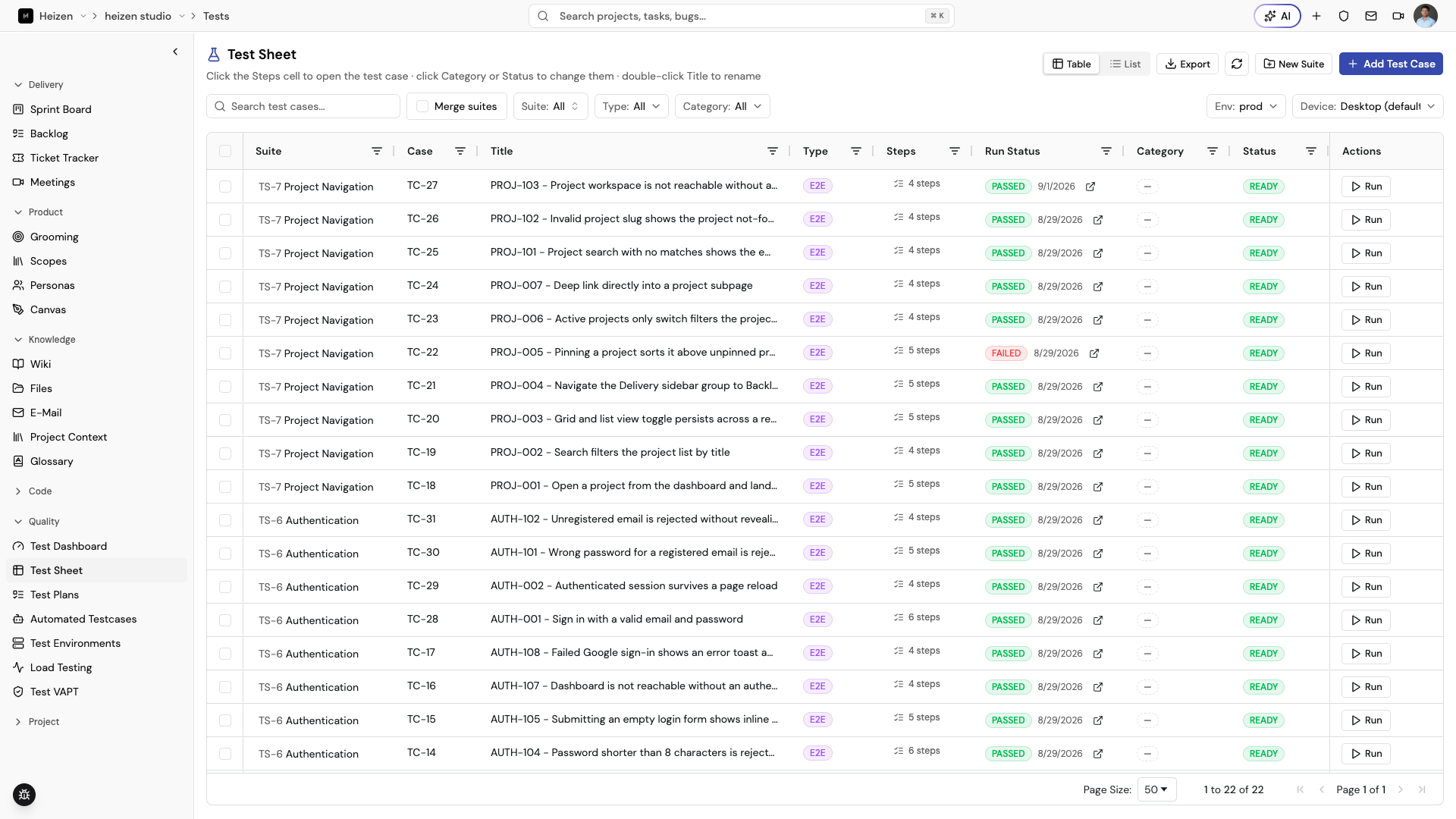
QA Agent → Test Sheet is both the reusable library of QA coverage and the fast editing surface for it. Suites group cases; cases describe behavior; steps explain how to execute the check; and each row links back to run status, category, and the related story or task.
Create the structure
- Open QA Agent → Test Sheet.
- Choose New Suite and give it a stable purpose, such as “Checkout regression.”
- Choose Add Test Case to add a case to a suite.
- Click the Steps cell to open the case detail and add preconditions, steps, expected results, and attachments.
Keep a suite small enough that its run result explains a meaningful release slice. Keep each case focused on one behavior with explicit preconditions, steps, and expected results so a different tester can execute it without a conversation.
Edit quickly
Click Category or Status on a row to change them inline, and double-click a Title to rename it. Use Merge suites to combine duplicate suites, and the Suite, Type, and Category filters to narrow a large sheet. Switch between Table and List view depending on whether you need the full grid or a scannable list.
Generate and maintain coverage
From a story, use the QA action to generate cases from the story’s acceptance criteria. For a fixed ticket, create a regression case that reproduces the original failure and verifies the expected behavior. Review generated cases in the sheet before running them.
Run a case
Choose Run on a case row to execute it against the selected Env and Device. The row’s run status updates in place, and the external-link icon next to a recent run opens the full result with step-by-step evidence and any linked defects.
How it works
Cases are reusable records. A test plan references cases rather than copying their content, so a case improvement benefits future runs while historical run results remain evidence of what happened at that time.