
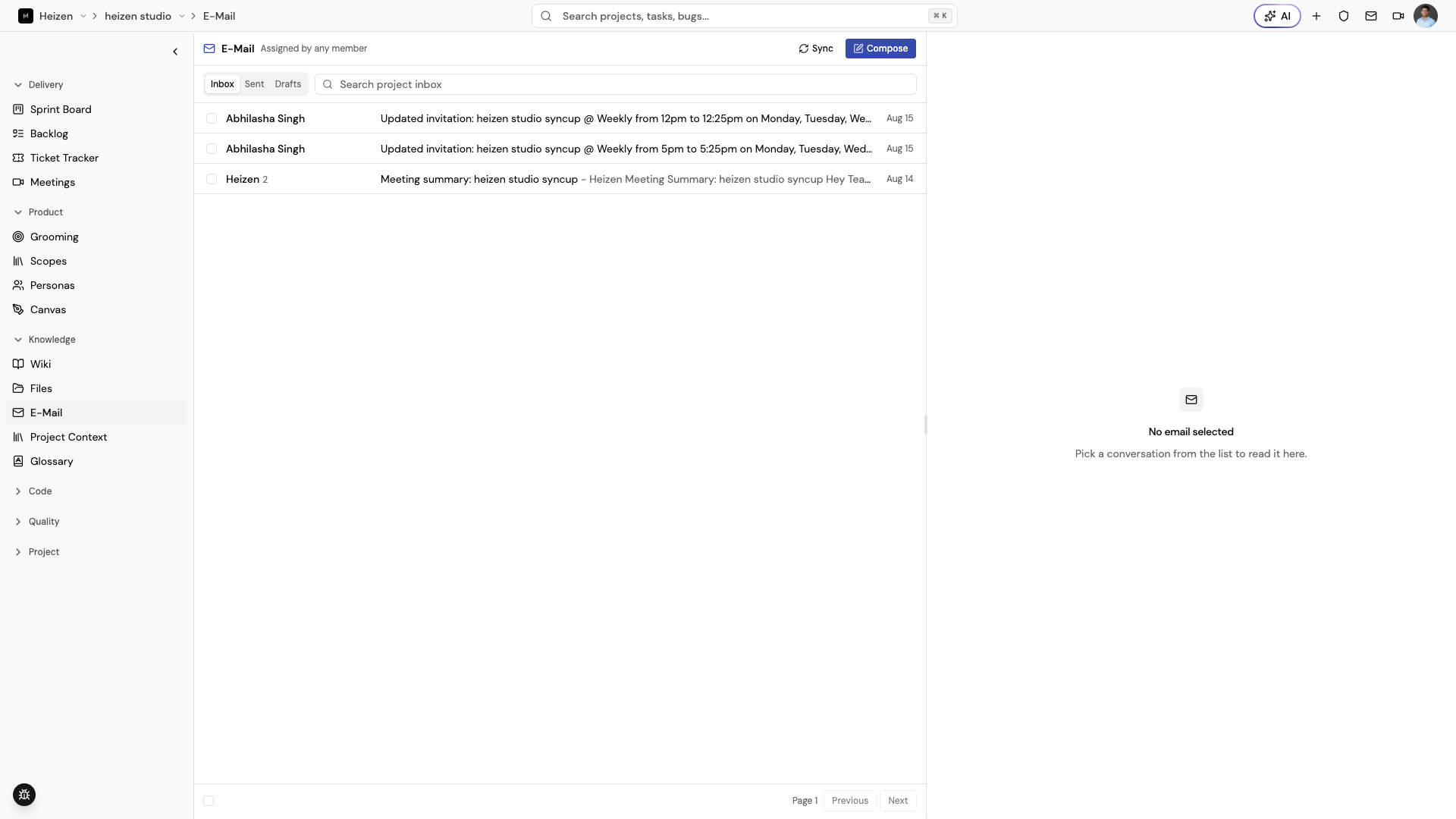
Knowledge → E-Mail is the project mailbox. It stores project-relevant Gmail threads beside the delivery work they discuss instead of leaving the context in one person’s inbox.
Connect Gmail
Connect Gmail from account settings. If the connection is missing or needs reauthorization, Studio shows a connection gate and tells you to reconnect before browsing or composing mail.
Browse project mail
Use the Inbox, Sent, and Drafts tabs. Search within the selected section, choose a thread to open its detail view, and use the pagination controls to move through older results. Choose Sync when you need to refresh the mailbox.
Assign a conversation to a project
From the personal mailbox, select one or more actionable threads and assign them to a project. The conversation then appears under that project’s E-Mail view. Remove the project assignment when the message no longer belongs there.
Compose and reply
In a project mailbox, choose Compose to create a new message. Open a thread and choose reply to keep the conversation’s recipients and references intact. Project drafts can be saved and reopened from Drafts. Send only after checking recipients, subject, and project context.
Bulk actions
Select visible threads for supported bulk actions. Studio reports successful and failed items separately, so a partial failure does not silently hide a message that still needs attention.