
The project wiki is a versioned documentation space for decisions, operating notes, product context, and technical knowledge. It is editable by authorized members and can be shared with a controlled link.
Create and organize pages
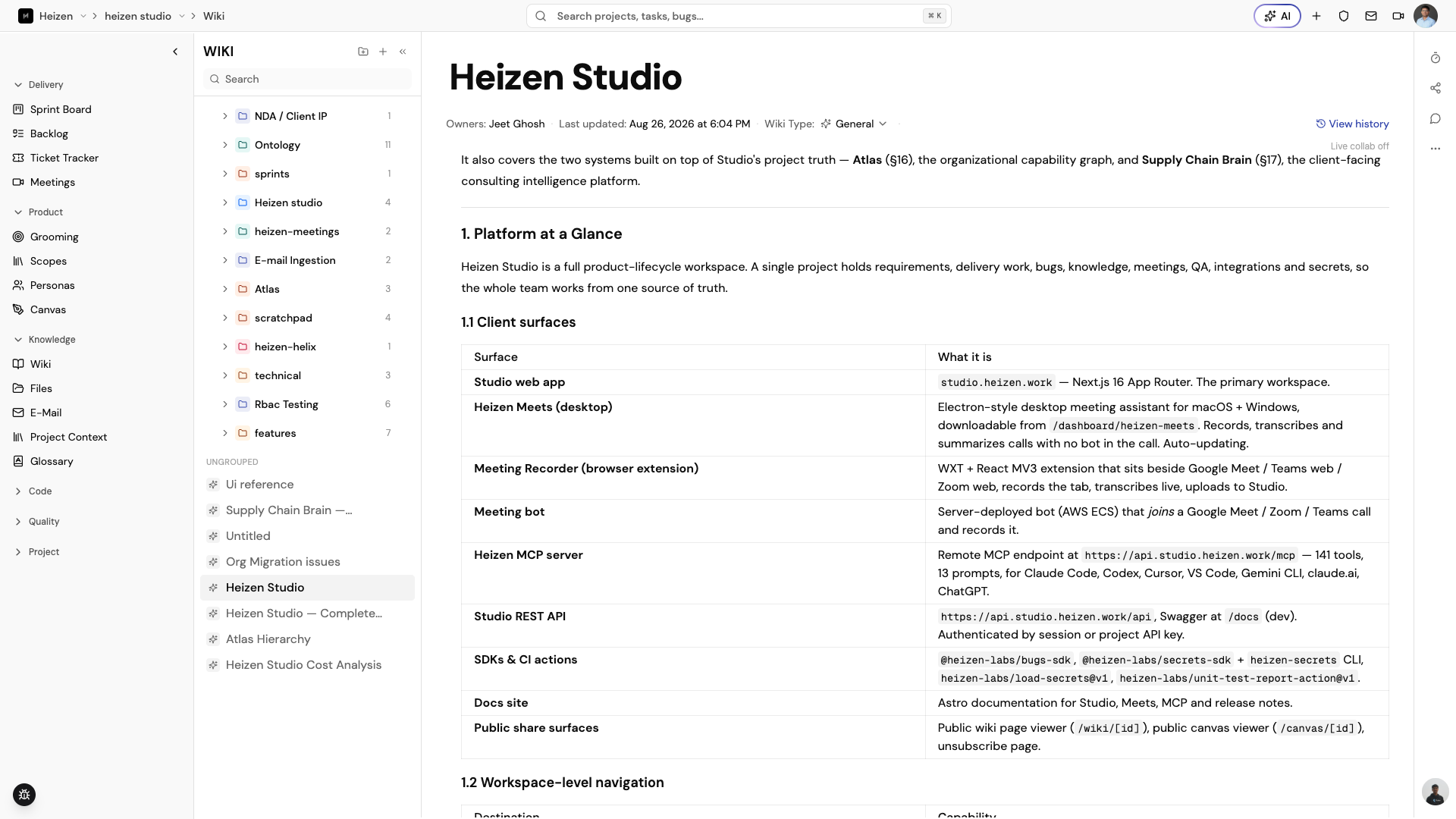
- Open Knowledge → Wiki.
- Choose New Wiki to create a page, or New Folder to create a group.
- Use the page tree to open a document, add a child page, or drag a document into a folder.
- Use the search field to find a page by title.
Folders organize pages without deleting them. If a folder is deleted, its pages become ungrouped rather than being deleted with the folder.
Edit a page
Enter a title and write in the Markdown editor. Changes save automatically and the page shows Saving, Saved, or Save failed so you know whether the latest edit reached Studio. Choose a wiki type when the page needs a more specific classification.
To resize an image, select it to reveal its resize handle and drag to the size you want. The size is saved with the page and viewers see the image at that size.
Publish a version
Draft edits are not automatically visible to viewers. When the content is ready, choose Publish, confirm the action, and Studio creates a new published version. The draft remains editable after publishing.
Use View history to inspect earlier versions. A viewer opening an unpublished page sees a “Not published yet” state rather than the private draft.
Share and collaborate
Project admins can open Share and choose:
- Restricted — only people with project access can open the page.
- Anyone with link — anyone with the link can open it at the selected View, Comment, or Edit level.
Copy the link only after checking the access level. When you paste a wiki link into chat apps such as Slack or WhatsApp, the preview shows the page title and the opening lines of the page — see Link previews in chat. Users with comment access can open the comments panel and mention teammates; comments support Markdown and attachments.
Export a page
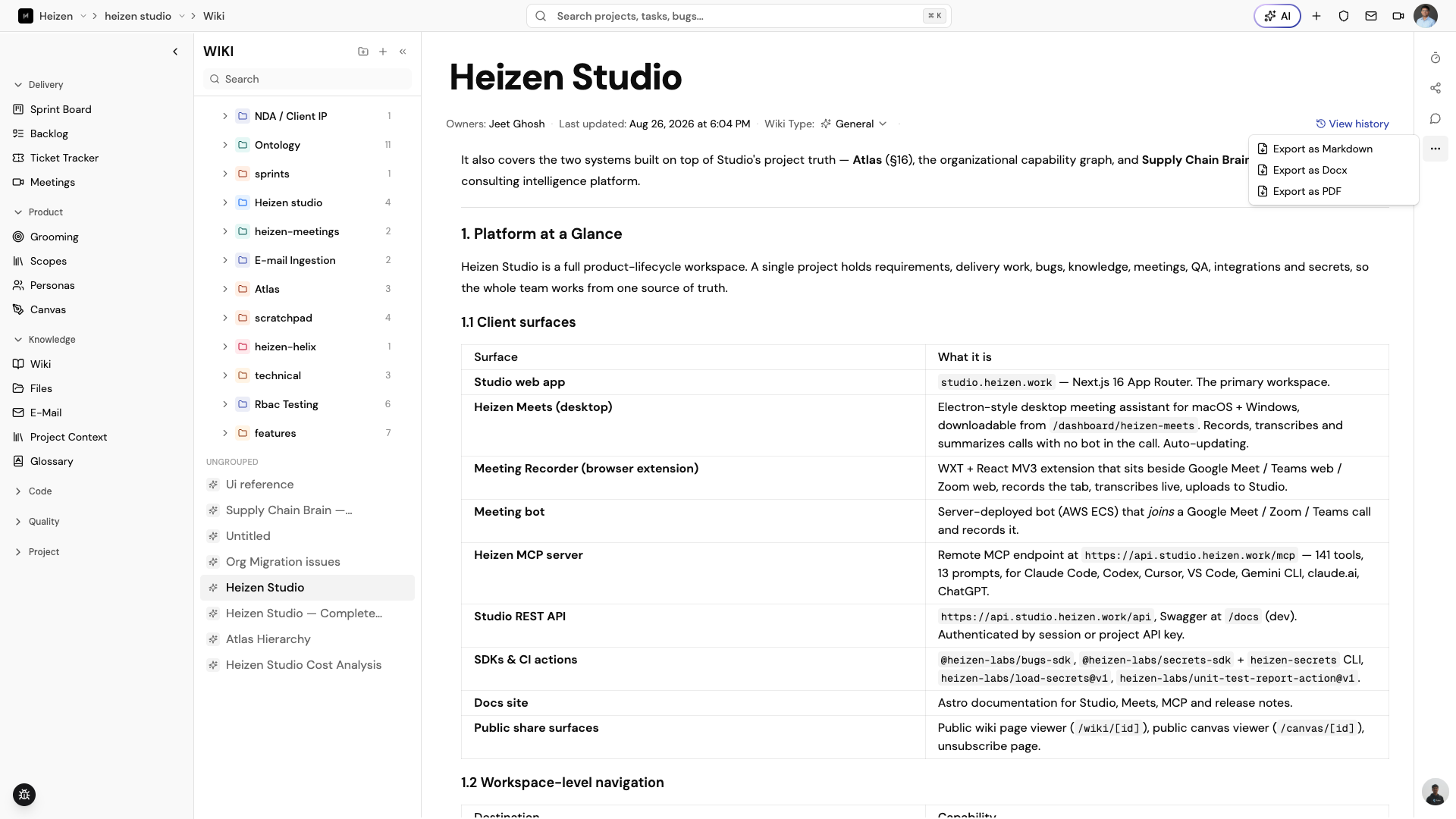
Open the More actions (⋯) menu on any wiki page to export it as a file
you can share outside Studio:
- Export as Markdown — the raw source, useful for pasting elsewhere.
- Export as Docx — a Word-compatible document.
- Export as PDF — a formatted PDF rendered directly in the browser, ready to attach to an email or a client deliverable.
Connect the wiki to the rest of Studio
If Confluence is connected, use the page’s Confluence action to push or pull content as supported by the integration; see Integrations.