
The dashboard is the workspace-level home for your projects. It is separate from the project sidebar: use it to choose a project, not to manage a project’s delivery work.
Every project belongs to an organization — organizations own projects, not individual users. Access flows from the organization down: joining an organization does not by itself grant access to its projects, and being removed from an organization removes access to every project it owns. See Organizations, roles, and permissions for the full model.
Find a project
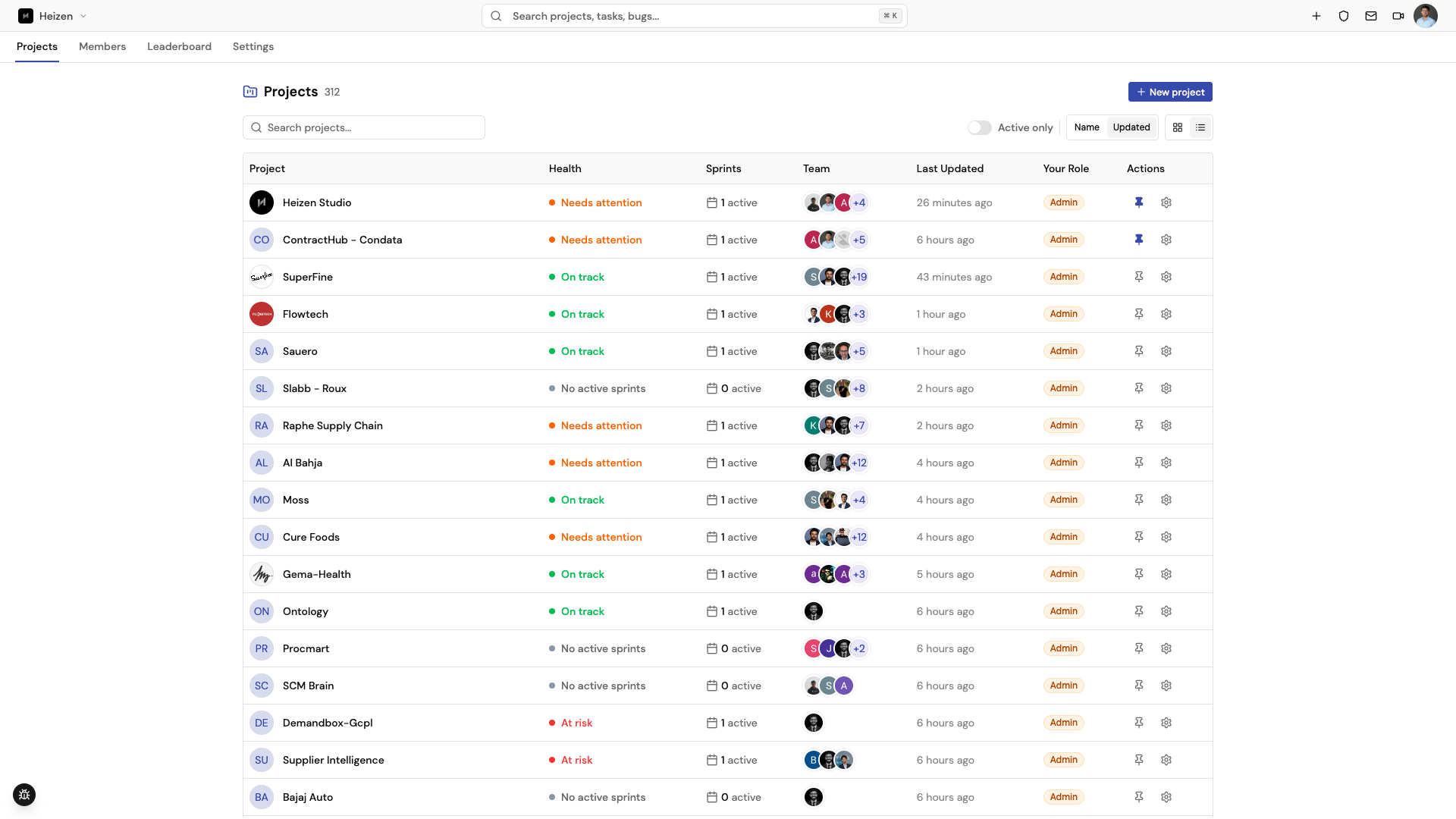
Use Search projects… to filter by project name. The dashboard can display projects as cards or as a list. Use Sort by → Name for an alphabetical view or Sort by → Last Updated to bring the most recently changed work to the top.
The Health status summarizes the project’s sprint health. Hover or focus the status to review the names and pause reasons of paused sprints.
Turn on Active projects only when you want to hide archived projects from the working view. If the filter leaves the list empty, disable it or create a new project.
Create a project
Choose Create Project from the empty state, the plus button in the global header, or the dashboard route. Enter the project name and submit. Studio creates the project, then takes you to its Sprint Board.
Switch projects without going home
When you are inside a project, use the project name in the breadcrumb to open
the project switcher. Search for a project and select it. On desktop, ⌘J on
macOS or Ctrl+J on Windows/Linux opens the same switcher.
Archive or restore a project
Project admins can archive a project from Project Settings. Archived projects move to Archived Projects in the profile menu. Restore a project there when it needs to become active again.
Organization-level tabs
The dashboard sits beside four other organization-wide tabs:
-
Catalog — reusable builds shared across the organization’s projects. See the Catalog guide.
-
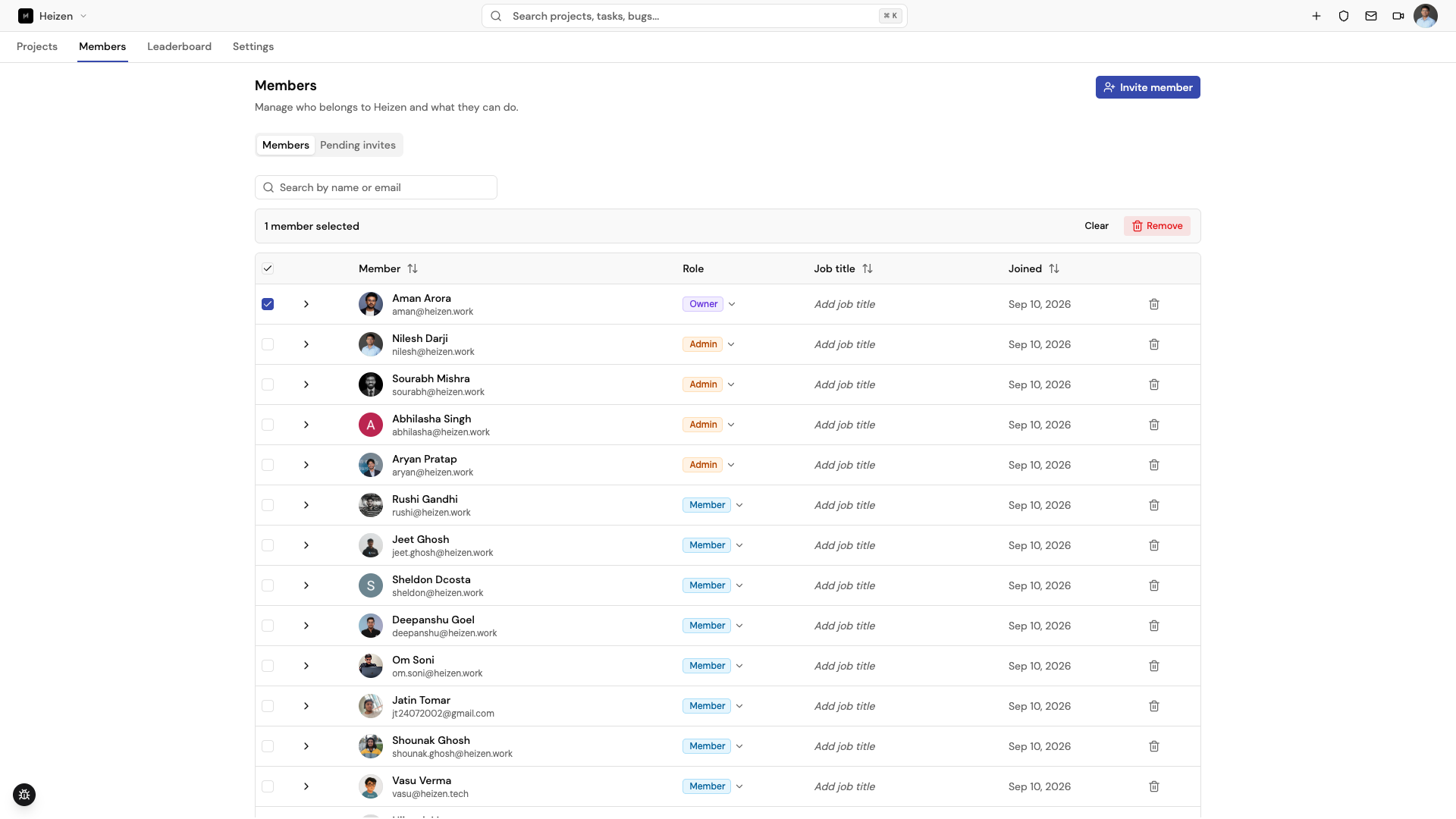
Members — every person in the organization, their Owner, Admin, or Member role, job title, and join date. Select multiple rows with the checkboxes to Remove several members at once, or use a row’s role selector to change one person’s access. Choose Invite member to bring someone new into the organization by email.
-
Leaderboard — see the QA leaderboard across every project in the organization.
-
Settings — organization name, workspace URL, logo, and the organization’s GitHub connection.
Project-level membership is managed separately from Project Settings; the organization Members tab controls who belongs to the organization at all, not who has access to one project. See Organizations, roles, and permissions for how the two combine.
Link previews in chat
When you paste a Studio link into Slack, WhatsApp, Teams, or a similar app, the preview card shows what the link points to:
- A specific item — wiki page, canvas, story, ticket, file, meeting, sprint, requirement, test plan, or catalog entry — shows its title and the opening lines of its description.
- Any other page shows the page name and project, for example “Backlog · Ontology”.
Anyone who has the link can see this preview, including people without access to the project, but opening the page itself still requires signing in.
How it works
The dashboard keeps the active/list preference and sort preference locally in your browser. Project data itself remains scoped by the signed-in account and the project permissions returned by Studio.