
Knowledge → Files is a structured resource browser. It keeps the material that informs a project in folders with names, types, tags, and source links.
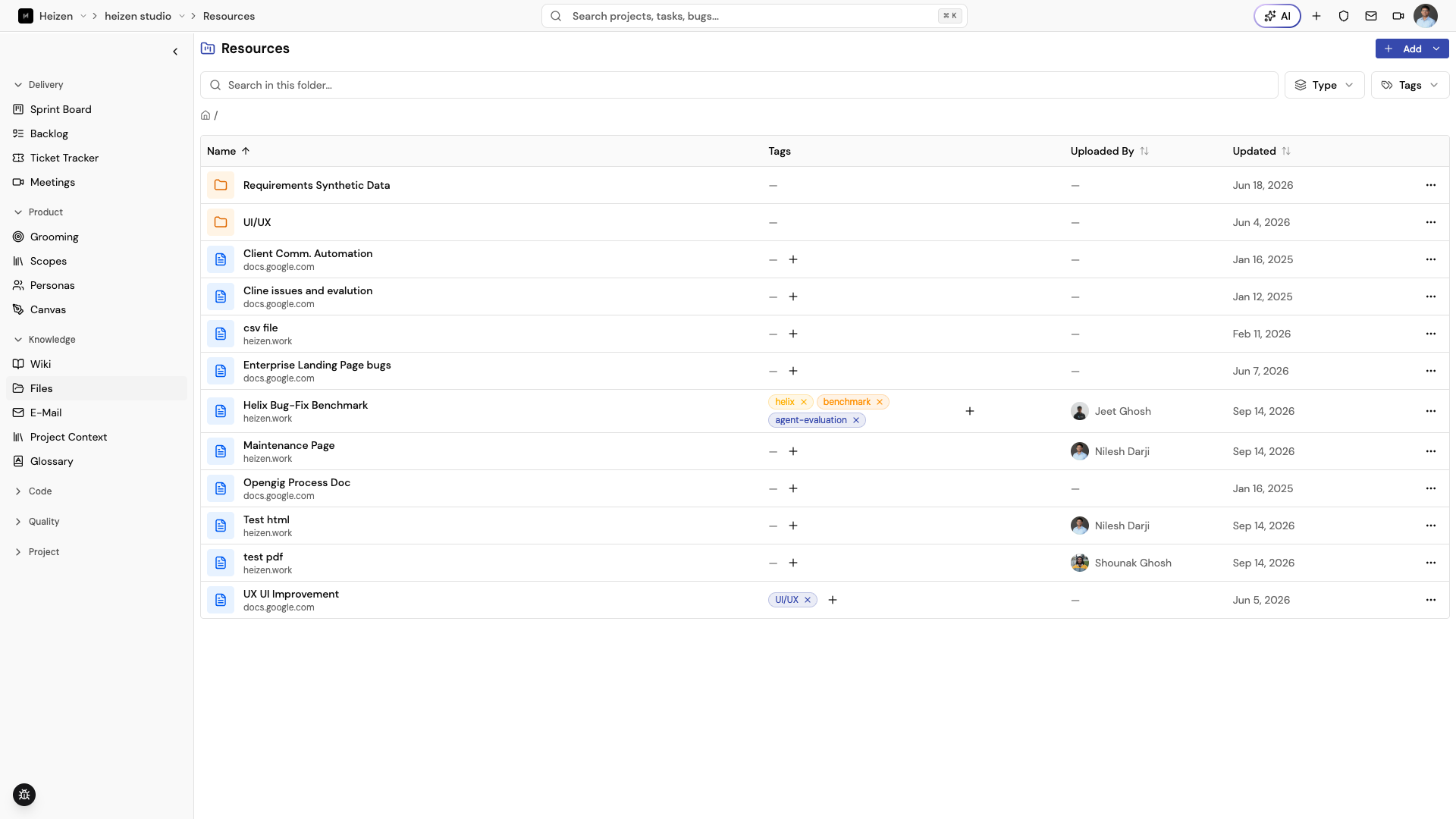
Create folders
Choose New Folder, enter a name, and create it at the project root or inside the current folder. Use the breadcrumb to move between folders. Rename or delete the current folder from the folder actions; deleting a folder does not delete the resources inside it, which become available from the parent level.
Add a resource
Choose Add Resource and select the resource type. Studio supports:
- Documentation
- Meeting
- Video
- Reference
- Repository
- Other
Give the resource a clear name, add tags, and provide a URL. Documentation and Reference resources can also be uploaded as supported files, including common PDF, office, text, image, archive, JSON, and Markdown formats.
Find and maintain resources
Search the current folder by resource name or tag. Use the type and tag filters
to narrow the table. Choose a row’s ⋯ menu to Edit its metadata,
Move it to another folder, Share it, or Delete it after confirming
the action.
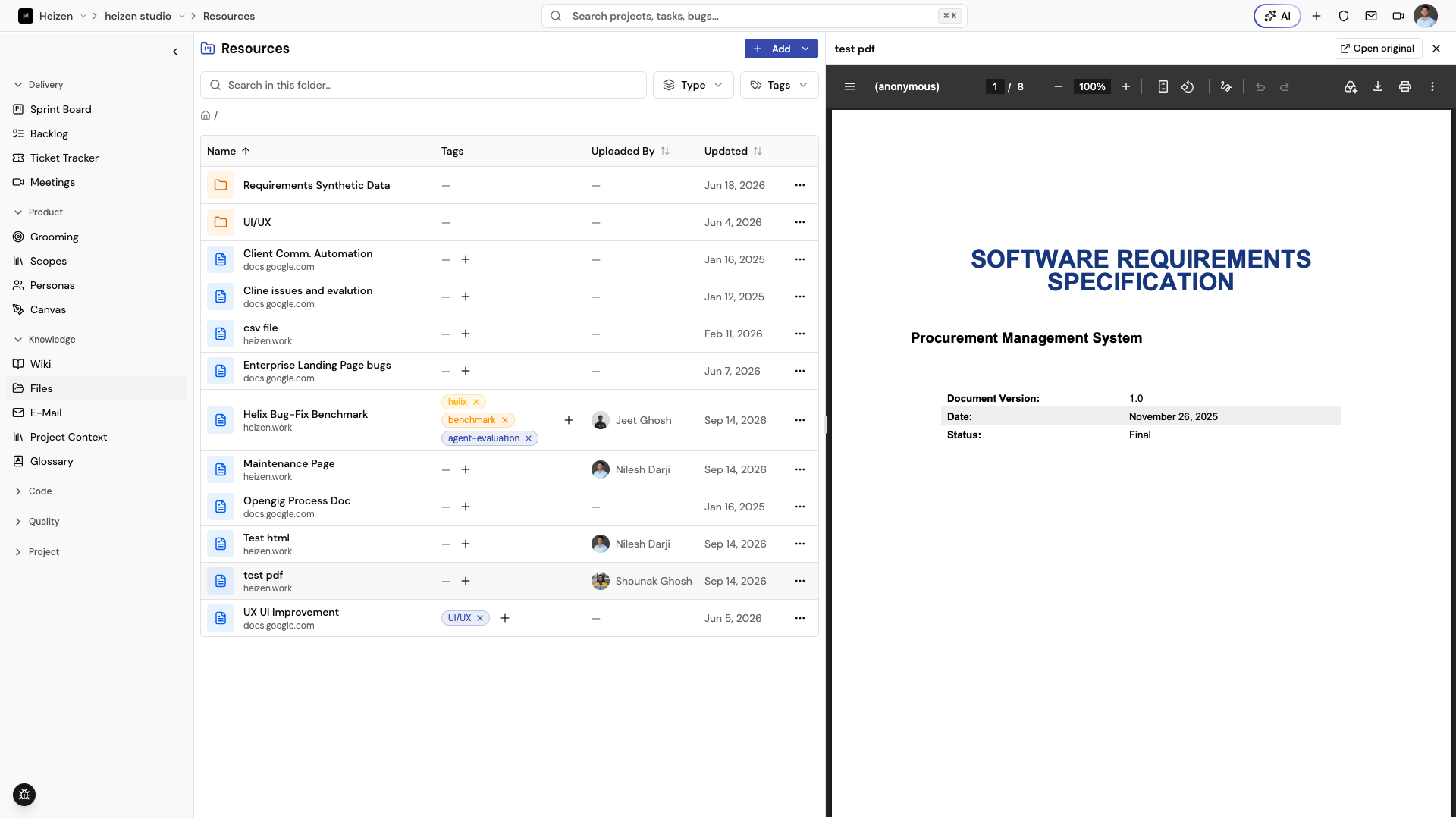
Preview a resource
Choose a resource row to open it in the preview panel without leaving the page. Images, PDFs, office documents, and spreadsheets render inline with zoom, page navigation, download, and print controls; choose Open original to view the source file in a new tab.
Share a resource
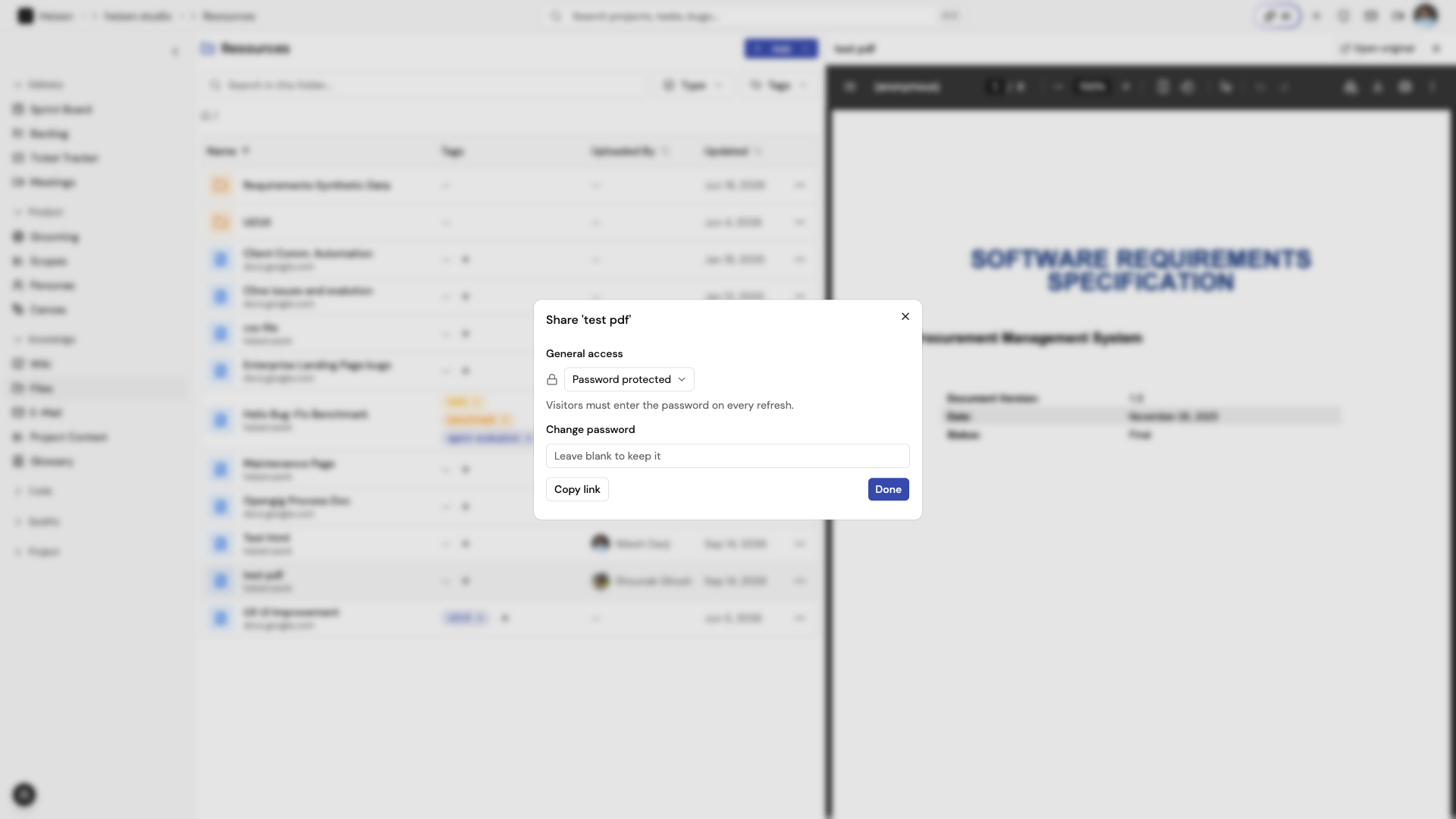
Open Share from a resource’s ⋯ menu to publish it outside the project.
Choose the General access level — restricted, password protected, or
anyone with the link — and use Copy link to send it. Sharing does not
change who can edit the resource inside Studio, only who can view the shared
link.
A shared link’s chat preview shows the file name. Password-protected links show “Password-protected file” instead, so the name stays hidden until the password is entered.
Use resources as product context
Add a short description and stable tags so another teammate can tell which document should be used for which planning task.
Helix can answer questions from uploaded PDF, Word, Excel, CSV, PowerPoint, HTML, Markdown, and text files, and cites the page, sheet, or slide it used. Linked resources, archives, and scanned PDFs are listed but not read.
Helix can also create resources. Ask it in Action mode for an HTML artifact, such as a status report or a dashboard, and it saves the page as an HTML resource and opens its preview. To change it, ask Helix in the same or a new chat, for example “make the header compact and add a status column.” Helix edits the saved page and reopens the updated preview.