
Integrations connect a project to the external tools your team already uses. Open a project and choose Integrations in the project sidebar.
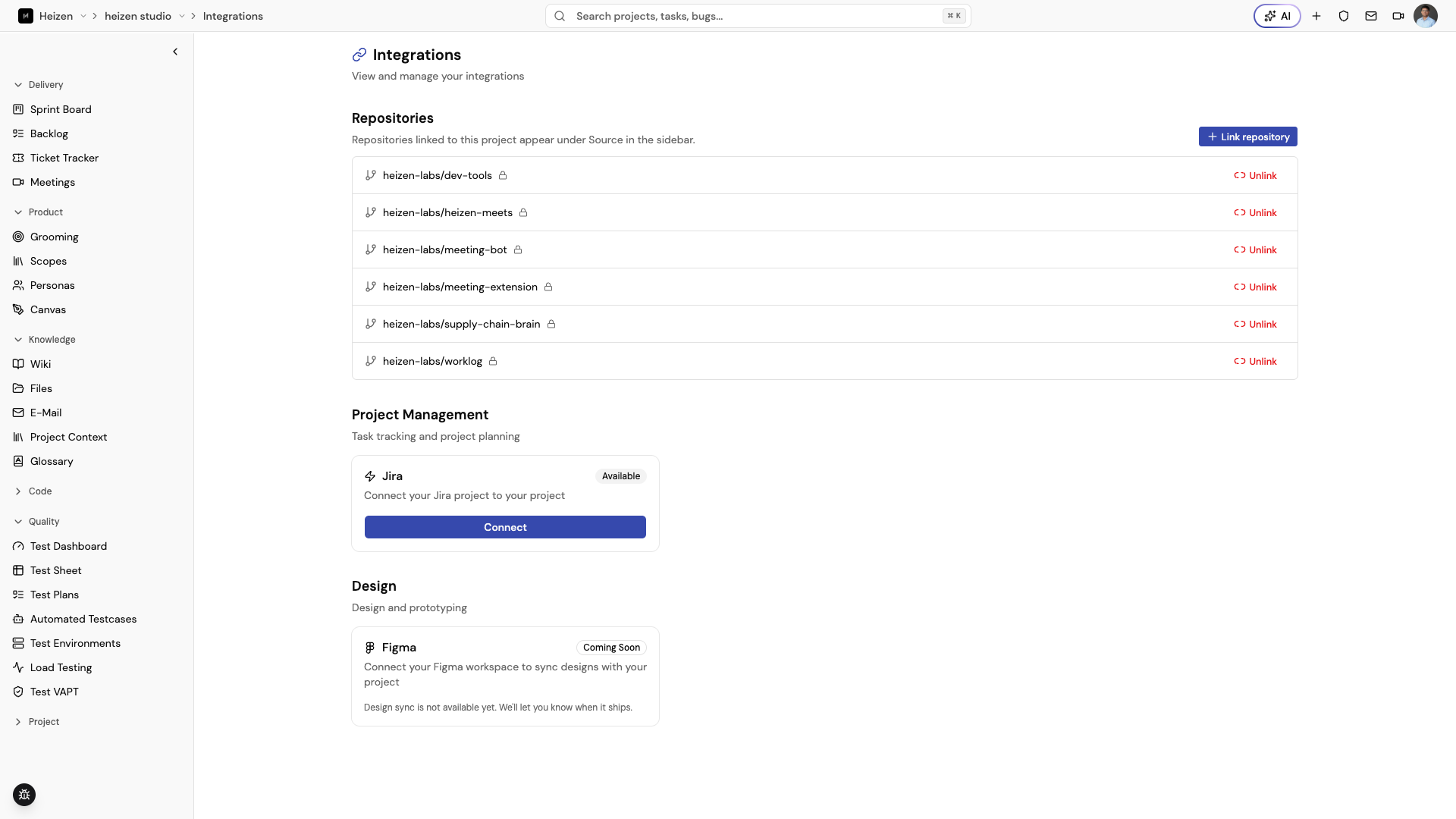
Connect an integration
Connect the provider at the organization level (GitHub only)
An organization admin connects the provider once, from Organization → Settings, so every project in the organization can link its repositories from it. Jira is connected per project instead — see below.
Link it into the project
Select a project, choose Integrations from the sidebar, and link the specific repositories or Jira project this project needs.
Verify the connection
Return to the Integrations page and confirm the provider or repository shows as connected. Linked repositories then appear under Source in the project sidebar.
GitHub
GitHub is connected once per organization, by an organization admin, using a GitHub App installation rather than a personal access token. Project admins then choose which of the organization’s accessible repositories to link into their own project — linking a repository doesn’t require re-authenticating with GitHub.
Connect GitHub for the organization
- Open Organization → Settings.
- Under Integrations, choose Connect GitHub (or Add GitHub account if GitHub is already connected and you need to add another account or organization).
- Complete the GitHub App installation and choose which repositories Heizen can access. An organization can connect several GitHub accounts or organizations this way.
- Use Configure access at any time to change which repositories the installation can see, or Disconnect to remove it — this removes access for every project in the organization.
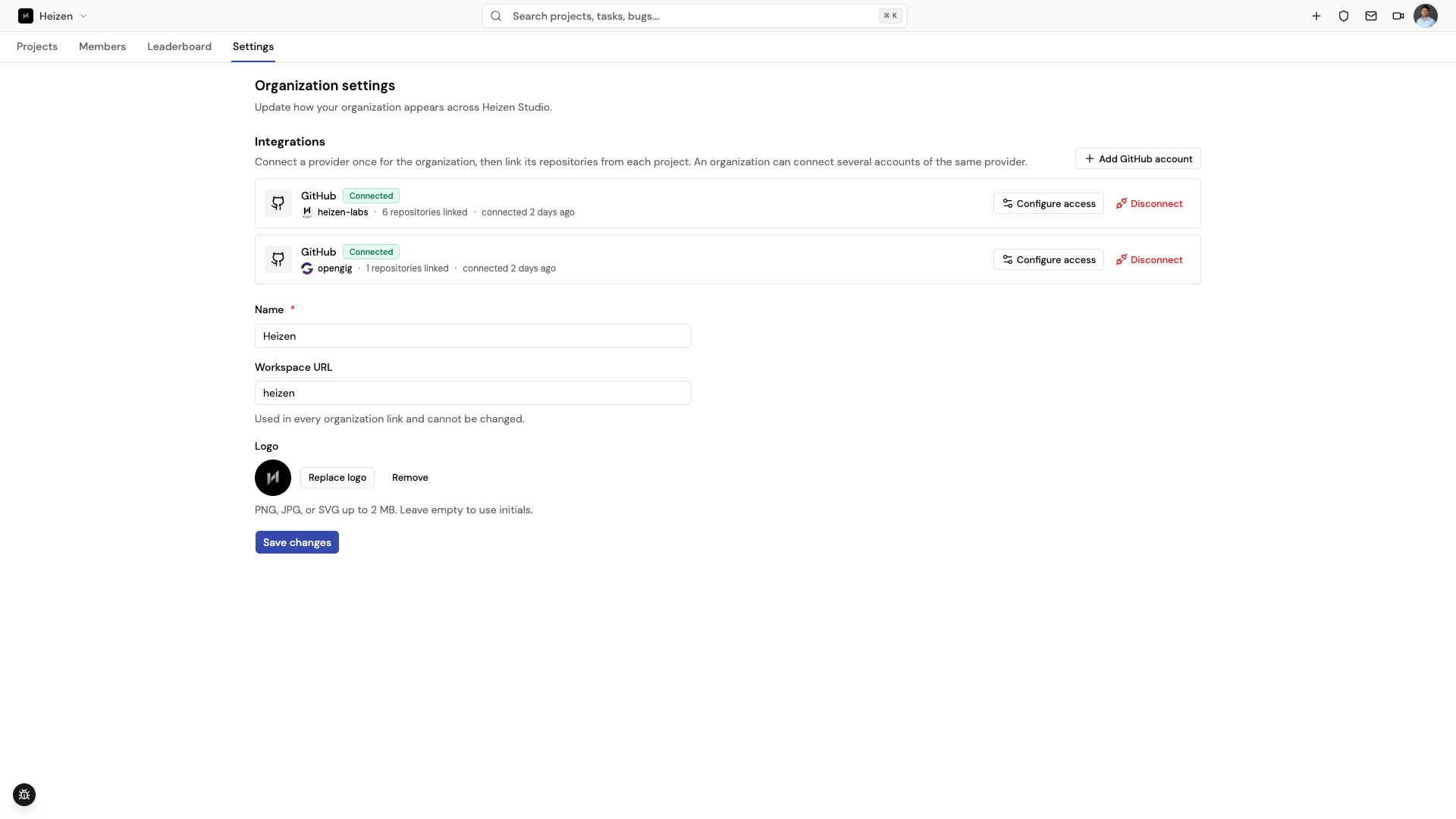
Only organization admins can connect, configure, or disconnect GitHub.
Link repositories into a project
- Open the project, choose Integrations from the sidebar, and under Repositories choose Link repository.
- If more than one GitHub account or organization is connected, switch between them using the account tabs at the top of the dialog — only repositories that account can access are listed.
- Search for a repository and choose Link. An already-linked repository shows Linked instead of a Link button.
- Choose Unlink on a repository’s row when the project should no longer use it.
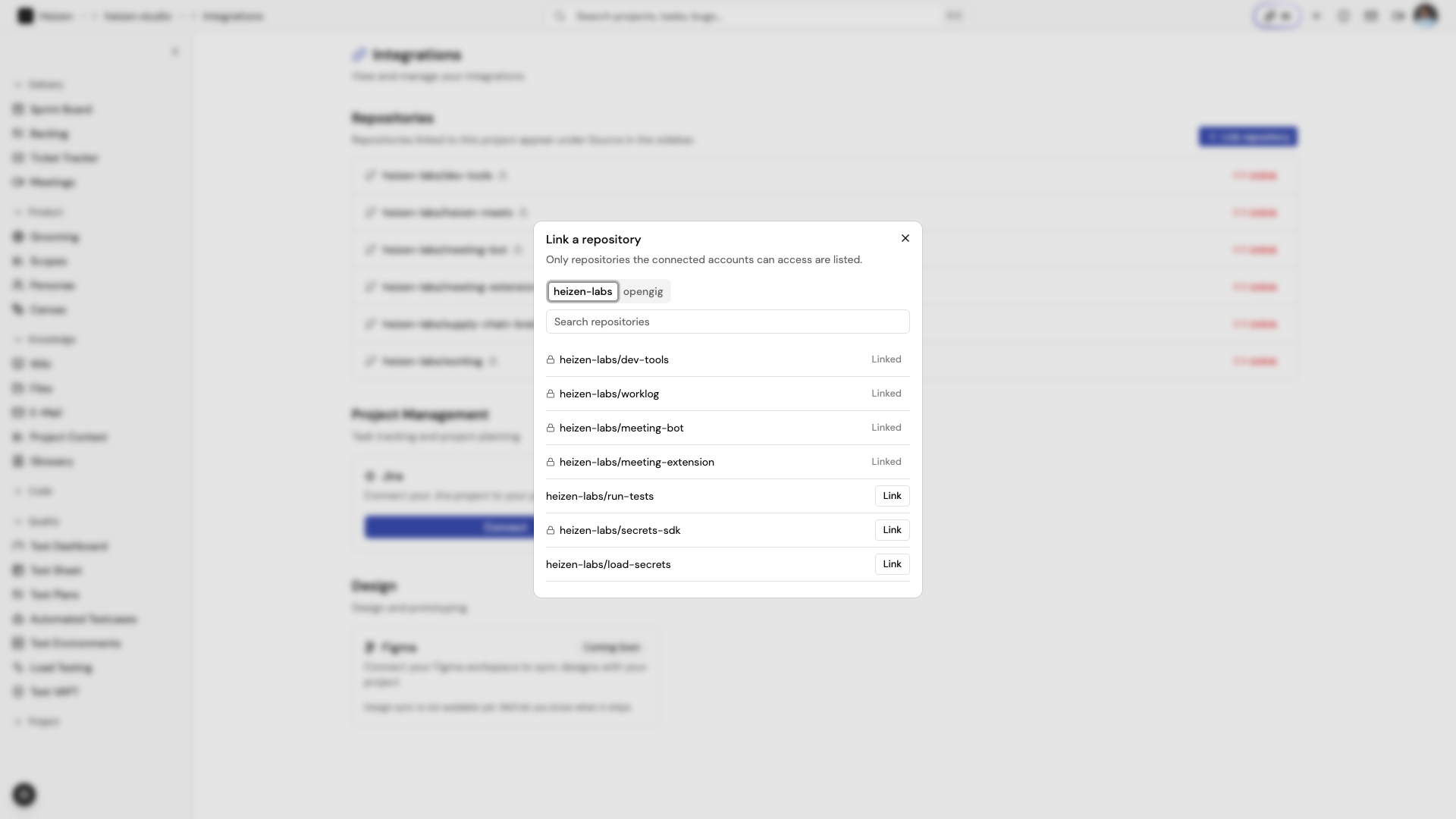
Every linked repository appears under Source in the project sidebar, where you can browse its activity, files, commits, pull requests, and issues without leaving Studio — see the Source guide.
Helix reads linked repositories through the same link. It checks repository read permission in the current project before it lists or opens anything, and it only sees the repositories linked to that project. Unlinking or disconnecting a repository stops Helix reads the same way it stops the Source pages.
Convert a source issue through the API
Use POST /api/projects/:projectId/repositories/:repositoryId/issues/:issueId/ticket
to create a ticket from a GitHub, GitLab, or Bitbucket issue. The ticket keeps
the issue title, includes its description and source URL, and receives a
lowercase provider tag. An empty description gets a placeholder naming the source.
Repository read and ticket create permissions are required.
An issue can have one converted ticket. Repeating the request returns 409
with the existing ticket. Use GET on the same endpoint to retrieve the linked
ticket or { "ticket": null }. Reading the linked ticket requires repository
and ticket read permissions; internal tickets remain hidden from guests.
Jira
Connect Jira through the authorization flow, then link the relevant Jira project. Once connected, Jira-specific project navigation such as Jira Board becomes available under More in the sidebar.
Use the board to inspect Jira work alongside the delivery workflow in Studio. Jira access and issue changes still follow the permissions of the connected Jira account.
Google Calendar and Gmail
Google Calendar and Gmail are account-level connections rather than project integrations. Manage them from Account settings. Calendar powers meeting views and the meeting panel; Gmail powers the project E-Mail experience.
Developer SDKs and CI
These integrations connect application runtime behavior and continuous integration results to Heizen Studio:
- Heizen Secrets SDK fetches project environment values for
Node.js applications or injects them into a spawned command with the
heizen-secretsCLI. - Heizen Bugs SDK adds an in-app React bug-report widget that captures descriptions, screenshots, recordings, and page metadata.
- Automated Testcases receives unit-test and
coverage reports from GitHub Actions after pushes to
main.
Use a project API key for these integrations, keep it in the runtime or CI secret store, and grant only the permissions required by the integration.
How integrations work
Studio stores the project-to-provider association and uses the provider connection when a page requests external data. Disconnecting a provider stops future access, but it does not automatically remove project records that were already created in Studio. Review the affected project pages before disconnecting an integration.
For AI and developer-tool integrations, see the MCP documentation.