
Helix is the project-aware AI assistant in Heizen Studio. It uses the current project, page, and records you mention to answer questions, research decisions, create structured plans, and carry out explicitly requested changes.
Open Helix
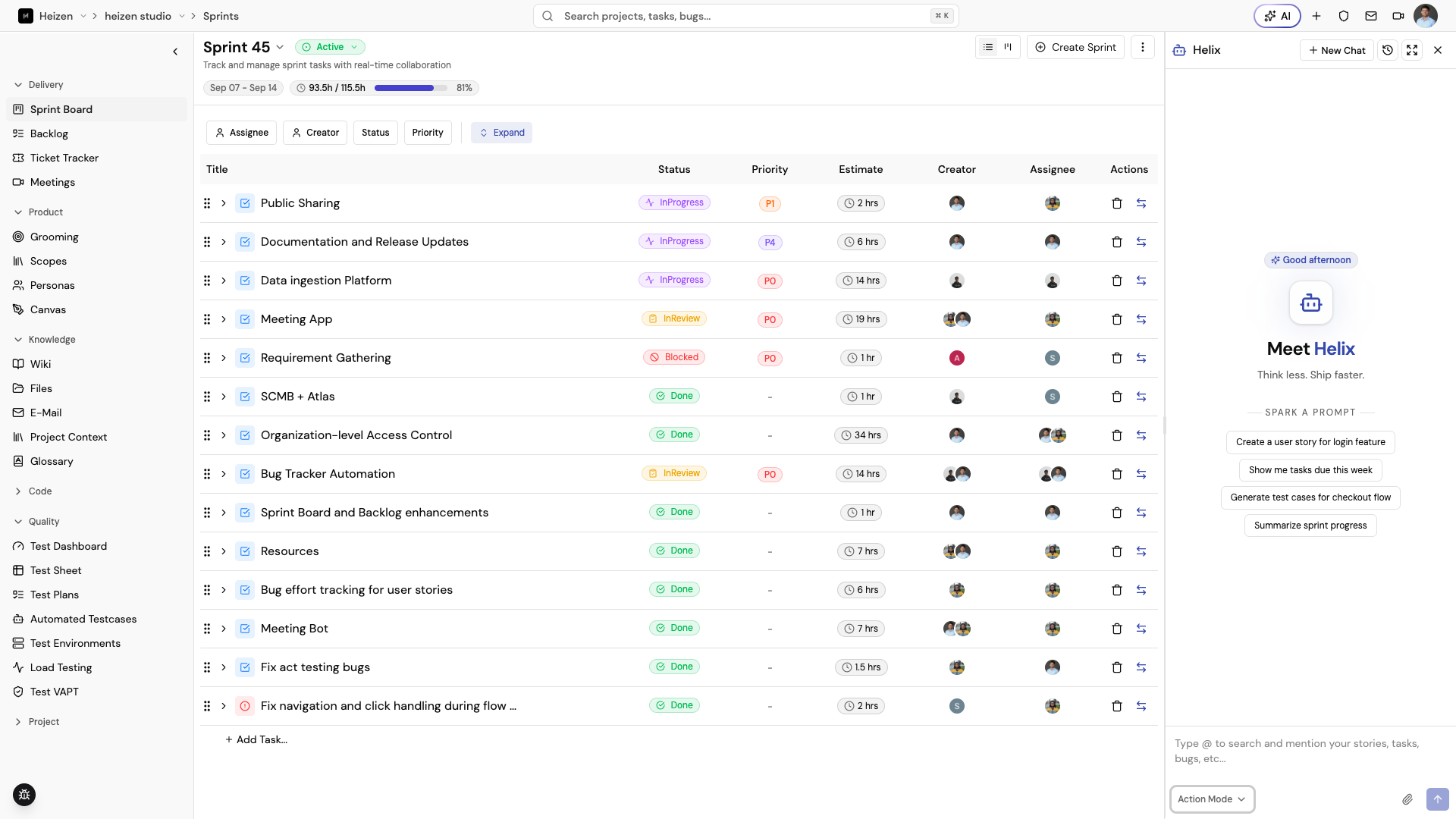
Inside a project, choose AI in the global header to open Helix beside the current page. Use the expand button to open the dedicated Helix page. The full page keeps your chat history, lets you start a new chat, and gives you the same project context as the embedded panel.
Use @ in the message field to mention a story, task, ticket,
wiki page, or another available project record. Each suggestion shows when
the record was created, or when the meeting took place, as a relative time
such as “2 days ago”; hover it to see the exact date and time. This helps
tell apart records with the same title. In sent messages, hover a mention to
see the same date. You can also attach files
when the request needs additional source material.
Helix can read PDFs, images, text files, and Word (.docx) documents.
Helix can also answer from files already uploaded to Knowledge → Files:
PDF, Word (.docx), Excel (.xlsx, .xls), CSV, PowerPoint (.pptx), HTML,
Markdown, and text files. Name the file in your question — for example, “What
does page 2 of the pricing PDF say about seats?” Helix reads only the parts it
needs and cites the file and section, such as a page, sheet, or slide. It can’t
read the contents of linked resources such as Google Docs or Figma files,
archives, or scanned PDFs without a text layer; for those it tells you and
gives you the link instead.
Choose a mode
Action mode
Use Action mode when you want Helix to inspect or change project work. It can:
- find and summarize sprints, tasks, stories, tickets, meetings, wiki pages, project resources, email threads, diagrams, and QA records;
- create sprints, and create or update tasks, stories, tickets, wiki pages, diagrams, test suites, test cases, API test scenarios, and test plans;
- create or update requirements, modules, scopes, personas, and data fields, and add links between requirements. Each change Helix makes to a requirement’s wording or criteria is saved as a new version. Helix cannot approve requirements, sign off scopes, or delete anything;
- create or update canvas diagrams such as user flows, architecture diagrams, BPMN diagrams, sequence diagrams, and data-flow diagrams;
- create a project Gmail draft and return its editor link;
- build or edit an HTML artifact, such as a report, dashboard, one-pager, or clickable prototype, save it to the project’s Resources, and open it there with the chat still beside it; and
- explore a registered prototype URL to verify screens, transitions, and user flows.
Helix reads the relevant record before changing it and asks structured questions when a decision would change the result. Ask it to make a change only when you are ready for the project data to be updated.
Plan mode
Use Plan mode before execution when you want to think through a problem. Helix can read project records and meeting excerpts, search the web for current technical guidance, compare approaches, identify risks and dependencies, and produce an implementation plan with tasks, acceptance criteria, testing strategy, and next steps.
Plan mode is read-only. It never creates or updates project records. Switch to Action mode when you are ready to apply a plan.
Sprint grooming mode
Use Sprint Grooming mode with a product idea, PRD, or set of requirements. Helix asks only the clarifying questions it needs, decomposes the idea into requirements and sub-requirements, estimates planning, development, buffer, and testing effort, and renders a structured sprint plan with focus areas and risks.
Sprint Grooming mode is also read-only. The rendered plan is a recommendation; it does not create sprints, tasks, or stories.
Agent runs from a ticket or story
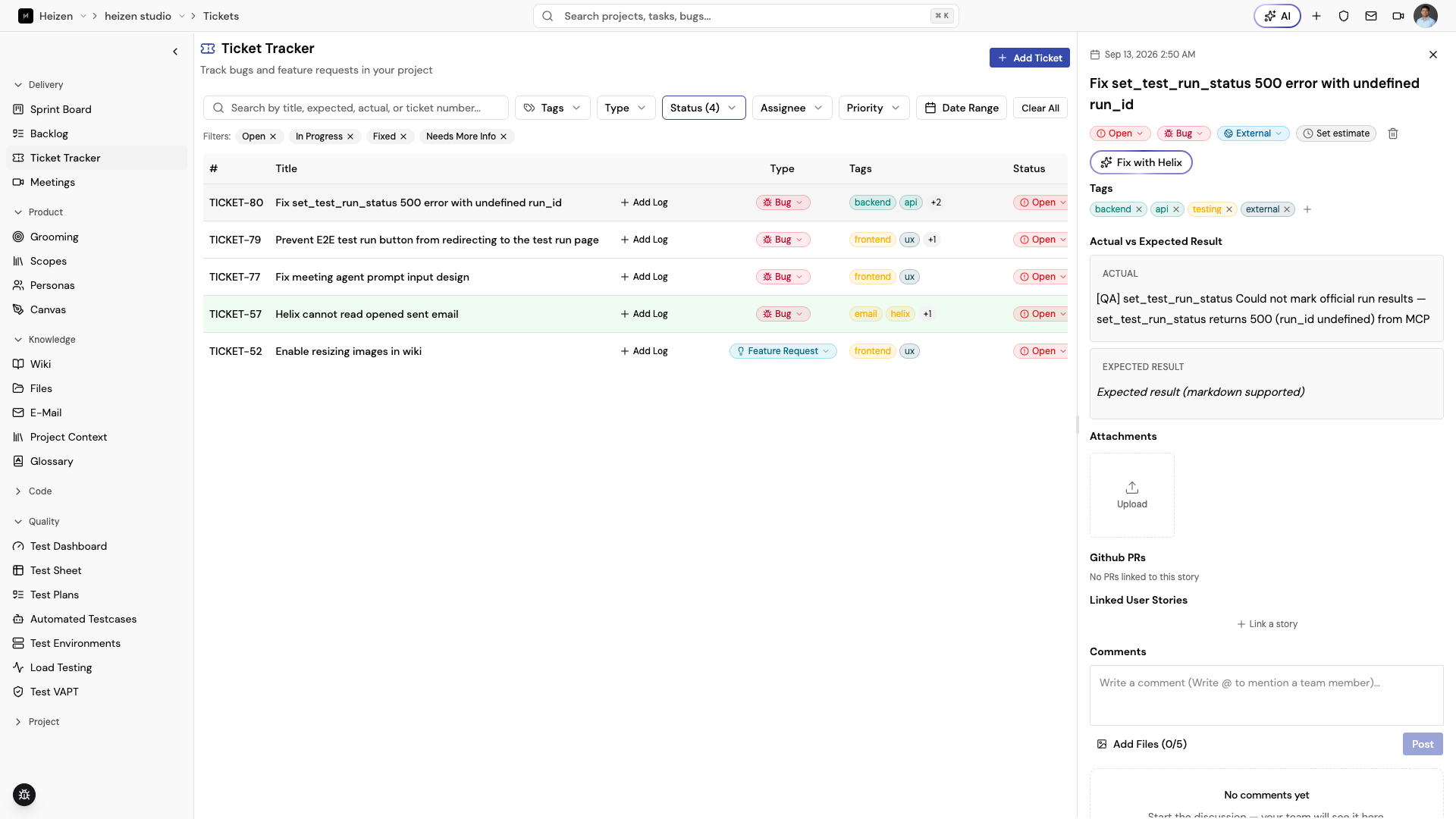
Open a ticket in the Ticket Tracker and choose Fix with Helix, or open a story on the sprint board or backlog and choose Build with Helix, to start an agent run scoped to it. Helix works it as a background run instead of a foreground chat message and opens a pull request from its own branch.
What it reads depends on the ticket type. On a Bug, Helix reads the actual result and the expected result and works a fix. On a Feature Request, there is no actual result — Helix reads the requested feature and builds it. Both runs also use the ticket’s tags and any linked context.
On a Story, Helix reads the description, acceptance criteria, and the images under References, and treats the acceptance criteria as the definition of done. Its pull request lists each criterion as met or not, and its reply tells you which ones it could not satisfy. When the pull request opens, it is linked to the story and a story in Todo, In Progress, or Blocked moves to In Review.
Helix runs the repository’s own typecheck, lint, and test commands before it
commits, and then commits and pushes with git hooks bypassed, even when the
repository’s CLAUDE.md or AGENTS.md asks for them. Pre-commit and pre-push
hooks do not run on a Helix branch, so treat the checks reported in the pull
request as the gate.
Review the resulting change the same way you would review any other Action mode output before merging or closing the ticket.
Project data Helix understands
Helix can work across the connected parts of the current project:
- Product and delivery: sprints, tasks, stories, tickets, and requirements with their modules, scopes, personas, links, data fields, and version history.
- Knowledge and collaboration: wiki pages and templates, project files and links, meetings and targeted transcript excerpts, project email, and inbox threads that can be assigned to a project.
- QA: test suites, test cases, API test scenarios, test plans, environments, test executions, and test-case results. Test execution records are available for analysis; Helix cannot trigger a test run.
- Design: canvas diagrams and the draw.io shape library for specialized architecture, cloud, network, UML, and BPMN shapes.
- Source code: repositories linked to the project: repository names, issues, pull requests, and file contents. Read-only — Helix reviews code here and still cannot push, merge, or comment on the provider. A bare “issues” ask means these repository issues, while “tickets”, “bugs”, and feature requests mean the Ticket Tracker.
Responses stay scoped to the project you have open and the access your account has to it. Helix does not use a project page as permission to change data on a different project.
Helix in meetings
The meeting assistant can answer questions about a live or completed meeting, including what was discussed, decisions, risks, blockers, and assigned actions. It can summarize the recent conversation, suggest follow-up questions, explain technical terms with external research when needed, and cross-reference project records when the meeting belongs to a project. For recurring calendar meetings, it can also look up previous meetings in the same series when that history is available.
Explore a prototype safely
To ask Helix to understand a live prototype, first add its URL to the project’s Resources as a Reference resource. Then ask Action mode to explore the URL and state the flow or product area you want investigated. Helix performs a read-only exploration and returns the screens, transitions, states, and source URLs it could verify. It does not use a prototype report as permission to create project records.
Example prompts
- “Summarize the open tickets assigned to me and group them by priority.”
- “Create a user story for the login feature with Gherkin acceptance criteria.”
- “Research the best approach for adding audit logs and propose an implementation plan.”
- “Estimate this PRD and render a sprint plan with risks.”
- “Generate a sequence diagram for sign-in with two-factor authentication.”
- “Explore the checkout prototype and list the states and error paths.”
- “List the repositories linked to this project.”
- “Find open issues about login and read the matching pull request.”
- “Build an HTML dashboard of this sprint’s stories by status and owner.”