
The Catalog is an organization-wide list of reusable work: features, patterns, integrations, utilities, tools, AI prompts, and design systems that one project built and another could reuse. Open it from the Catalog tab beside Projects at the top of the organization dashboard.
Use it before you start a story to check whether someone has already solved the same problem, and add to it when your team ships something worth reusing.
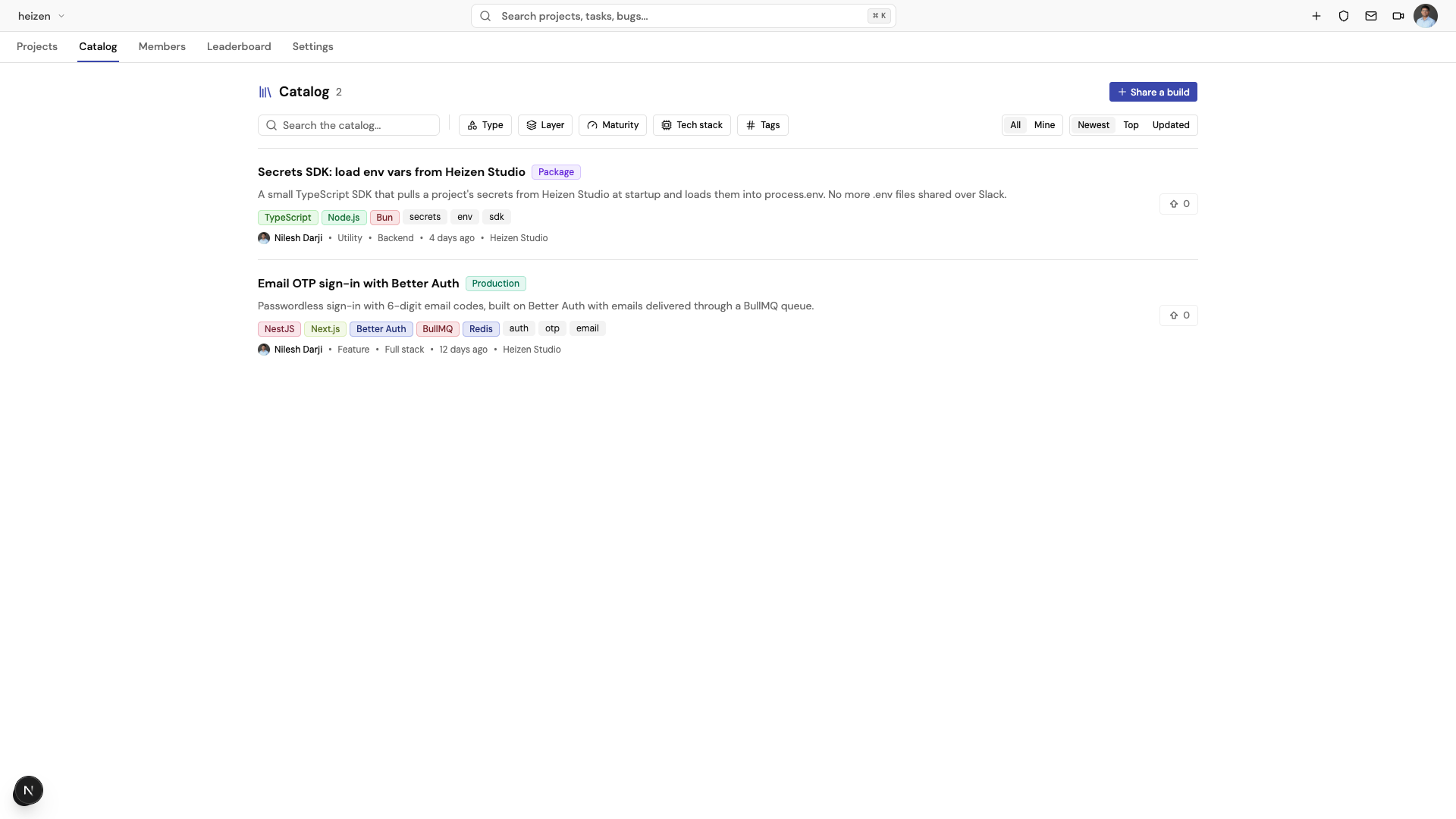
Find a build
- Search matches titles, summaries, the problem each entry solves, the details text, and exact technology or tag names.
- Type, Layer, Maturity, Tech stack, and Tags narrow the list. Choose Clear to remove every filter.
- All shows every published and deprecated entry, plus your own drafts marked with a Draft badge. Other people’s drafts never appear. Mine shows the entries you wrote or contribute to, including drafts.
- Sort by Newest, Top (most upvoted), or Updated. While searching, Best match is also available.
Filters, search, and sort are kept in the URL, so you can share a filtered view.
Share a build
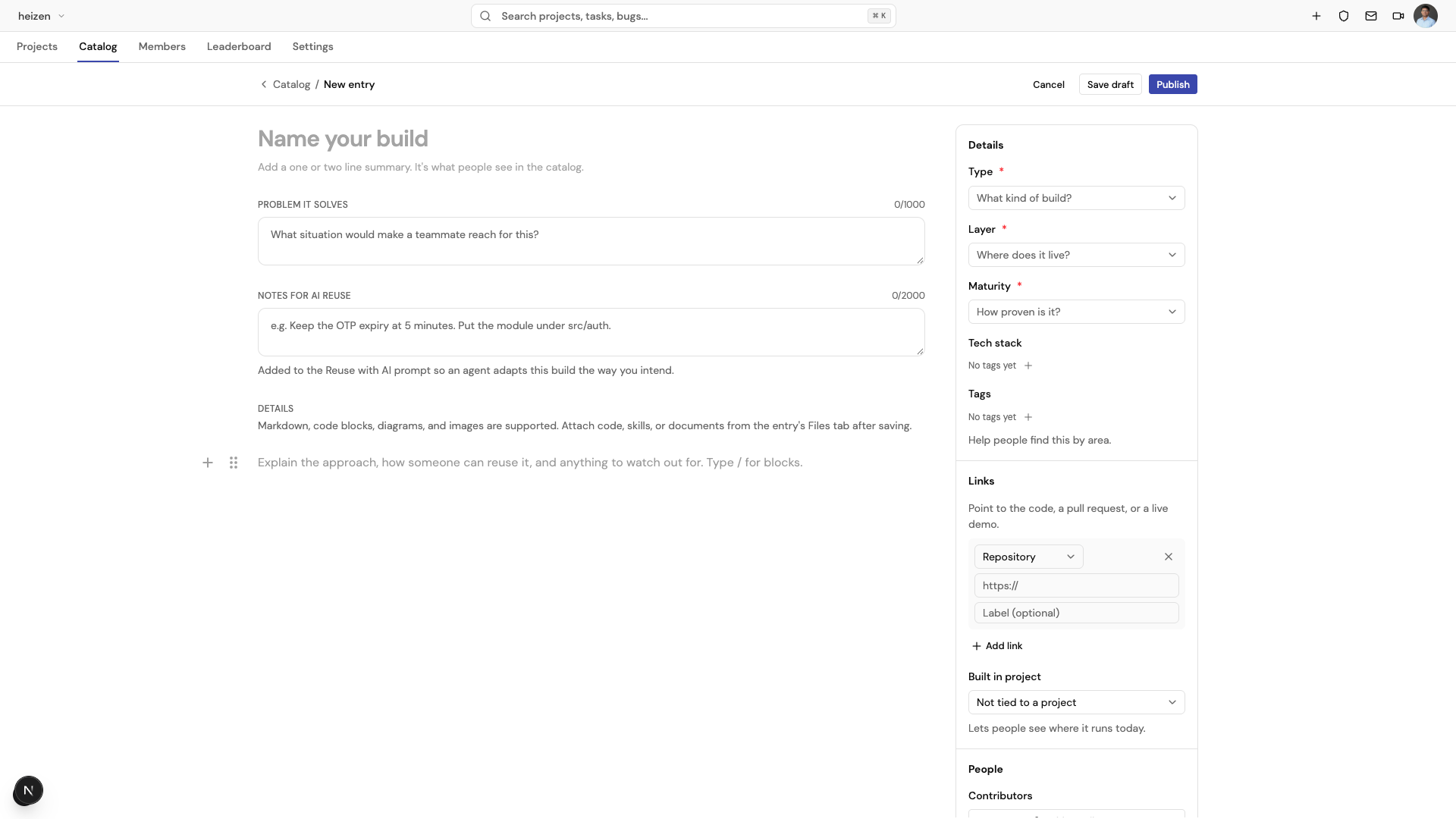
- Choose Share a build.
- Give it a title and a one or two line summary. The summary is what people see on the catalog card.
- Describe the Problem it solves.
- Optionally add Notes for AI reuse — instructions an agent should follow when it adapts this build, like where files belong or limits to keep.
- Use Details for the approach, how to reuse it, and anything to watch out for. Markdown, code blocks, diagrams, and images are supported.
- In the side panel, choose the Type, Layer, and Maturity, then add the Tech stack and Tags.
- Under Links, point to the repository, a pull request, docs, a design, a video, or a live demo. Choose Built in project to show where it runs today.
- Add Contributors who should share the credit and be able to edit it.
- Choose Save draft to finish later, or Publish to share it with the organization.
- Open the entry’s Files tab to attach code, skills, or documents.
To publish, an entry needs a summary, the problem it solves, at least one technology, and at least one link. Drafts can be saved without them, and only the author and contributors can see a draft.
To publish a draft without opening the editor, open the entry and choose Publish at the top. It is shown on drafts you can edit. If something required is missing, a message says what to add; choose Edit to fill it in.
Use the Design system type for design work such as tokens, UI kits, and component guidelines.
| Field | Options |
|---|---|
| Type | Feature, Pattern, Integration, Utility, Tool, AI prompt, Design system |
| Layer | Frontend, Backend, Full stack, Mobile, Infra, Data, AI |
| Maturity | Experimental, Production, Package |
Read and upvote an entry
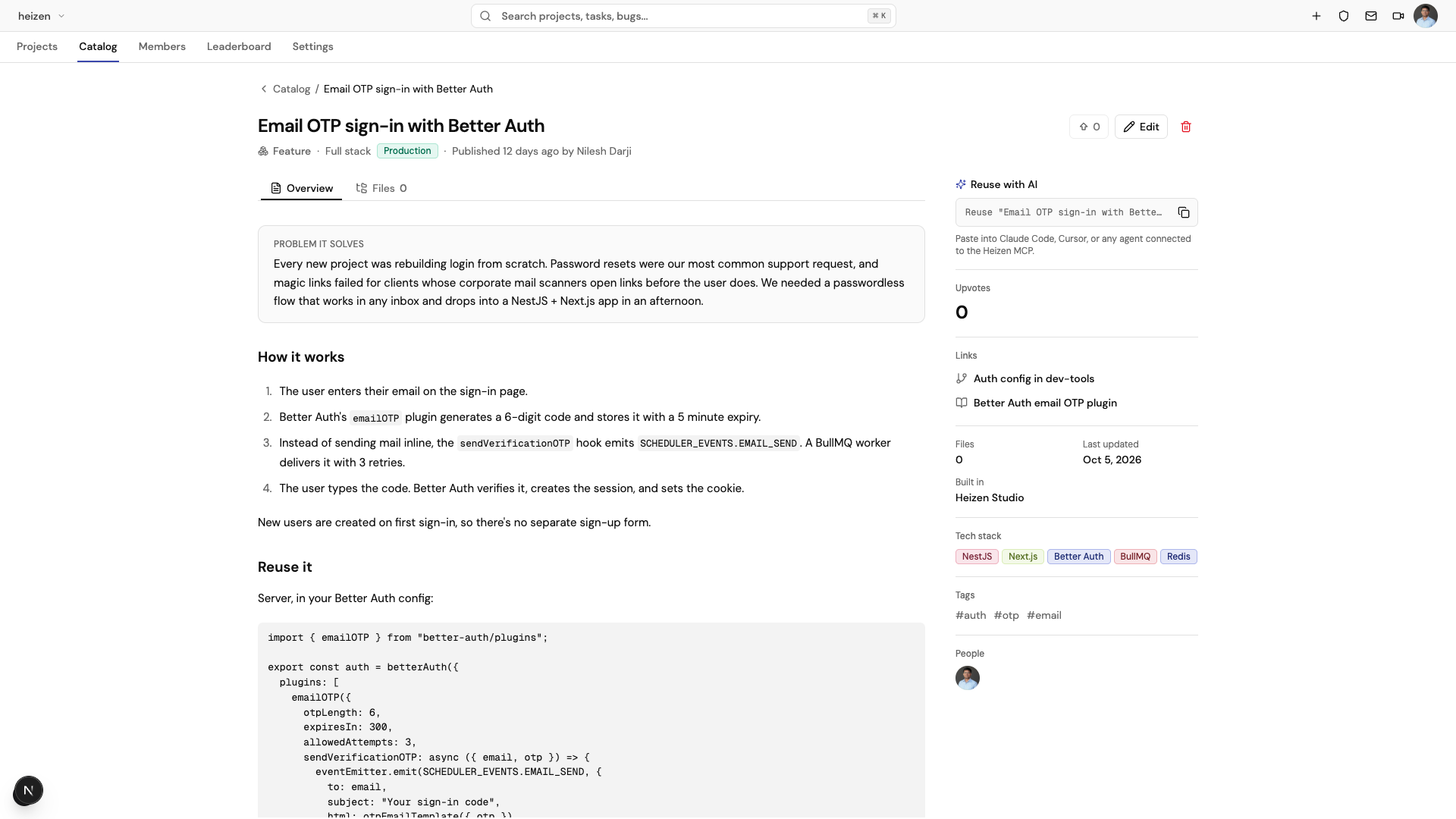
An entry page shows the title, type, layer, maturity, and who published it at the top, with two tabs:
- Overview — the problem it solves and the details.
- Files — the code, skills, and documents attached to the entry. Browse folders, open a file to preview it, and choose Download .zip to get every file at once.
The side panel shows the Reuse with AI prompt, upvotes, links, the number of files, when it was last updated, the project it was built in, tech stack, tags, and the people behind it.
Choose the upvote button to recommend an entry. You can upvote each published entry once and remove your upvote at any time. You can’t upvote your own entry.
On the entry page, choose the upvote count beside the upvote button to see who upvoted the entry, newest first.
Attach files
Authors, contributors, and organization Owners and Admins can add files from the Files tab:
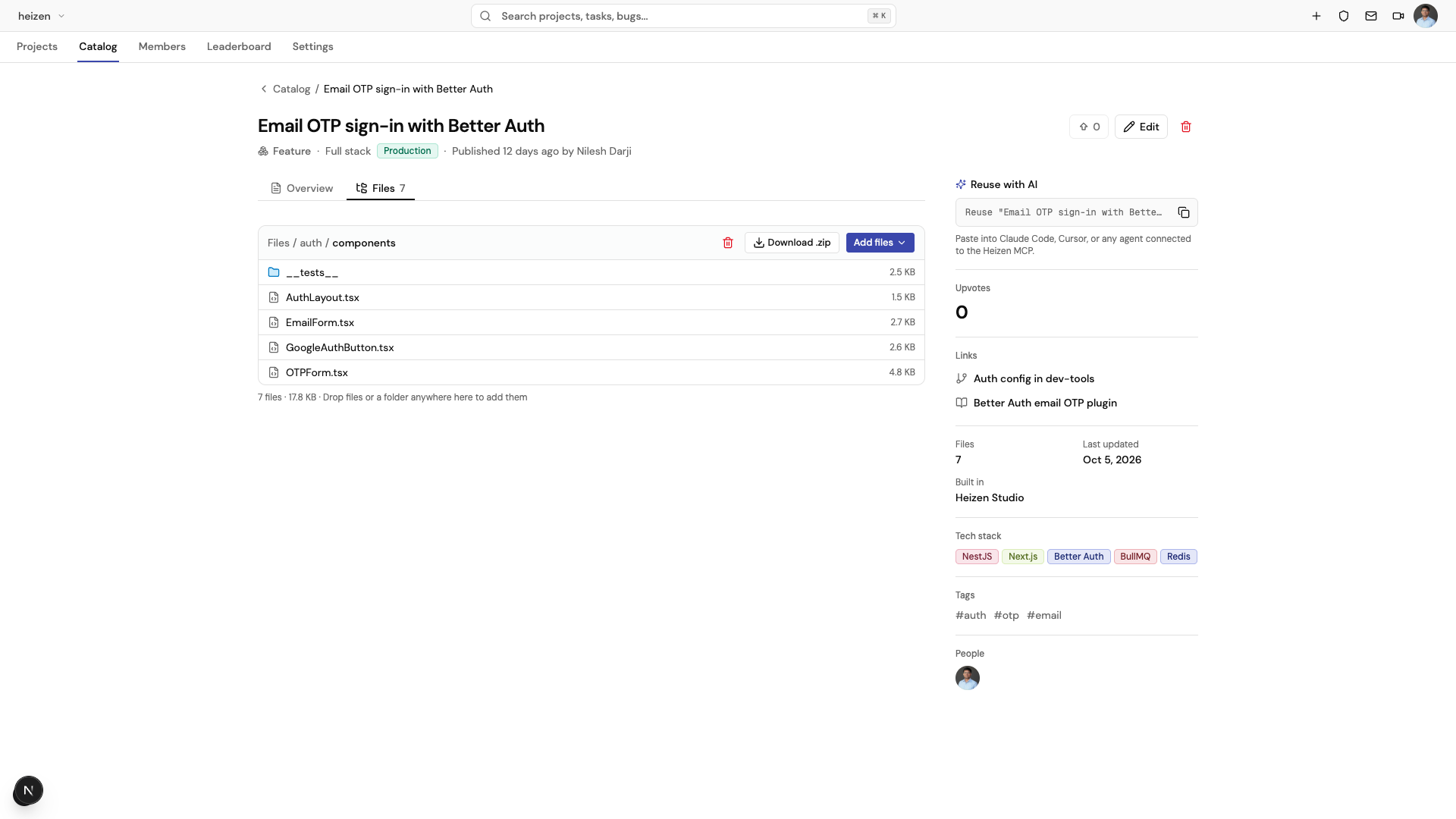
- Choose Add files, then Upload files, Upload folder, or New file
to paste code with a file name. Use slashes in the name, like
src/use-otp.ts, to put it in a folder. - Or drop files or a whole folder anywhere on the tab. Folder structure is kept.
- Uploading a file with the same path replaces it. Open a file or folder and choose the delete button to remove it.
Each file can be up to 10 MB, and an entry holds up to 200 files and 50 MB.
node_modules, .git, build output folders, and .env files are skipped
automatically, and executable files such as .exe can’t be uploaded.
Reuse with AI
Choose the copy button under Reuse with AI to copy a prompt for Claude Code, Cursor, or any other agent connected to the Heizen MCP. The prompt tells the agent to read the entry and its files through the catalog tools, adapt the build to the current project’s conventions, ask before overwriting files or adding dependencies, and follow the author’s Notes for AI reuse.
Update, deprecate, or delete an entry
- Choose Edit to change an entry, then Save changes.
- Set Status to Deprecated when an entry shouldn’t be reused anymore. It stays visible with a deprecation notice.
- Choose the delete button to remove an entry, its links, files, and upvotes for everyone. This can’t be undone.
Who can do what
| Action | Who |
|---|---|
| Browse, search, upvote, and share entries | Every organization member |
| Edit or delete an entry, and add or remove its files | Its author, its contributors, and organization Owners and Admins |
| Change an entry’s contributors | Its author and organization Owners and Admins |
People who only have access to individual projects, and aren’t organization members, don’t see the Catalog. See Organizations, roles, and permissions.
How it works
The Catalog belongs to the organization, not to a project. It is separate from Project Context, which describes how one project works. A catalog entry describes a self-contained build that another project can lift. Technology names are matched to the spelling already used in the organization, so “react” and “React” become one filter value.