
Project Secrets stores sensitive, project-scoped values in named environments. It is separate from Test Environments, which describe the configuration used when executing tests.
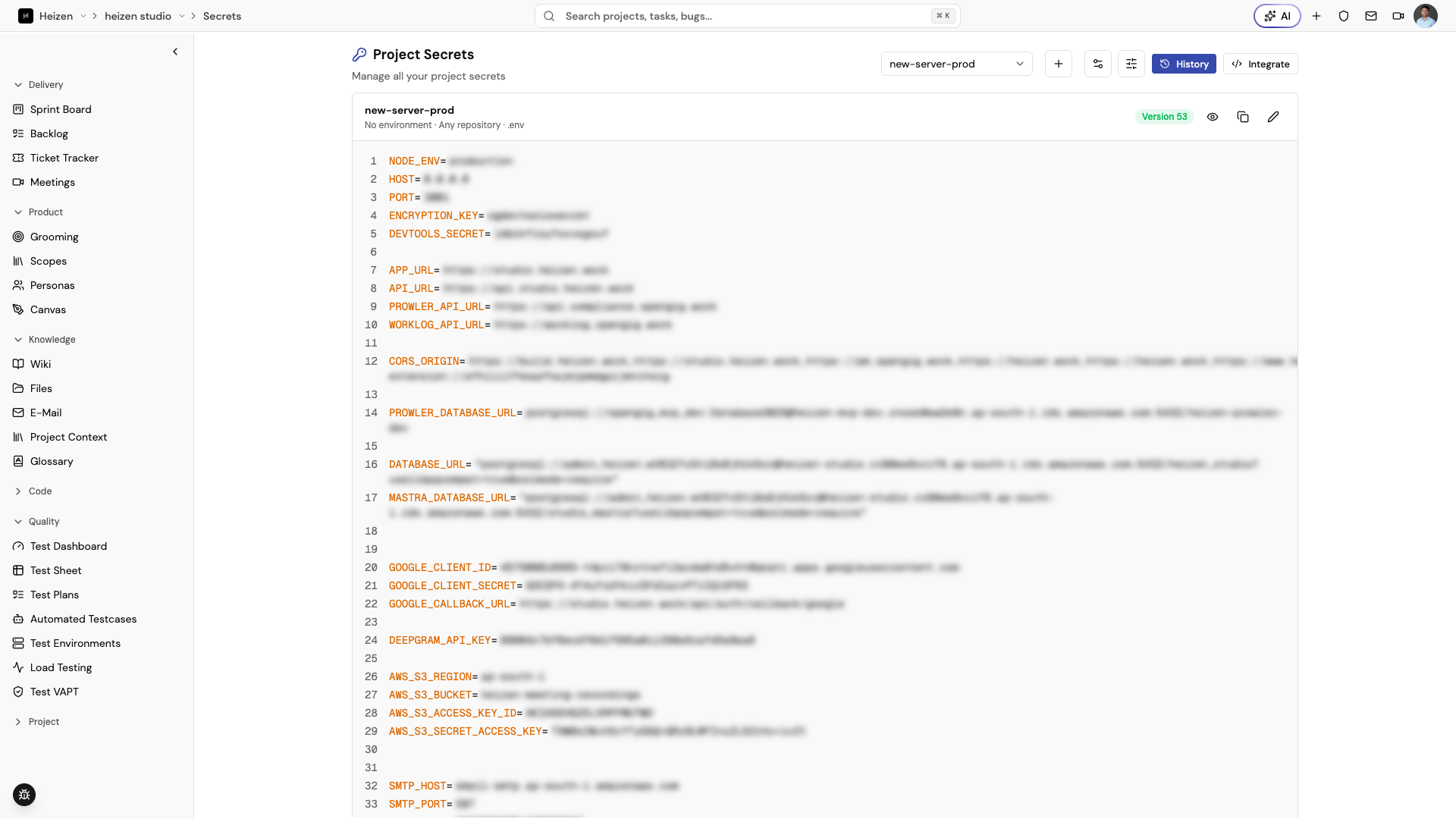
Create an environment
Open Secrets
Select a project and choose Secrets in the project sidebar.
Add an environment
Create an environment such as development, staging, or production. Use
names that make the intended deployment boundary clear.
Add or update values
Open an environment and add the secret names and values required by the project. Save changes to create a new version.
Use the integration guide
Open the built-in guide to connect the environment to an SDK or GitHub Action. Copy the integration instructions into the authorized deployment workflow.
Integrate Secrets into an application
The @heizen-labs/secrets-sdk package provides both the heizen-secrets CLI
and the SecretsClient API. Install it once, then choose the integration that
matches how your application starts.
# Install the SDK and CLI
npm i @heizen-labs/secrets-sdk
# Install the SDK and CLI
yarn add @heizen-labs/secrets-sdk# Install the SDK and CLI
pnpm add @heizen-labs/secrets-sdk# Install the SDK and CLI
bun add @heizen-labs/secrets-sdkRun a command with the CLI
The CLI is the simplest option when your application already reads from
process.env. It fetches the selected environment and starts your command with
the values injected into the child process:
heizen-secrets run [<projectId> [environment]] [--api-key <key>] [--base-url <url>] [--override] -- <command> [args...]For example:
heizen-secrets run proj_11 development -- nest start --watchLocally you don’t need an API key: the first run signs you in through Studio (see Developer tokens for local development).
Add the command to a package script when it should be used for local startup:
{
  "scripts": {
    "dev": "heizen-secrets run proj_11 development -- nest start --watch"
  }
}
Configure the CLI from environment variables
export HEIZEN_STUDIO_PROJECT_ID=proj_11
export HEIZEN_STUDIO_ENVIRONMENT_NAME=development
export HEIZEN_STUDIO_API_KEY=xxx  # CI/CD only; omit locally to sign in instead

heizen-secrets run -- nest start --watch
The CLI also reads .env.local and .env files. Each value is resolved in this
order:
| Value | Resolution order |
|---|---|
| Project ID | CLI <projectId>, HEIZEN_STUDIO_PROJECT_ID, .env.local, .env |
| Environment | CLI <environment>, HEIZEN_STUDIO_ENVIRONMENT_NAME, .env.local, .env |
| Credential | CLI --api-key, HEIZEN_STUDIO_API_KEY, .env.local, .env, cached developer token, then browser sign-in (interactive terminals only) |
Positionals are not interchangeable. The first positional value is always the project ID and the second is always the environment name:
# Correct: project ID first, environment second
heizen-secrets run proj_123 env_1 -- pnpm dev

# Incorrect: env_1 is treated as a project ID
heizen-secrets run env_1 -- pnpm dev
You can pass an API key independently of the positionals:
# Project ID and environment from env; API key from the CLI
heizen-secrets run --api-key sk_xxx -- pnpm dev
If a required value cannot be resolved, the CLI exits with a clear missing project ID, environment name, or credentials error.
The CLI injects secrets only into the spawned process. It does not print them, write them to files, mutate the parent process environment, or export them back to the shell. The spawned application can still print its own environment values if its code chooses to do so.
Developer tokens for local development
API keys are meant for CI/CD and deployed runtimes. On your own machine, run the CLI without an API key and it signs you in through Heizen Studio:
Authentication required for project "proj_11".
Open this URL to sign in with Heizen Studio:

  https://api.studio.heizen.work/oauth/authorize?...

Press Enter to open it in your browser (Ctrl+C to cancel)…
Press Enter to open the browser. If you are already signed in to Studio, it returns to the terminal immediately with no second login or approval screen, and the command continues with your secrets. Later runs reuse the cached token without prompting.
- The token is tied to you and to one API host, and it expires after 24 hours. When it expires, the next run signs you in again.
- One sign-in covers every project you can access. Your access is checked on every fetch, so if you are removed from a project, the token stops working for that project immediately.
- Any project member (Admin, Member, or Guest) can pull that project’s published secrets. Only project admins can view or edit secret values in Studio.
- Treat the token like a password: anyone holding it can read the published secrets of every project you can access until it expires.
- Tokens are cached in
~/.heizen/config(%USERPROFILE%\.heizen\configon Windows), readable only by you. SetHEIZEN_CONFIG_PATHto change the location. - An API key always takes priority. If you use one in an interactive terminal, the CLI reminds you that API keys are intended for CI/CD.
- Sign-in never happens in CI, without a terminal, or with
HEIZEN_NO_INTERACTIVE=1. The CLI fails withNo Heizen credentials found. Set HEIZEN_STUDIO_API_KEY (CI/CD) or run "heizen-secrets login" in a terminal.instead of waiting for a browser. --optionalnever triggers sign-in: it uses a cached token if there is one and otherwise skips the fetch.
Manage the cached token with:
heizen-secrets login [<projectId>] [--base-url <url>]           # sign in and cache a token
heizen-secrets logout [<projectId>] [--all] [--base-url <url>]  # delete the cached token(s)
heizen-secrets status [<projectId>] [--base-url <url>]          # show which credential would be used
logout only removes the local copy; the token stays valid until it expires.
Load secrets in GitHub Actions
The Secrets page can generate a workflow step for loading an environment into a file used by a CI job:
- name: Fetch environment from Heizen
  uses: heizen-labs/load-secrets@v1
  with:
    project-id: proj_11
    environment: development
    output-path: ./.env
    api-key: ${{ secrets.HEIZEN_STUDIO_API_KEY }}
Store HEIZEN_STUDIO_API_KEY in GitHub → Settings → Secrets and variables →
Actions. Keep the generated .env file out of build artifacts and clean it up
when the job no longer needs it.
Load secrets in application code
Use SecretsClient when the application needs to load values during startup or
when it needs a custom target object instead of process.env:
import { SecretsClient } from "@heizen-labs/secrets-sdk";

const client = new SecretsClient({
  projectId: process.env.HEIZEN_STUDIO_PROJECT_ID,
  environment: process.env.HEIZEN_STUDIO_ENVIRONMENT_NAME,
  apiKey: process.env.HEIZEN_STUDIO_API_KEY,
});

await client.loadSecrets();

console.log(process.env.DATABASE_URL);projectId, environment, and apiKey can be passed as options or resolved
from their matching environment variables. Instead of apiKey, you can pass a
developer token as accessToken; SecretsClient never opens a browser or
prompts for sign-in. baseUrl defaults to
https://api.studio.heizen.work and can be overridden for another API host.
By default, loadSecrets() writes only missing values into process.env. You
can replace existing values or use a custom target object:
await client.loadSecrets({ override: true });

const envObject: Record<string, string | undefined> = {};
await client.loadSecrets({ target: envObject });
The method returns Promise<Record<string, string>>. SDK failures are thrown as
SecretsClientError, which includes the error message and HTTP status.
Create an API key for CI/CD
- Open
https://studio.heizen.workand select the project. - Open Project Settings → API Keys.
- Create a key with
secrets:readpermission. - Restrict the key’s allowed IP addresses to the CI runner or VPC range that will use it, so a leaked key cannot be used from anywhere else.
- Store it as
HEIZEN_STUDIO_API_KEYin the runtime or CI secret store.
Never commit the key or secret values.
Manage versions
Every saved value is versioned. Use the version history to review when a value changed and to identify the version used by an integration. Rename or remove an environment only after checking the workflows that depend on it.
Project admins can create, rename, delete, and edit environments. Other project members may see environment names and integration instructions without being allowed to edit secret values.
Review who fetched secrets
Every SDK, CLI, and GitHub Action fetch is recorded, whether it succeeded or was rejected. Choose Access log on the Secrets page to review them.
Each row records:
- The API key used — or the key prefix alone when the key was invalid or revoked. Fetches made with a developer token show Developer token instead
- The Studio user the key belongs to, or the developer who made the fetch
- The secret set that was requested
- The outcome: Success or Denied, with the rejection reason on hover
- The names of the keys returned — never their values
- The caller’s IP address and, where it can be resolved, its city and country
A fetch that asks for several secrets produces one row listing all of the key names, not one row per secret. When the geo-location service cannot resolve an address the row still records the IP and shows Location unavailable.
Filter by date range, API key, or user to answer a specific question — for example, whether a CI key has been used from an IP or country you do not recognise. Denied rows are the strongest early signal that a key has leaked: investigate a burst of them immediately and rotate the key from Project Settings → API Keys.
The same entries also appear in the project Audit Log under the Secret Access entity type.
How Secrets works
Secrets is a project-scoped, versioned store. The environment name selects the boundary, while the integration guide explains how an approved runtime or GitHub Action retrieves the values. Project API keys are a different feature: they authenticate API clients to Studio and should not be used as application secrets.