
Canvas is Studio’s free-form diagram space. Use it when a flow, architecture, or relationship is easier to understand visually than in text. Diagrams live inside the project and can be shared with project members.
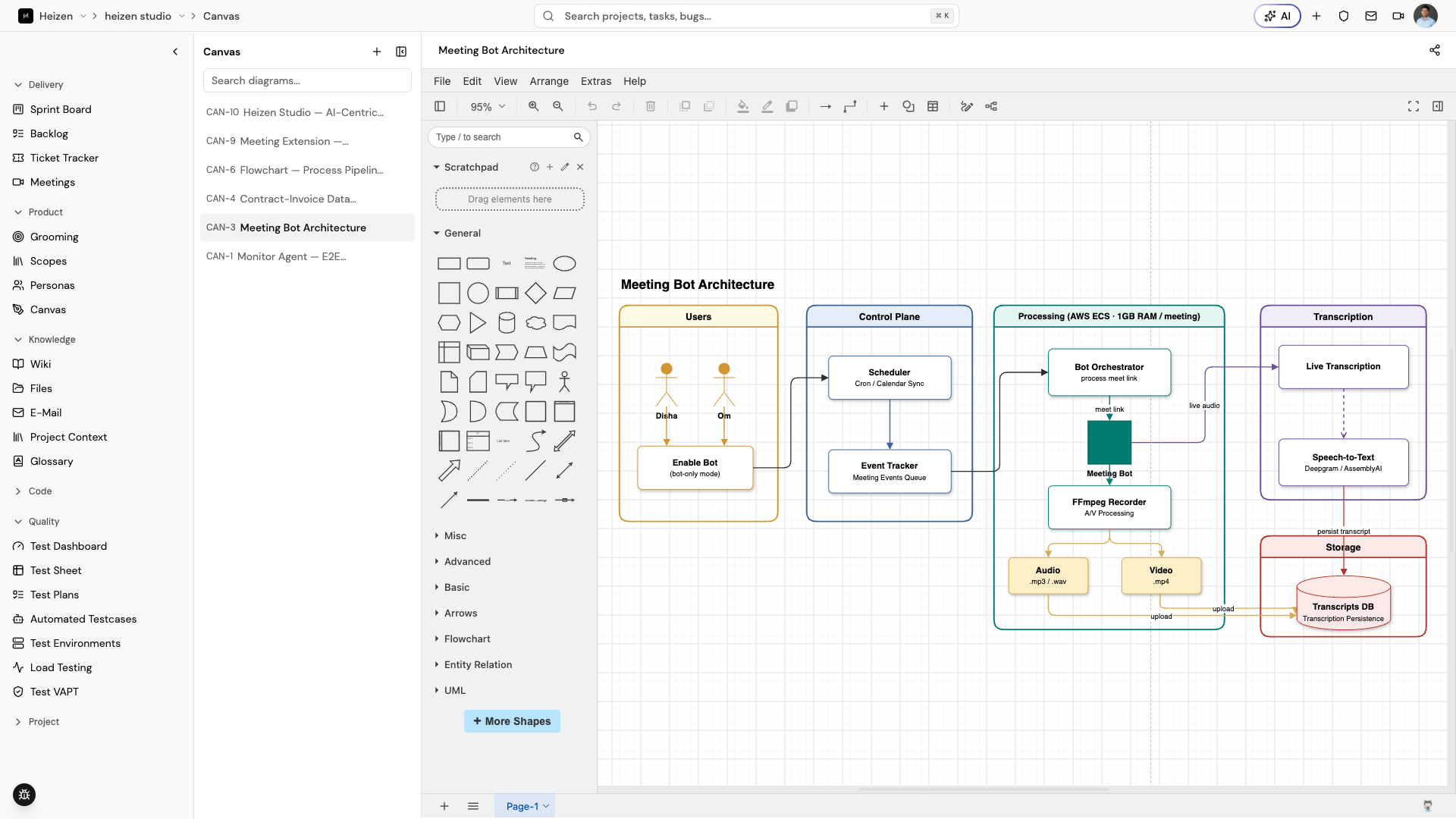
Create a diagram
- Open Product → Canvas.
- Choose New Diagram or the plus button in the Canvas sidebar.
- Enter a title and draw in the embedded editor.
- Wait for the Saved state before leaving the page.
Use the diagram search field to find an existing canvas. The sidebar can be collapsed when you want more room for the editor.
Edit and share
The diagram title saves when you leave the title field. Diagram changes are auto-saved shortly after the editor reports a change. Project admins can open Share and choose the access level available to the project, then copy the link.
Members who only have viewer access see the read-only canvas viewer. Keep sensitive architecture details restricted to the project unless a broader link is intentional.
How it works
Studio stores the diagram model with the project, rather than treating the canvas as an image attachment. This keeps the diagram editable and lets the project-aware assistant use the diagram record as page context.