
Studio’s meeting views keep recordings, generated summaries, private notes, transcripts, and follow-up context beside the work they refer to. Use My Meetings in the global header for your meetings across projects, or open Meetings inside a project to see that project’s meeting history.
Find a meeting
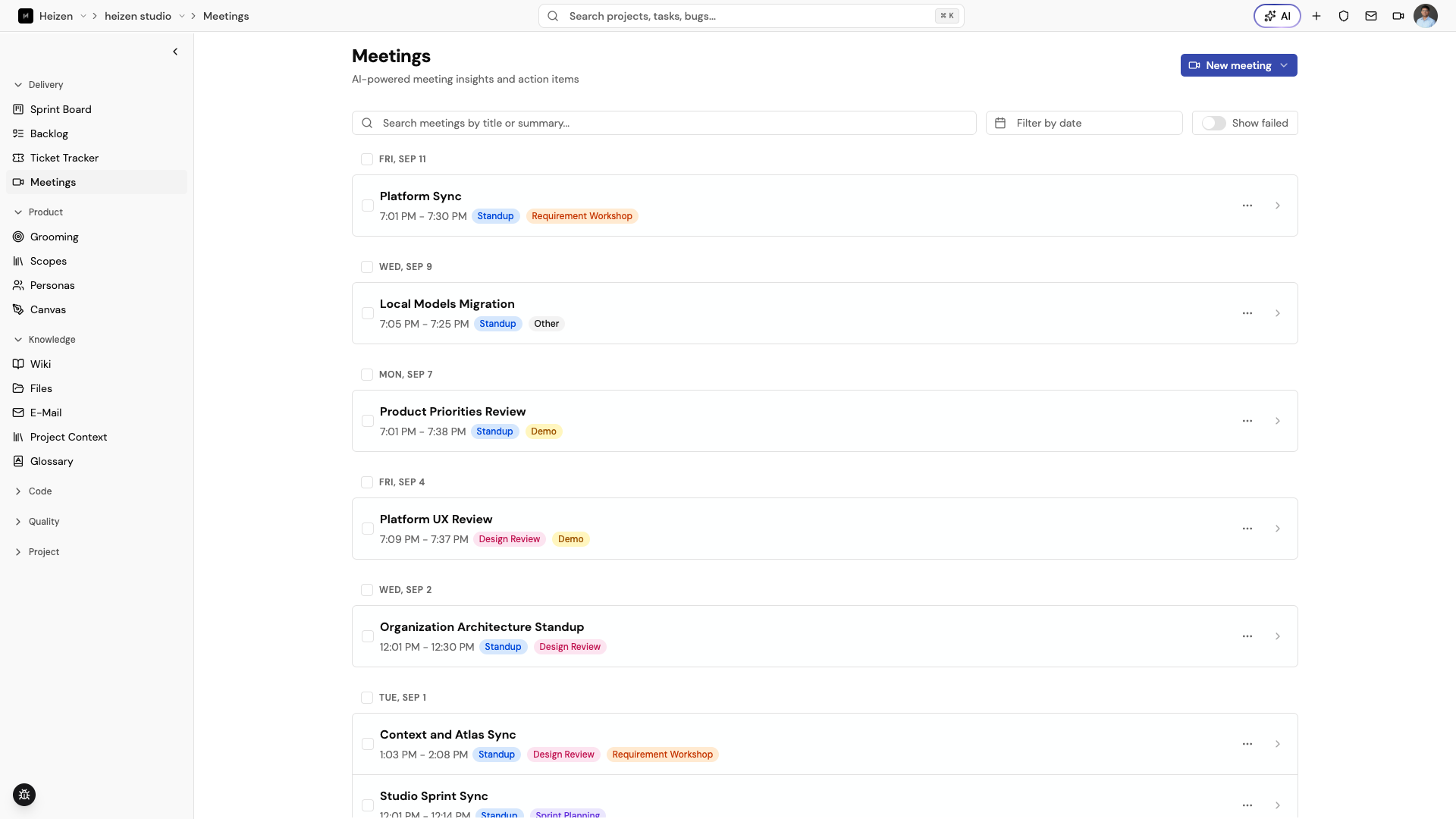
Open the meeting list
- Choose My Meetings in the global header to see meetings available to your account.
- Choose Meetings in a project sidebar to limit the list to that project.
- Choose New meeting to open the recording menu. Depending on the context, you can join and record with a meeting bot or start a browser recording.
Project meeting rows are grouped by date. Each row can show the title, time, tags, bot status, and a matching participant when a search finds one. Select the row to open its detail page.
Search and filter meetings
Use the controls above the list to:
- Search by meeting title or generated summary. Search updates after you pause typing.
- Choose a date range with Filter by date.
- Turn on Show failed to include meetings whose recording or processing failed.
- Choose Load more at the bottom when more meetings are available.
If no meeting matches, adjust the search or date range. A project with no recorded meetings shows an empty state with the option to create a meeting.
Manage a meeting from the list
Open the row’s actions menu to:
- choose Move to project when the meeting is not already associated with generated stories; or
- choose Delete, confirm the warning, and permanently remove the meeting and its related data.
Move a meeting when it was recorded in the wrong project. Treat deletion as permanent.
Review the summary and notes
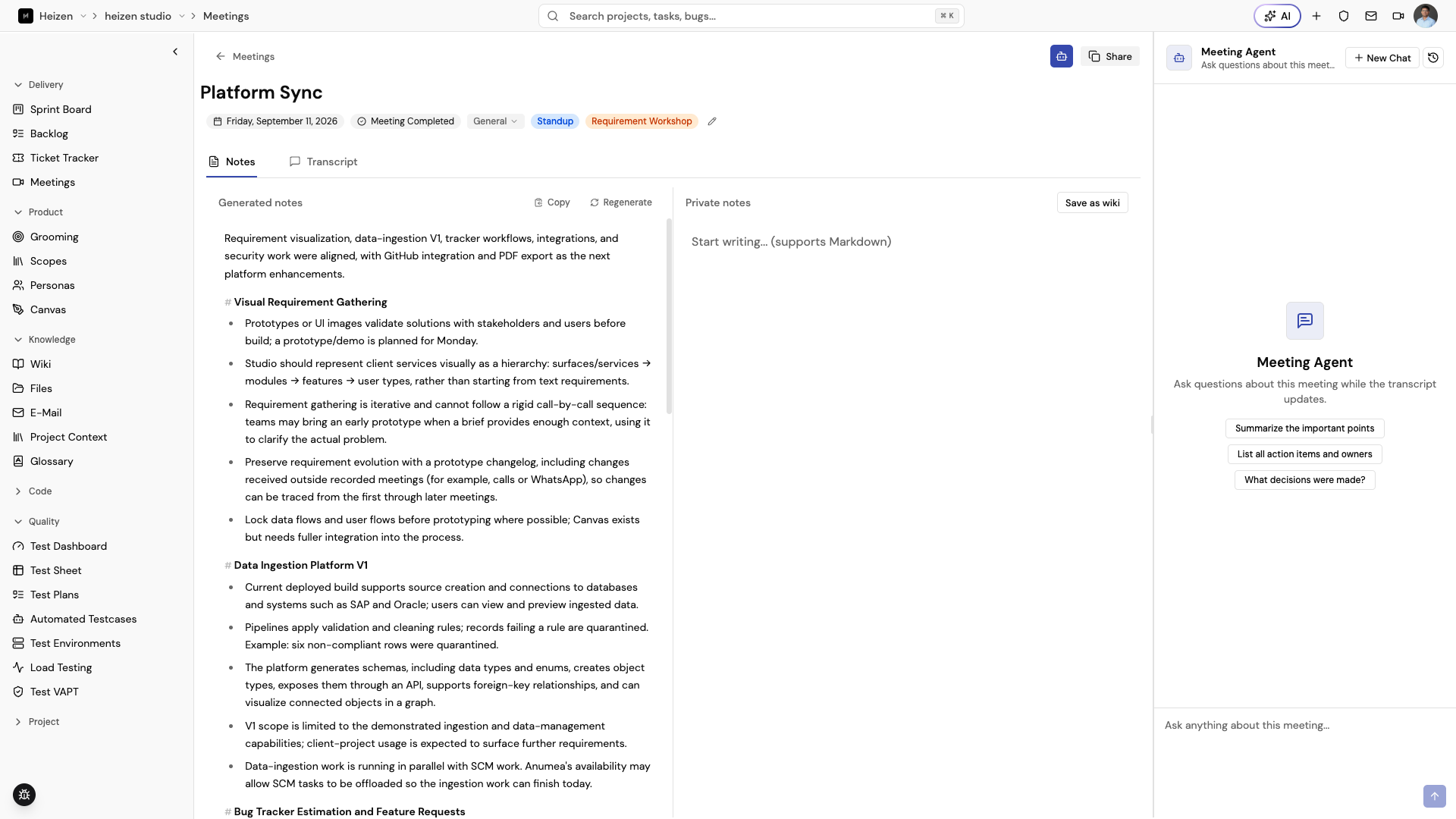
Select a meeting row to open its detail page. The header includes:
- a back button to the Meetings list;
- an editable meeting title;
- the meeting date, recording or bot status, category, and tags;
- for bot meetings, whether the bot was Invited manually by link or joined From calendar;
- Share to copy the current meeting link; and
- the Helix button to open or close the meeting assistant.
For completed meetings, the detail page opens on Notes. The Notes view has two areas:
- Generated notes shows the AI-created summary. Choose Copy to copy the summary or Regenerate to request a new summary.
- Private notes is an editable Markdown area for your own decisions, follow-ups, and context. Changes save automatically after you stop typing; the save indicator shows when notes are unsaved, saving, or saved.
Inside a project, choose Save as wiki to save the current private notes as a wiki page. Review the notes before saving them as durable project knowledge.
When a meeting is still In progress, Studio shows the notes area directly while the recording and live transcript are active. Processing meetings may show partial content until transcription and summarization finish.
Read the transcript and recording
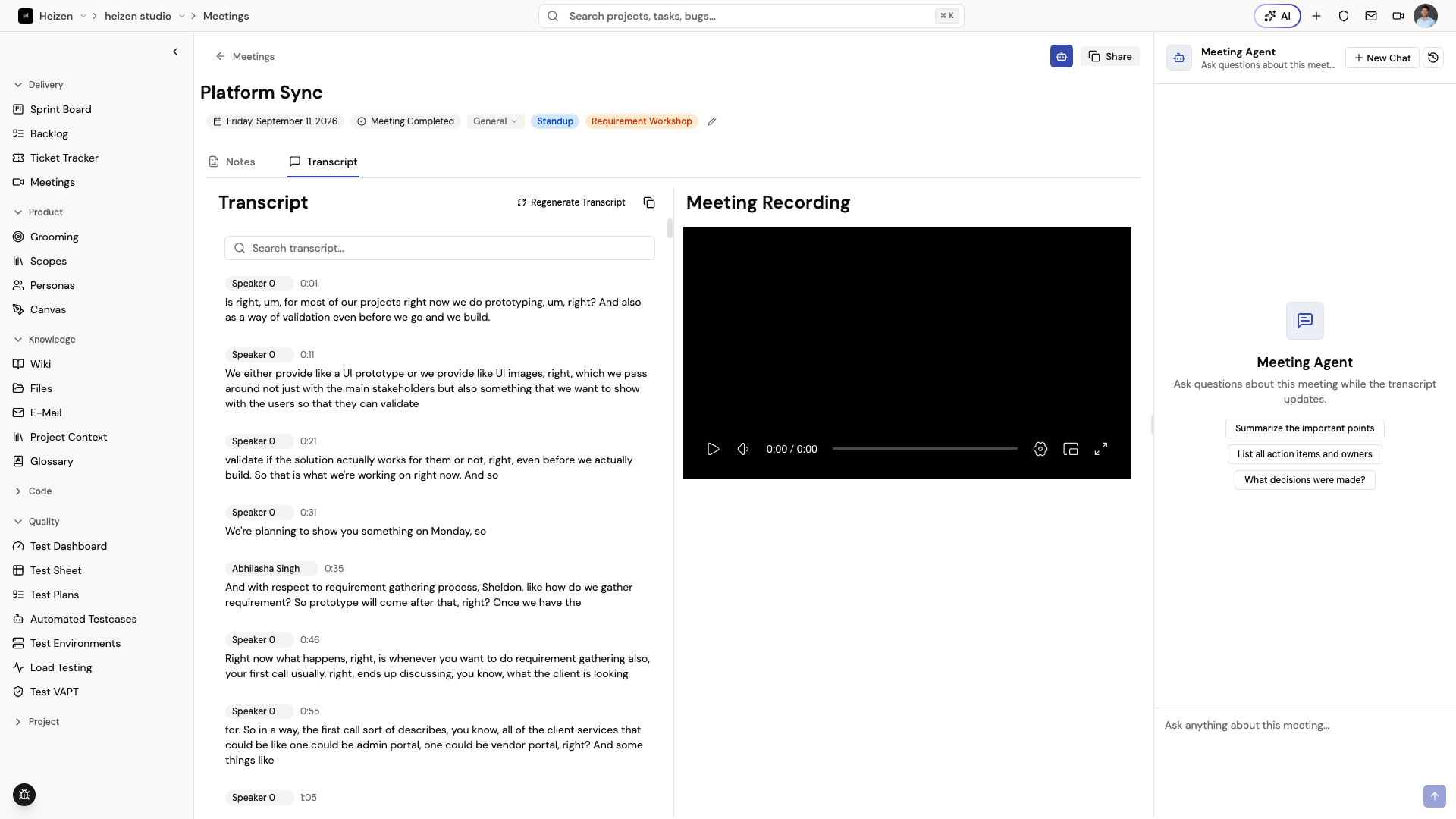
Choose Transcript on a completed meeting to review the transcript beside its recording.
Work with transcript segments
- Use Search transcript… to find text. Use the previous and next controls to move between matches.
- Select a speaker badge to rename that speaker, then save the name. The label is stored with the meeting’s speaker map.
- Select a transcript segment to seek the recording to that timestamp and start playback.
- Choose the copy action to copy the transcript with timestamps and speaker labels.
- If a recording exists but no transcript is available, choose Regenerate Transcript when the action is available.
The active transcript segment follows the recording as it plays. During a live recording, new segments and interim speech appear as they arrive.
Use the recording player
The Meeting Recording panel provides video or audio playback controls. When the source is audio-only, Studio displays an audio indicator over the player. Choose the download control on the player when you need a local copy and have permission to retain the recording.
A live recording bar can show the waveform and a live transcript preview. Use Stop Recording only when you intend to end the active browser or bot recording. If no recording is attached, the panel shows No recording available.
Review bot activity
For meetings recorded by the meeting bot, a Bot Activity tab can show the bot’s queue, deployment, joining, in-call, call-ended, or failed events. Use it to understand why a bot meeting is still processing or did not capture the expected content.
Save meeting knowledge
When a decision or plan should outlive the meeting, save the useful private notes as a wiki page or add the meeting link to project files. Keep the meeting linked to the correct project so stories and Helix can use its context.
For desktop recording, calendar detection, and meeting setup, see the dedicated Heizen Meets documentation.