
Open any meeting from Home, search, or a project to review everything Heizen captured and generated. The content available depends on whether the meeting is live, processing, or completed.
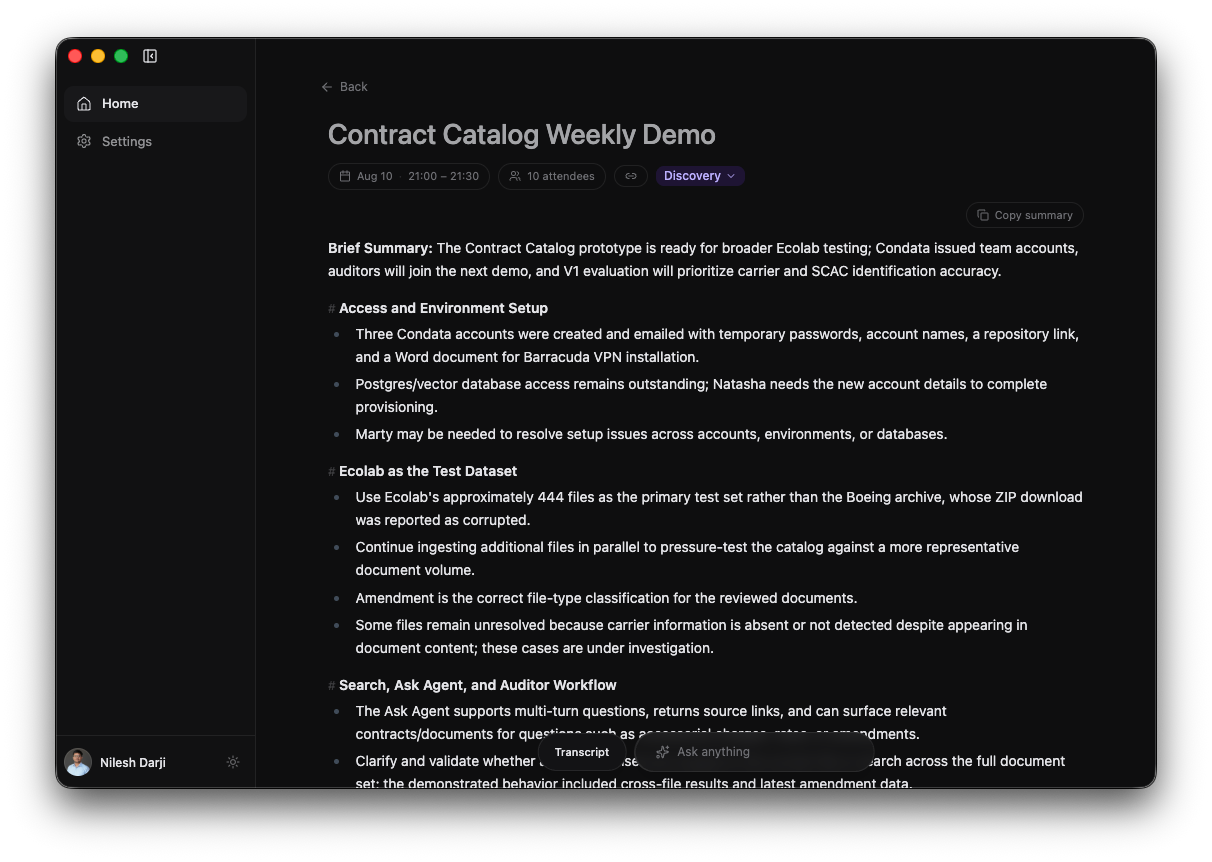
Read the generated summary
When processing completes, the summary can include a brief overview, discussion sections, decisions, action items, and references. Select Copy summary to place the complete formatted summary on your clipboard.
If a meeting still shows Processing, wait for the final transcript and summary to arrive. The detail page updates when processing finishes.
Write personal notes
Use Write notes below the summary for anything you want to add yourself. Notes save automatically after you stop typing; there is no Save button.
Read and copy the transcript
Select Transcript at the bottom of the page. During a live meeting the control reads Live transcript and includes the elapsed duration.
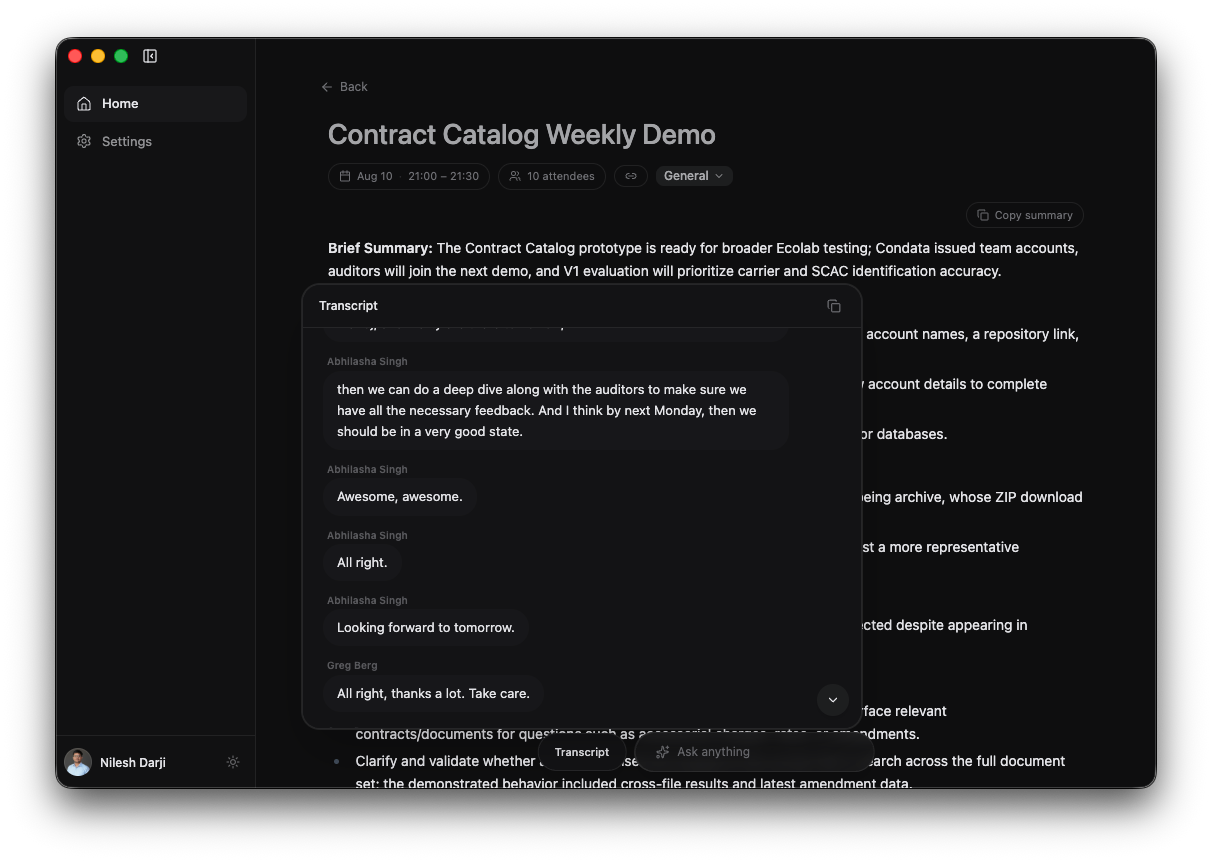
- Each finalized segment is grouped under its speaker label.
- During a live call, interim speech appears in an italic style until finalized.
- Select the copy icon in the transcript header to copy the transcript as
Speaker: textlines. - If nothing was captured, the panel shows No transcript available. During a live silent period it shows Waiting for speech….
- During a live call, use the microphone selector at the bottom to switch input devices when multiple microphones are available.
Manage meeting details
The controls below the meeting title let you keep the record organized.
Link or unlink a calendar event
Select the date chip. If the meeting is not linked, choose an upcoming event from Link a calendar event. If it is linked, the popover shows the event and offers Remove calendar link.
Review attendees
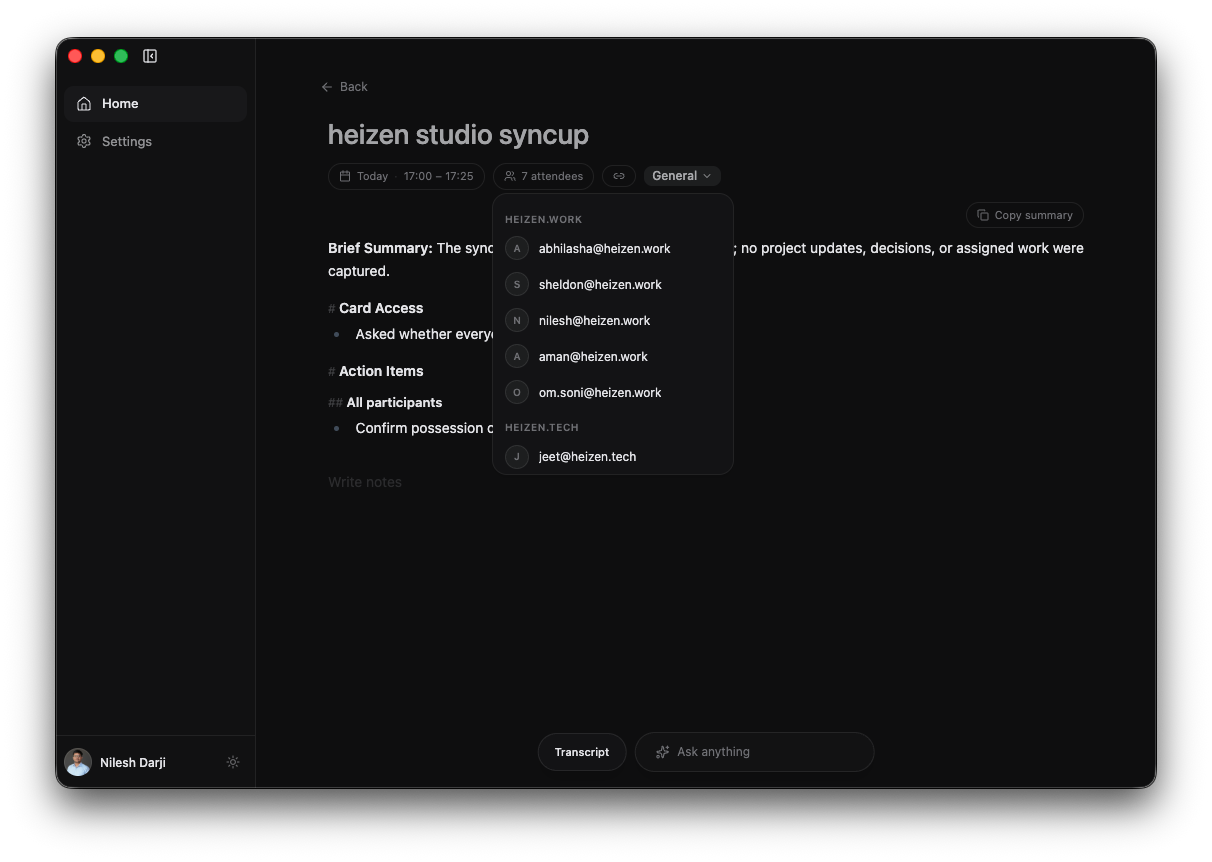
Select the attendee-count chip. Participants are grouped by email domain. A meeting without calendar participants shows Me.
Copy a share link
Select the link icon. Heizen copies the corresponding meeting page URL in Heizen Studio so you can share access through the web app.
Set the meeting category
Select the category and choose General or Discovery. The category is saved to the meeting and appears as a label in the list.
Return to Home
Select Back at the top of the detail page. If the meeting is still recording, Home keeps the live banner visible so you can reopen it quickly.