
The live assistant is a floating heads-up display that stays available while Heizen records. It can remain as a compact pill or expand into meeting-aware chat and transcript views.
Use the collapsed pill
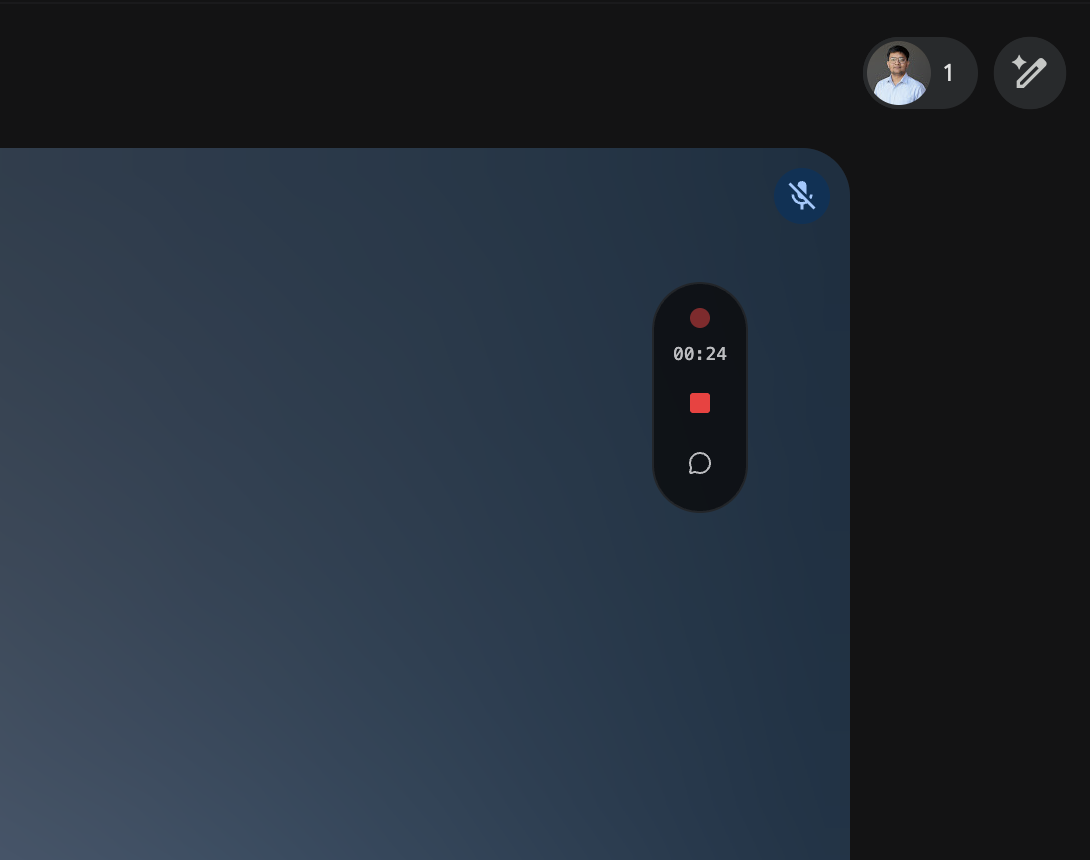
The pill keeps recording controls within reach without covering your meeting.
- Open the current meeting in the main Heizen window.
- Mute or unmute your microphone.
- Stop the recording.
- Expand the assistant into chat.
- See the elapsed recording duration.
Open and collapse the assistant
- Press Command + Shift + H to toggle the assistant.
- Press Escape to collapse the expanded assistant.
- Select the assistant control in the pill to expand it manually.
Ask during the meeting
The chat is grounded in the current meeting’s transcript and metadata. Ask a free-form question, or use one of the seven quick actions:
| Shortcut | Action | What it asks |
|---|---|---|
| Command + 1 | Signal | What’s the signal? |
| Command + 2 | Ask Next | What should I ask next? |
| Command + 3 | Gaps | Find gaps, assumptions, or things left unsaid. |
| Command + 4 | Pilot | Suggest a pilot scope from the discussion. |
| Command + 5 | Price | Suggest what to charge. |
| Command + 6 | Summary | Summarize the call so far. |
| Command + 7 | Draft a follow-up email. |
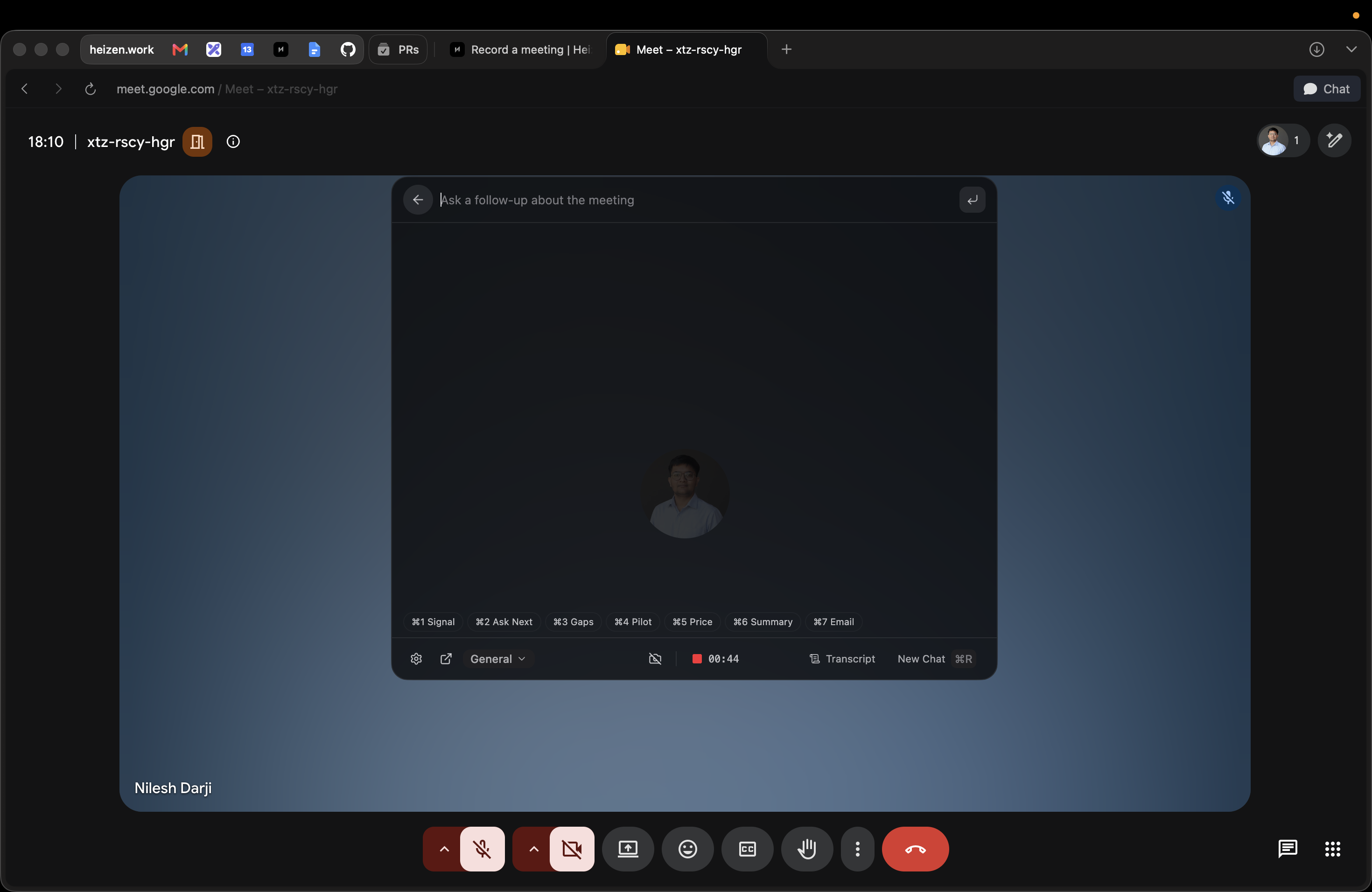
Responses can stream while the meeting continues. Select the stop-generation control if you no longer need the answer.
Include or exclude screen context
Use the camera control in the toolbar:
- Uses Screen means the assistant can include a current screen capture with your next request.
- Does not use screen means the assistant answers from meeting context without a screen capture.
Keep screen context off when private messages, credentials, customer data, or unrelated windows are visible.
Read the live transcript
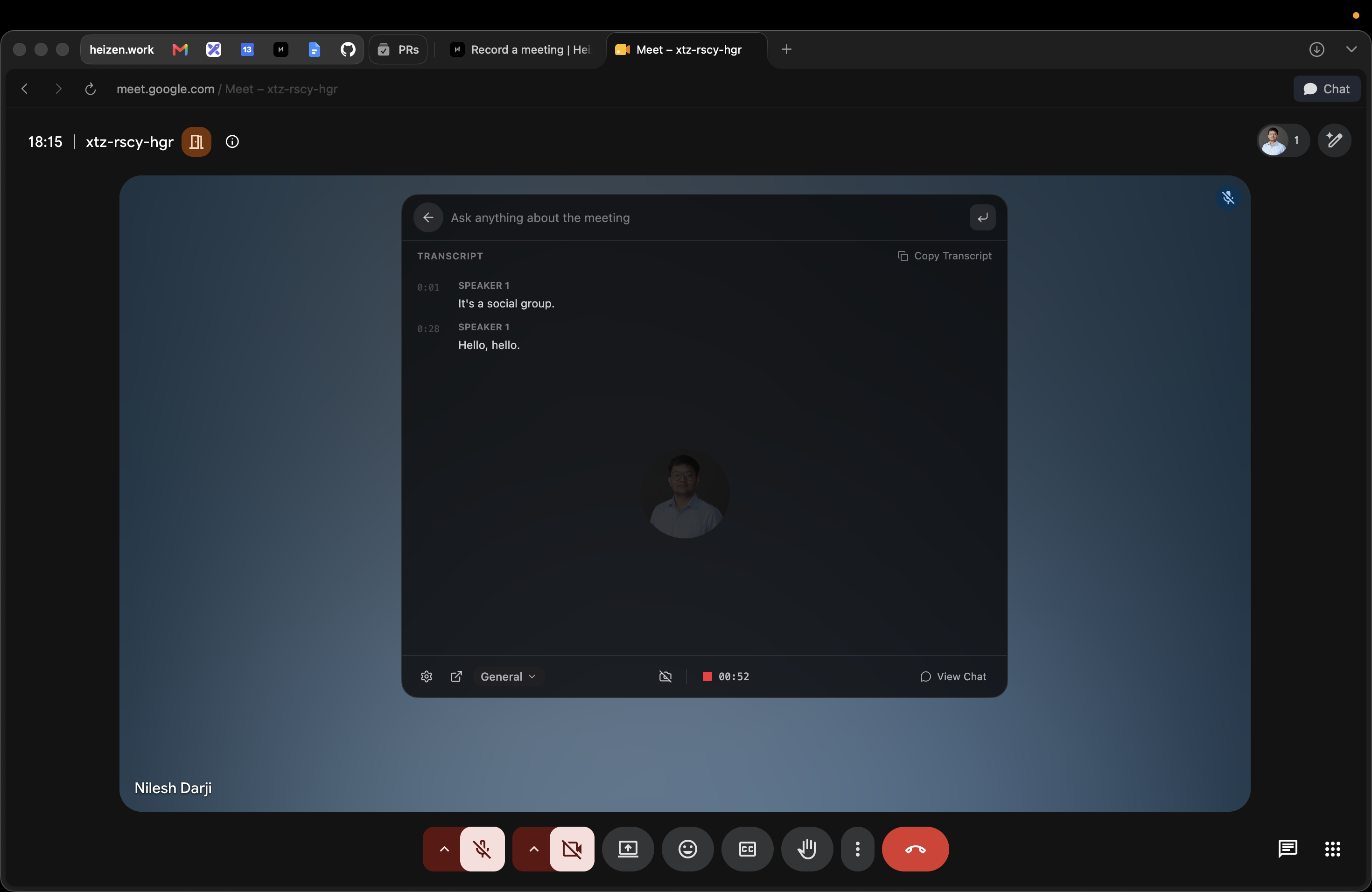
Select Transcript in the toolbar. Final transcript segments appear under speaker labels, and the view follows new speech. Select View Chat to return to the assistant conversation.
Toolbar controls
- Settings opens the main app’s Settings page. Shortcut: Command + ,.
- Open Meeting focuses the full meeting detail page.
- General / Discovery changes the meeting category.
- The project selector assigns the meeting to a Heizen Studio project.
- The camera button controls screen context.
- The microphone button mutes or unmutes your microphone for the recording.
- The red stop control ends recording and shows the elapsed duration.
- Transcript / View Chat switches assistant views.
- New Chat clears the active conversation. Shortcut: Command + R.