
Use meeting search when you know part of a meeting title, a topic from its generated summary, or the name or email address of someone who attended, but do not want to browse the dated history on Home.
Open meeting search
Open search in either of these ways:
- Select Search at the top of the left sidebar.
- Press Command-K on macOS from anywhere in the main Heizen Meets window.
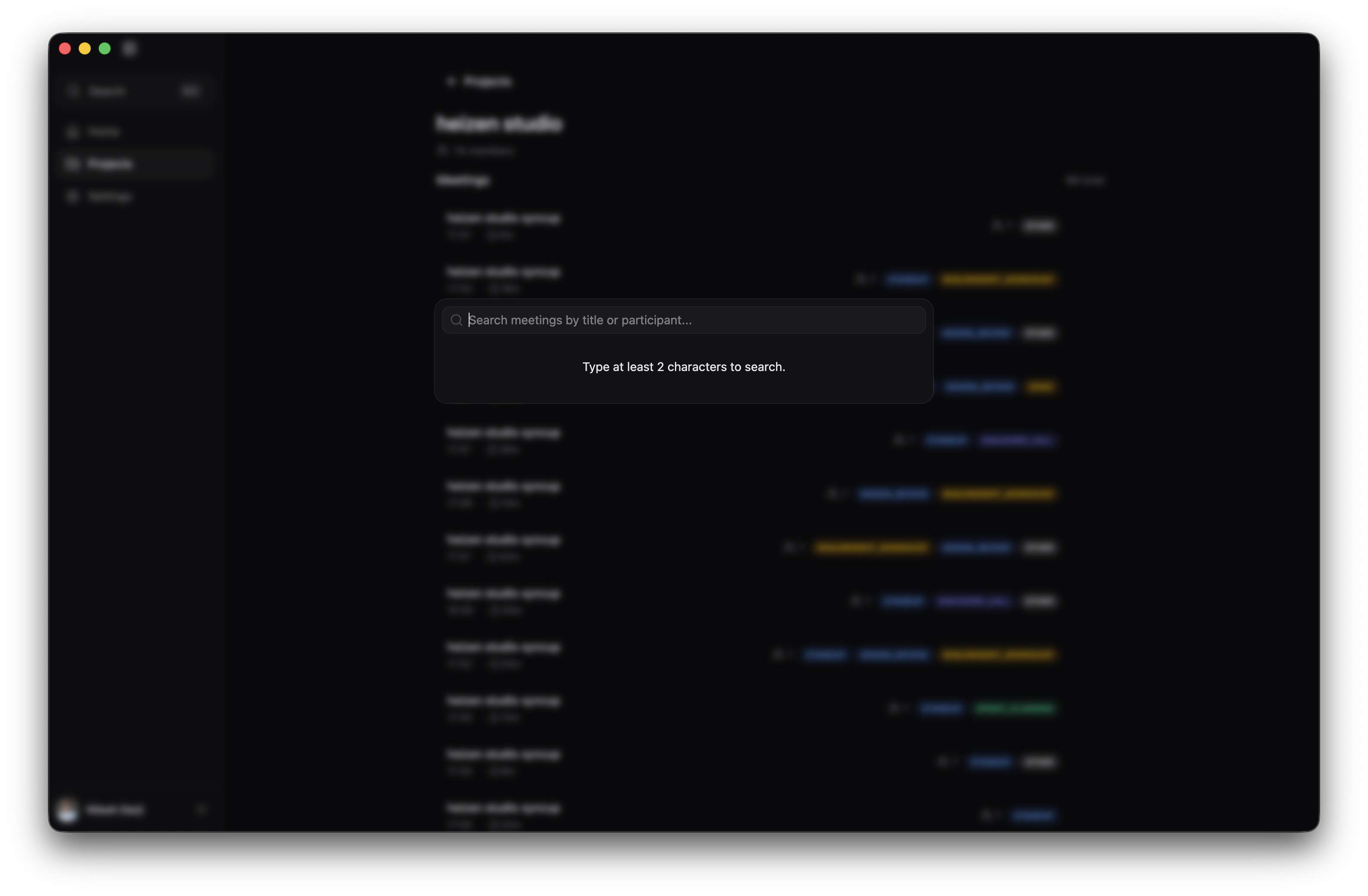
The search dialog can be opened from Home, Projects, Settings, or a meeting page. Close it with the close action or press Escape.
Search meeting records
Enter at least two characters
Type part of a meeting title, generated summary, participant name, or participant email address. Heizen waits until the query contains at least two characters before searching.
Review the matches
Each result shows the meeting title. It can also show the associated project and the participant who matched your search.
Open the meeting
Select a result to close search and open that meeting’s summary, notes, transcript, metadata, and AI assistant.
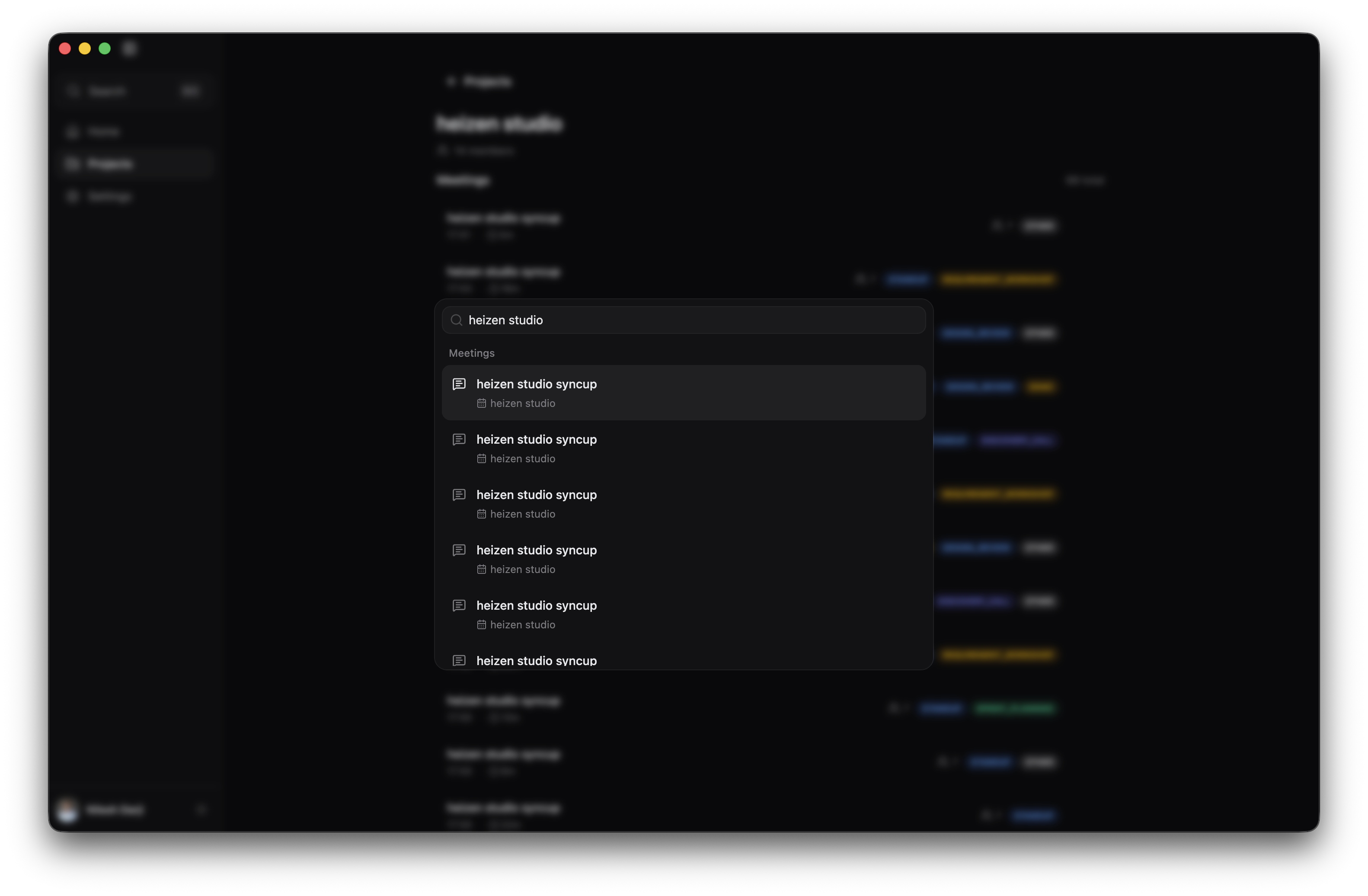
Search returns up to 20 matching meetings at a time. It searches meeting titles, generated summaries, and participant names and email addresses. It does not search the full transcript or personal notes.
Understand search messages
| Message | Meaning | What to do |
|---|---|---|
| Type at least 2 characters to search. | The query is too short. | Add another character. |
| No meetings found for “…” | No title, summary, or participant matched the query. | Check the spelling or try a shorter phrase. |
| Search is unavailable. Please try again. | Heizen could not complete the request. | Check your connection and retry. |
If you want to browse meetings by their Heizen Studio project instead, use Project meetings.