
Every meeting detail page can include an Ask anything assistant. It receives the meeting’s title, status, summary, transcript, speakers, notes, tags, calendar details, participants, and duration as context.
Start with an example prompt
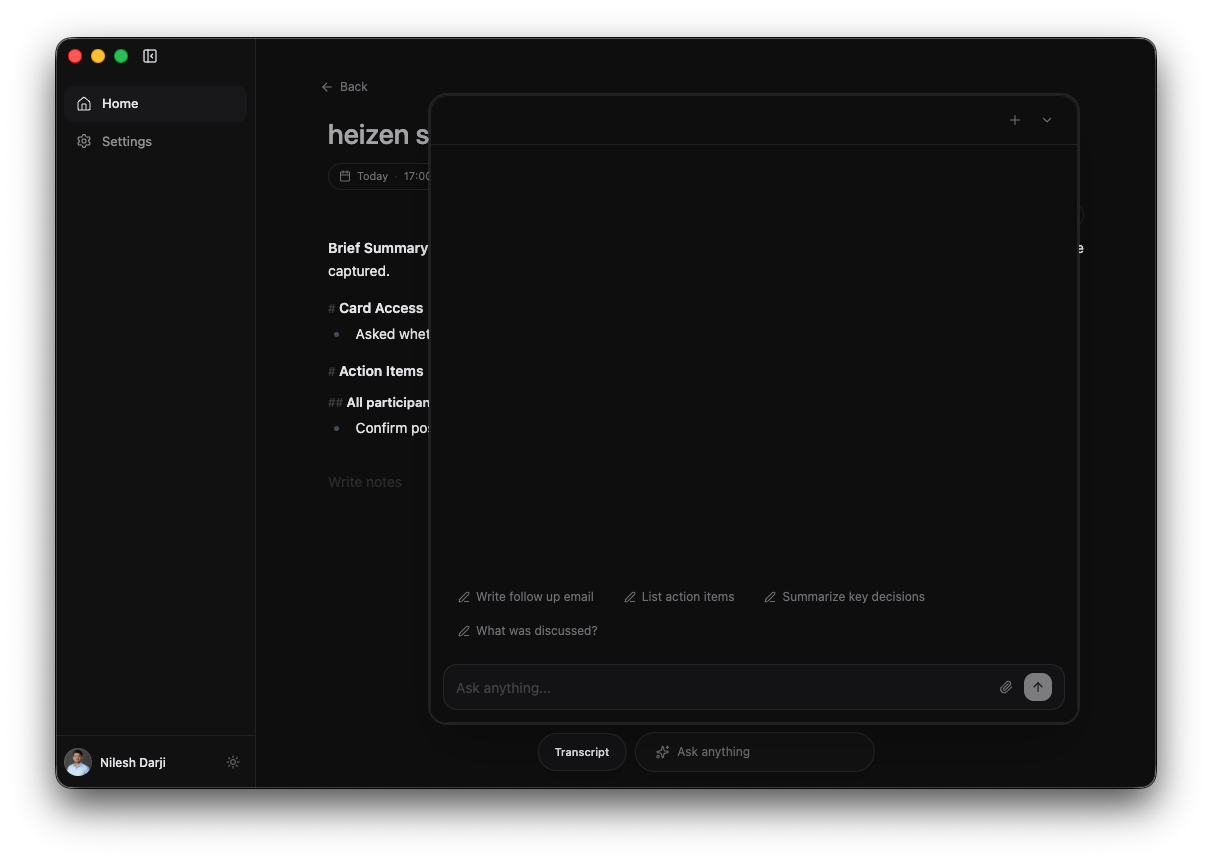
Select Ask anything at the bottom of a meeting, then choose one of the suggestions:
- Write follow up email
- List action items
- Summarize key decisions
- What was discussed?
You can also type your own request and press Enter. Use Shift + Enter for a new line.
Ask useful questions
Good prompts identify the output and audience:
- “Turn the agreed actions into a checklist with owners and due dates.”
- “Draft a concise follow-up email for everyone who attended.”
- “What decisions were made, and what is still unresolved?”
- “Compare my notes with the transcript and identify contradictions.”
- “Create a discovery-call summary focused on pain points and buying signals.”
Attach supporting files
Select the paperclip, drag files onto the composer, or paste an image. The assistant accepts:
- Images
- PDF files
- Plain-text files
You can attach up to three files per message, with a maximum size of 5 MB per file. A pasted text block of 1,500 characters or more is automatically converted into a text-file attachment.
Manage chat threads
- Open chat history from the upper-left of the panel to return to an earlier thread.
- Select + to start a new chat without changing the meeting.
- Delete a saved thread from chat history when you no longer need it.
- Select the downward chevron to collapse the panel.
- While an answer is streaming, select the square stop control to stop that answer.
Separate threads are useful when you want one conversation for internal notes and another for a customer-facing follow-up.
Use AI during a live call
The floating live assistant uses the same meeting context while recording is active. Its quick actions are optimized for in-call guidance, while the meeting detail assistant is useful for deeper review before or after the call.