
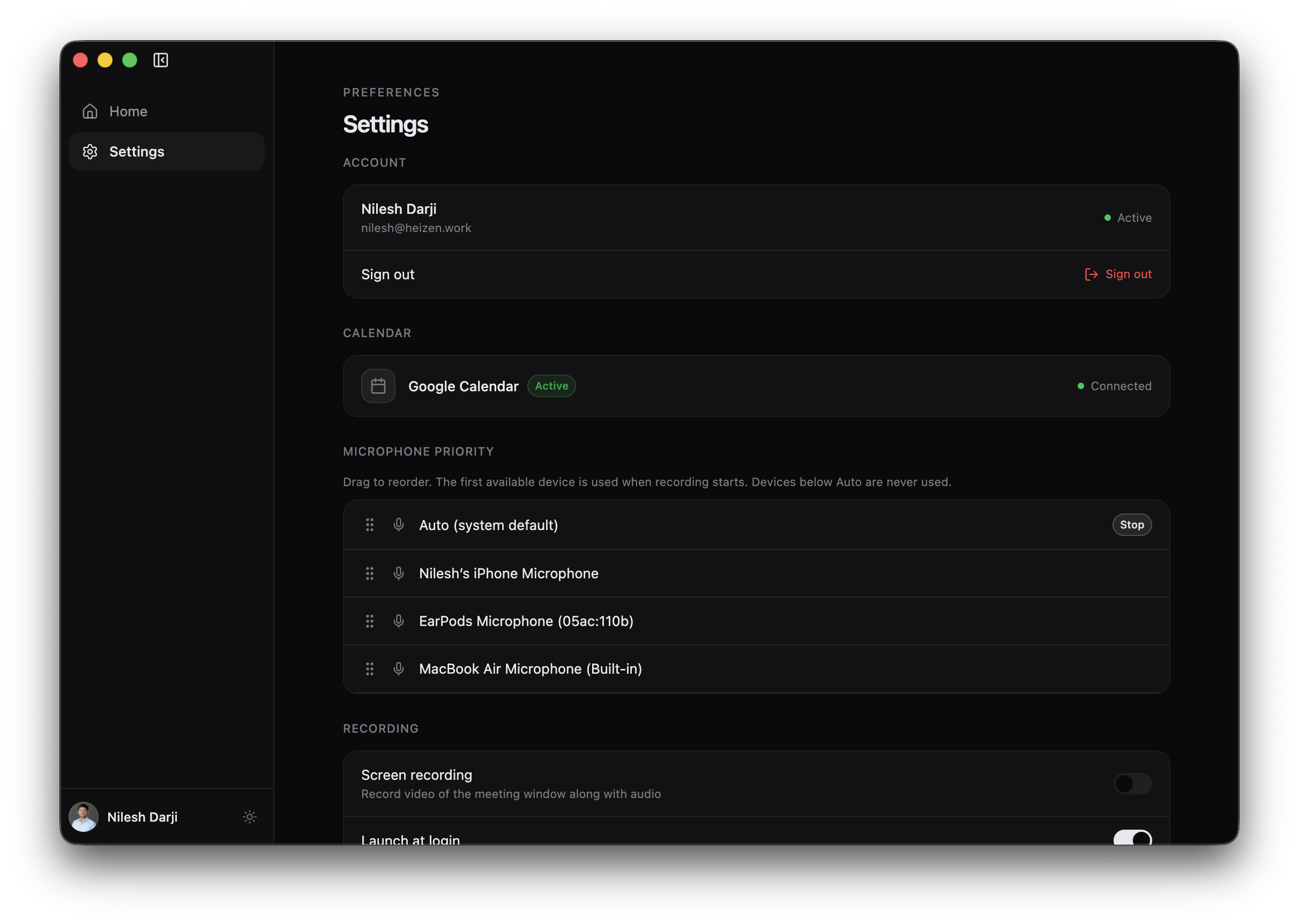
Open Settings from the left sidebar. Changes to toggles and microphone order are applied immediately.
Account
The account card shows the signed-in name, email address, and active status. Select Sign out to remove the current Heizen Studio session from the desktop app. You will need to authenticate again to access meetings.
Calendar
- Google Calendar · Active · Connected means today’s events can appear on Home.
- If no calendar is connected, select Connect. Heizen opens the Heizen Studio settings page in your browser so you can authorize the integration.
Microphone Priority
Drag devices into your preferred order. When recording starts, Heizen chooses the first available device from the top of the list.
Auto (system default) is a boundary as well as an option:
- Devices above Auto are tried in order.
- Reaching Auto tells Heizen to use the operating-system default.
- Devices below Auto are never chosen automatically.
The Stop marker beside Auto describes that boundary; it does not stop a recording.
Recording
- Screen recording adds video of the automatically detected meeting window to the audio recording. If Heizen cannot identify the window, it records the entire screen. Turn it off for audio-only meetings.
- Launch at login starts Heizen Meets when you sign in to the computer, which keeps meeting detection and reminders available.
Notifications
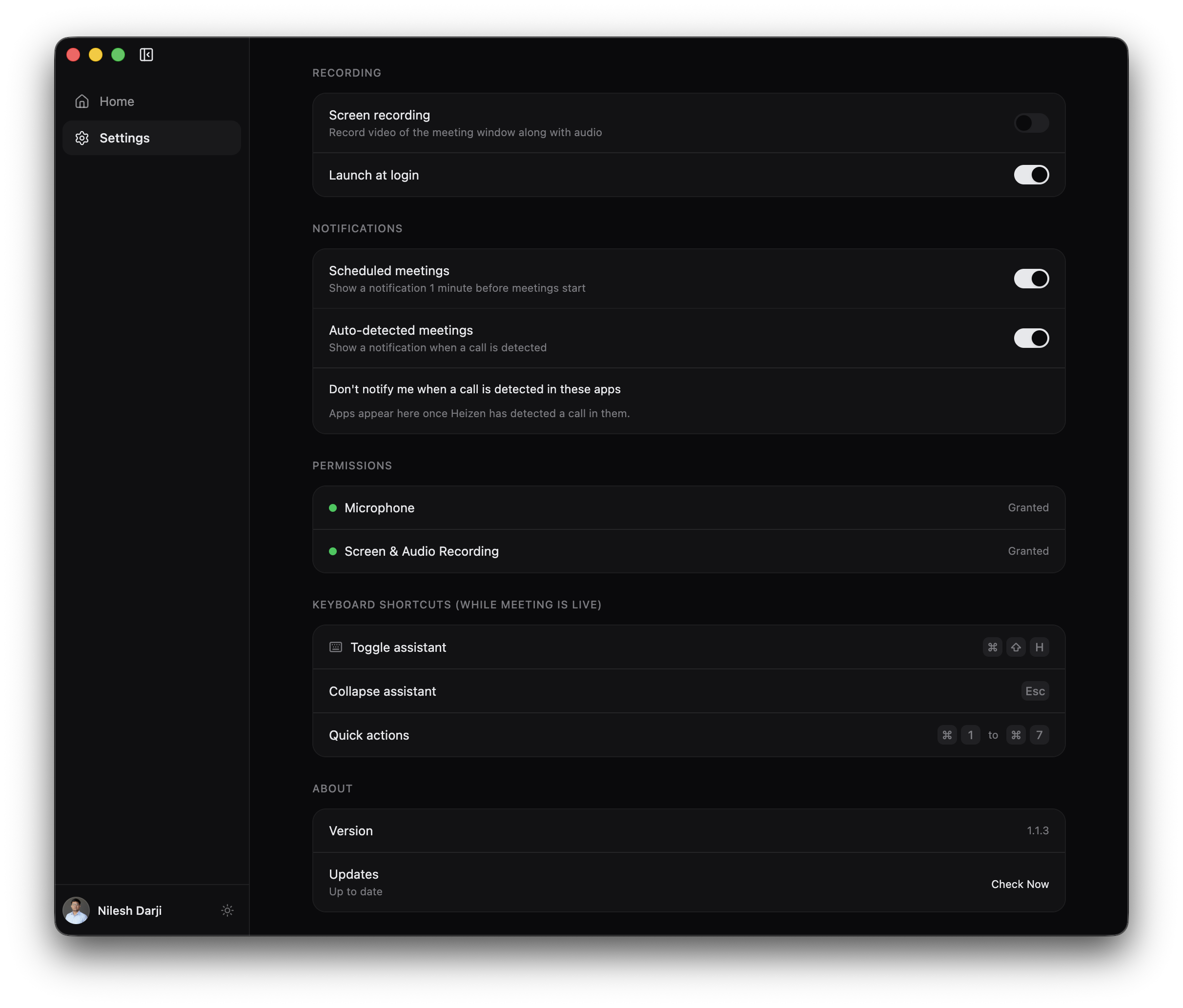
- Scheduled meetings shows a reminder one minute before a connected calendar event starts.
- Auto-detected meetings shows a prompt when Heizen recognizes an active call.
- Use Don’t notify me when a call is detected in these apps to mute selected detected apps. Apps appear only after Heizen has seen a call from them.
Permissions
The permissions section reports Microphone and Screen & Audio Recording as granted or missing. Select Grant access to request microphone permission or open the relevant operating-system settings for screen and audio access.
After changing a permission in System Settings, return to Heizen Meets. Restart the app if the operating system requires it before the new permission is recognized.
Keyboard shortcuts
These shortcuts are active while a meeting is live:
| Action | Shortcut |
|---|---|
| Toggle assistant | Command + Shift + H |
| Collapse assistant | Escape |
| Run quick actions | Command + 1 through Command + 7 |
Inside the expanded assistant, Command + , opens Settings and Command + R starts a new chat.
Appearance
Use the sun or moon button beside your profile in the sidebar footer to switch between light and dark themes.
Updates
The About section shows the installed version and update state.
- Select Check Now.
- If a version is available, select Download.
- When the download is ready, select Install & Restart.
Other states include Checking, download progress, Up to date, and an update error message.