
The Projects area organizes recorded meetings by their associated Heizen Studio project. Use it to review a project’s meeting history without sorting through every recording on Home.
Browse your projects
Select Projects in the left sidebar. Heizen lists the projects you belong to and shows each project’s logo, title, and member count.
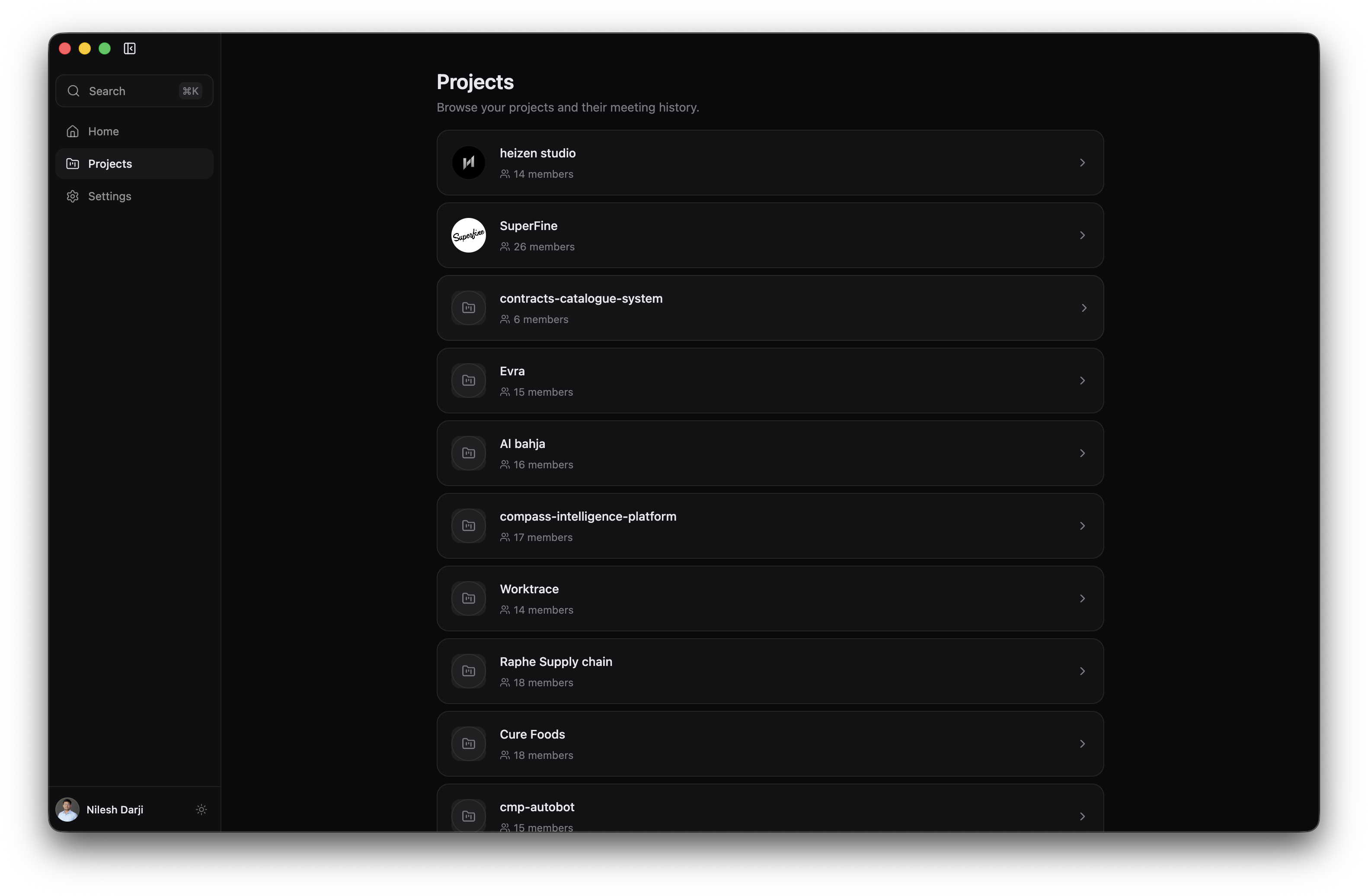
If you do not belong to a project yet, the page shows No projects yet. If the list cannot be retrieved, it shows Projects could not be loaded. Please try again.
Open a project’s meeting history
Choose a project
Select a project card to open its project page.
Review the meeting total
The page shows the project title, member count, and total number of linked meetings.
Open a meeting
Select a meeting row to open its summary, notes, transcript, metadata, and AI assistant.
Load older meetings
Heizen initially loads up to 50 meetings. Select Load more when the project has additional meetings.
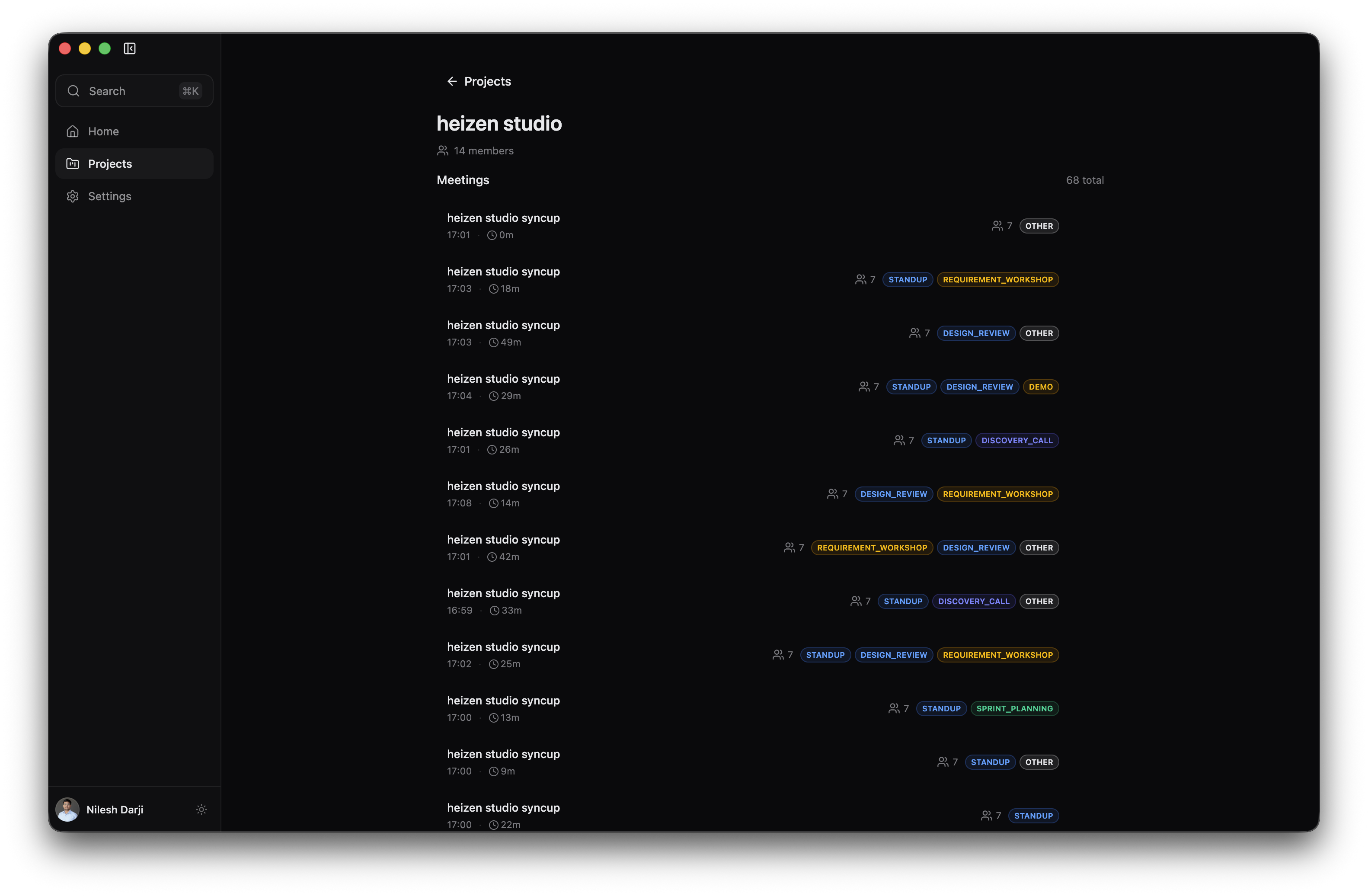
Only meetings already linked to the project appear here. If the project has no linked recordings, the page shows No project meetings.
A recording started from a calendar event that is linked to a Heizen Studio project keeps that project association.
Assign a meeting to a project
Use the project selector to move a meeting into a project yourself:
- On the meeting page, select the project chip beside the meeting category.
- During a live meeting, use the project selector in the expanded live assistant toolbar.
Search for the project by name and select it. The chip reads No project until a project is assigned. If you do not have access to the project you choose, Heizen shows You do not have access to this project and the meeting is left unchanged.
Delete a project meeting
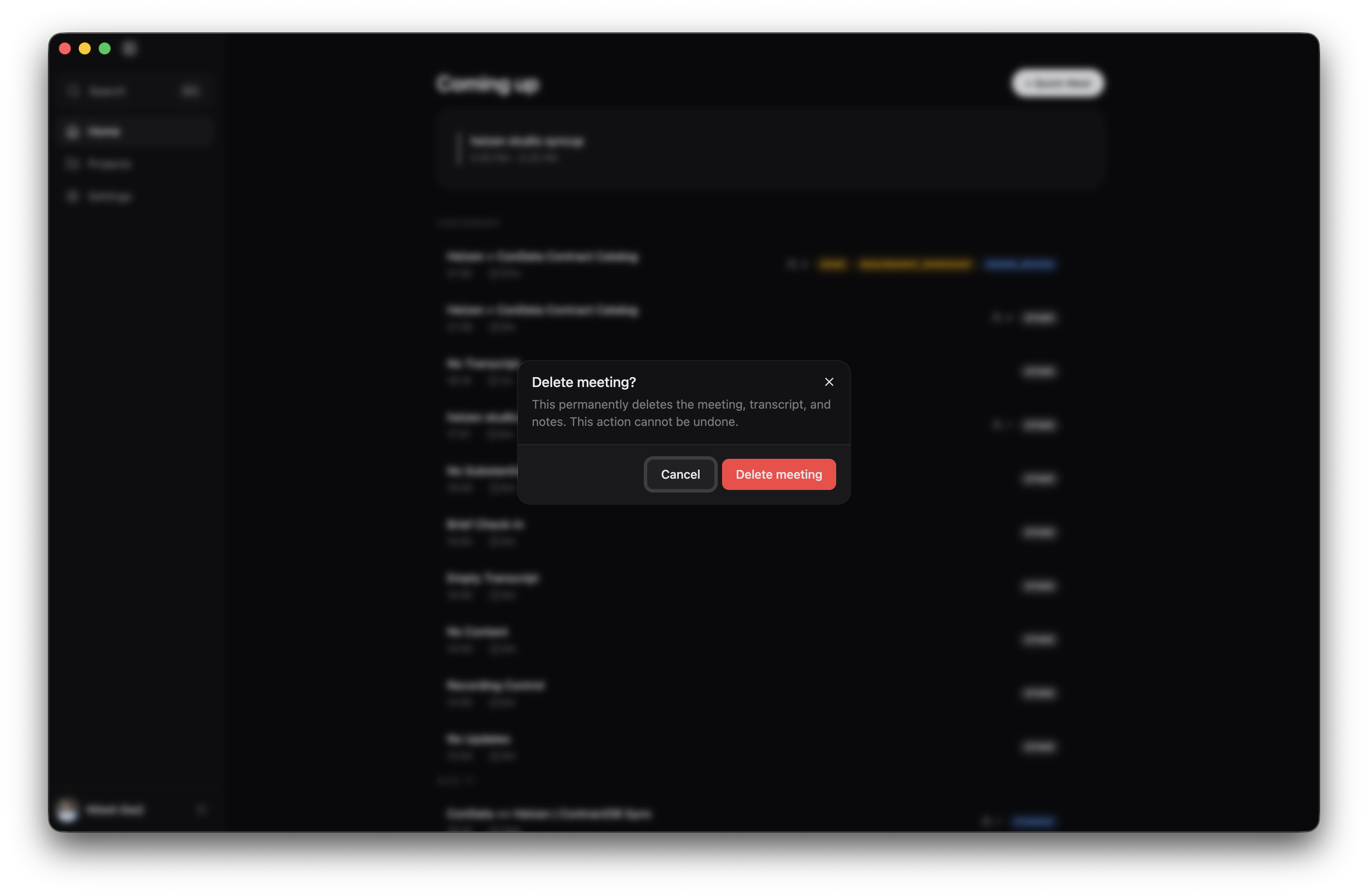
Move the pointer over a meeting row, select the Meeting actions button, and choose Delete meeting. Confirm the action in the dialog.
To find a specific meeting across every project, use Search meetings.