
Heizen Meets records your microphone and meeting audio, transcribes the call in real time, and creates a meeting record. Its screen recording feature also captures video without making you choose a screen or window: Heizen finds the meeting window automatically and records only that window when possible.
Choose how to start
Start an unscheduled meeting
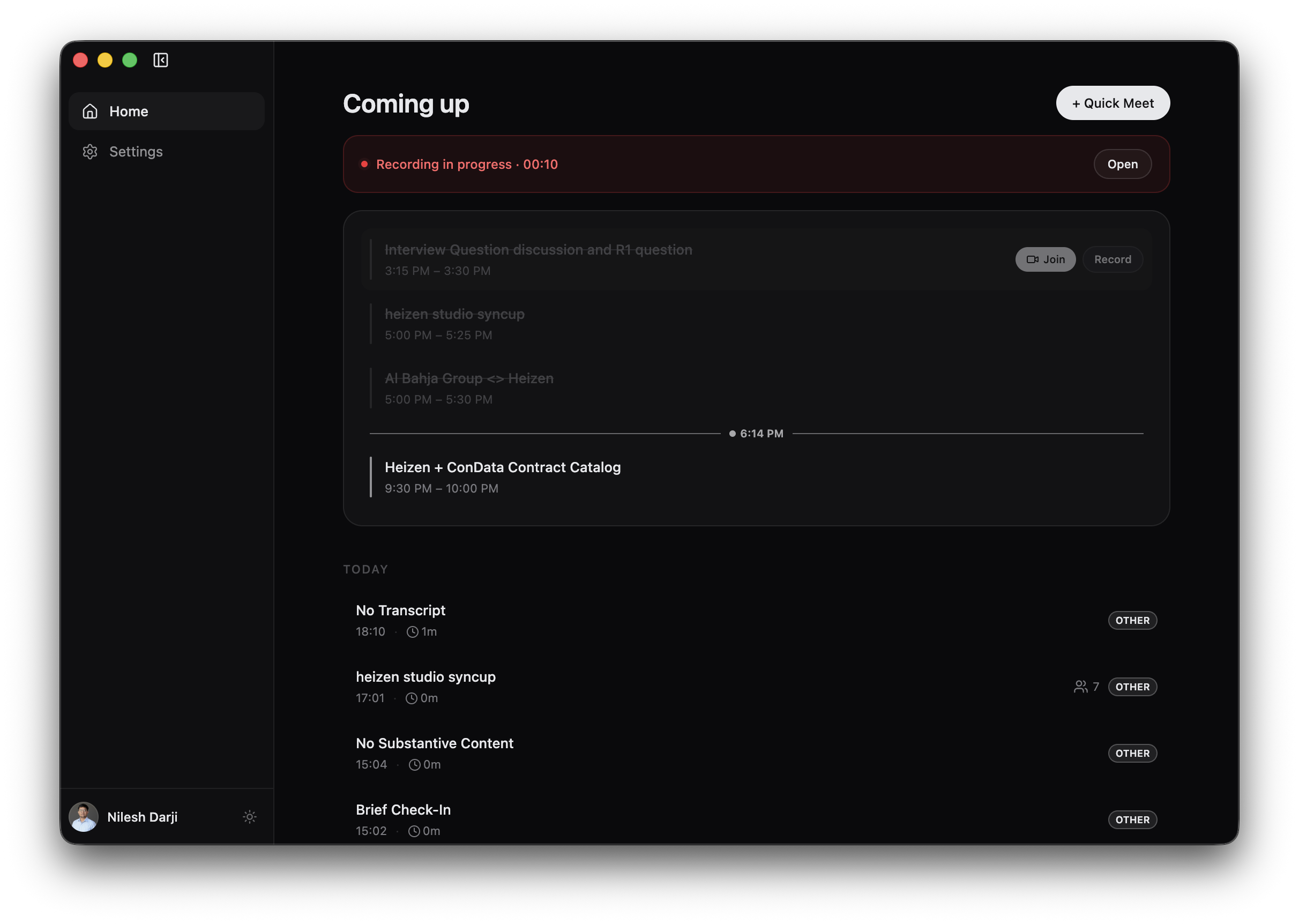
From Home, select + Quick Meet. Use this for impromptu calls, in-person conversations, or a meeting that is not on your connected calendar.
Start from a calendar event
On Home, move the pointer over an event and select Record. This associates the recording with the event title, time, and participants. Selecting the event row also starts recording.
Start from a notification
When Heizen recognizes an active meeting app, select Take Notes in the notification. For a scheduled meeting reminder, select Join Meeting. Learn how detection works in Automatic meeting detection.
Record the meeting window automatically
Turn on Settings → Recording → Screen recording to record video of the meeting together with its audio. There is no screen or window selector. When you start recording, Heizen chooses the capture source automatically.
Detect the active meeting
Heizen uses the active meeting app, its window, and recognized meeting URL signals to identify where the call is taking place.
Extract the meeting window
If Heizen identifies the meeting window, it records only that window. This keeps unrelated apps, desktop content, and notifications out of the video.
Fall back to the entire screen
If the meeting window cannot be identified or captured, Heizen records the entire screen so the meeting is not missed.
Help Heizen capture the right window
For the most reliable automatic extraction, open the meeting before starting the recording and keep the meeting app running. For browser meetings, keep the recognized meeting page open in its browser window. If the meeting window appears just after recording starts, Heizen briefly retries detection before falling back to screen recording.
Automatic window extraction chooses what appears in the video; it does not start a recording by itself. See Automatic meeting detection for detected-call notifications and meeting-ended reminders.
Monitor a live recording
After recording starts:
- Home shows Recording in progress with a running duration.
- The meeting row shows Live.
- Open takes you to the active meeting.
- The floating assistant becomes available for chat, transcript, and quick actions.
On the active meeting page, select Live transcript to see final and interim speech. If more than one input device is available, use the microphone selector at the bottom of the transcript panel to switch microphones during the call.
Mute your microphone
Mute your own microphone at any point during a recording without stopping it. Muting affects only your microphone; meeting audio from other participants continues to be recorded and transcribed.
Use whichever control is closest:
- The microphone button beside the microphone selector on the active meeting page.
- The microphone button in the live assistant, in both the collapsed pill and the expanded toolbar.
- Mute Microphone in the Heizen Meets tray menu.
All three surfaces control the same microphone, so the state stays in sync wherever you look. While muted, the control turns amber and switches to Unmute microphone. If no microphone is available for the recording, the control is disabled and reads Microphone unavailable.
Stop recording
Stop from either place:
- Select Stop on the active meeting page.
- Select the stop control in the floating assistant.
Heizen can also recognize when the meeting itself ends. When it confirms the call has closed, it asks Stop recording? and stops on its own about a minute later unless you choose Keep Recording. If the call cannot be confirmed as closed, Heizen keeps recording and asks you after about a minute instead of stopping on a guess. Reopening the meeting cancels the pending stop.
After stopping, the meeting moves through Processing before its final title, summary, transcript, speakers, and tags are ready. You can continue writing personal notes while processing completes.
Choose the right microphone
Heizen uses the first available device above Auto (system default) in Settings → Microphone Priority. Devices below Auto are never selected automatically. Drag devices to reorder them before recording, then use the live microphone selector if you need to switch mid-call.