
Heizen Meets watches for active calls and can prompt you to start taking notes. It uses microphone activity plus app, window, or meeting-URL signals; it does not automatically begin recording.
When you choose to record and screen recording is enabled, these signals also help Heizen extract and record the meeting window automatically. If it cannot identify the meeting window, it records the entire screen instead. Learn more in Record a meeting.
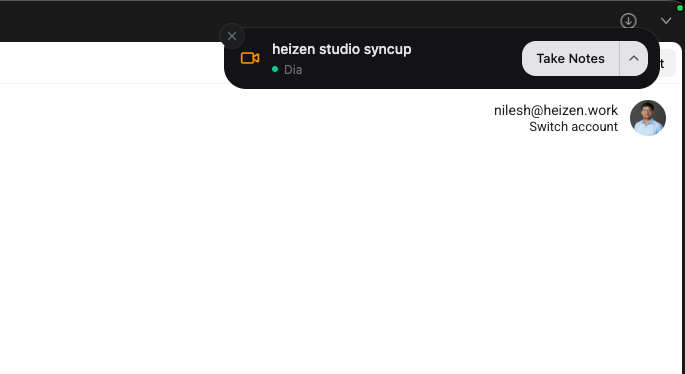
Respond to a detected meeting
The notification includes the detected app name and may use the matching calendar event title.
- Select Take Notes to start recording.
- Open the secondary-action menu and select Never notify me for [app] calls to mute future detected-call notifications from that app.
- Select Dismiss or close the notification to ignore this call.
Notifications dismiss on their own after 20 seconds, including permission-error notifications. You can reopen Settings from the app at any time to grant the access a permission error reported.
Supported meeting signals
On macOS, Heizen recognizes dedicated meeting apps including Zoom, Microsoft Teams, Webex, Google Meet’s installed app, Tuple, Around, Discord, Slack, and FaceTime. It can also recognize meeting pages in Chrome, Brave, Arc, Dia, Edge, and Safari.
On Windows, detection includes Zoom, Microsoft Teams, Webex, Discord, and Slack, plus supported meeting pages in Chrome, Edge, Brave, Firefox, Arc, and Dia.
Browser detection looks for meeting URLs from services such as Google Meet, Zoom, Microsoft Teams, Webex, Whereby, Slack Huddles, and Discord.
Scheduled meeting reminders
Heizen can notify you one minute before a connected-calendar event starts. The reminder shows Join Meeting and Dismiss. Selecting Join Meeting starts the Heizen recording flow associated with that calendar event.
Meeting-ended reminders
When the detected meeting disappears, Heizen waits through a short grace period to avoid reacting to a brief microphone interruption. If recording is still active, it shows Meeting ended — Stop recording?
- Stop Recording ends the Heizen recording immediately.
- Keep Recording keeps the recording running and cancels any pending automatic stop.
What happens if you ignore the reminder depends on how clearly Heizen saw the meeting close:
- When the close is confirmed, the recording stops on its own about a minute later. Rejoining or reopening the meeting in that window cancels the stop.
- When the close cannot be confirmed, Heizen keeps recording and shows the reminder about a minute later, so a call that is still running is never stopped on a guess.
Configure detection notifications
Open Settings → Notifications:
- Turn Auto-detected meetings on or off.
- Under Don’t notify me when a call is detected in these apps, select the apps you want to mute.
- Turn Scheduled meetings on or off independently.
The per-app list contains apps Heizen has already detected on your computer. If the list is empty, join a call in the app once so Heizen can learn it.