
Complete this setup once on each computer. Heizen Meets stores the completion state locally, so a new installation or cleared app data may show the wizard again.
Sign in
Open Heizen Meets
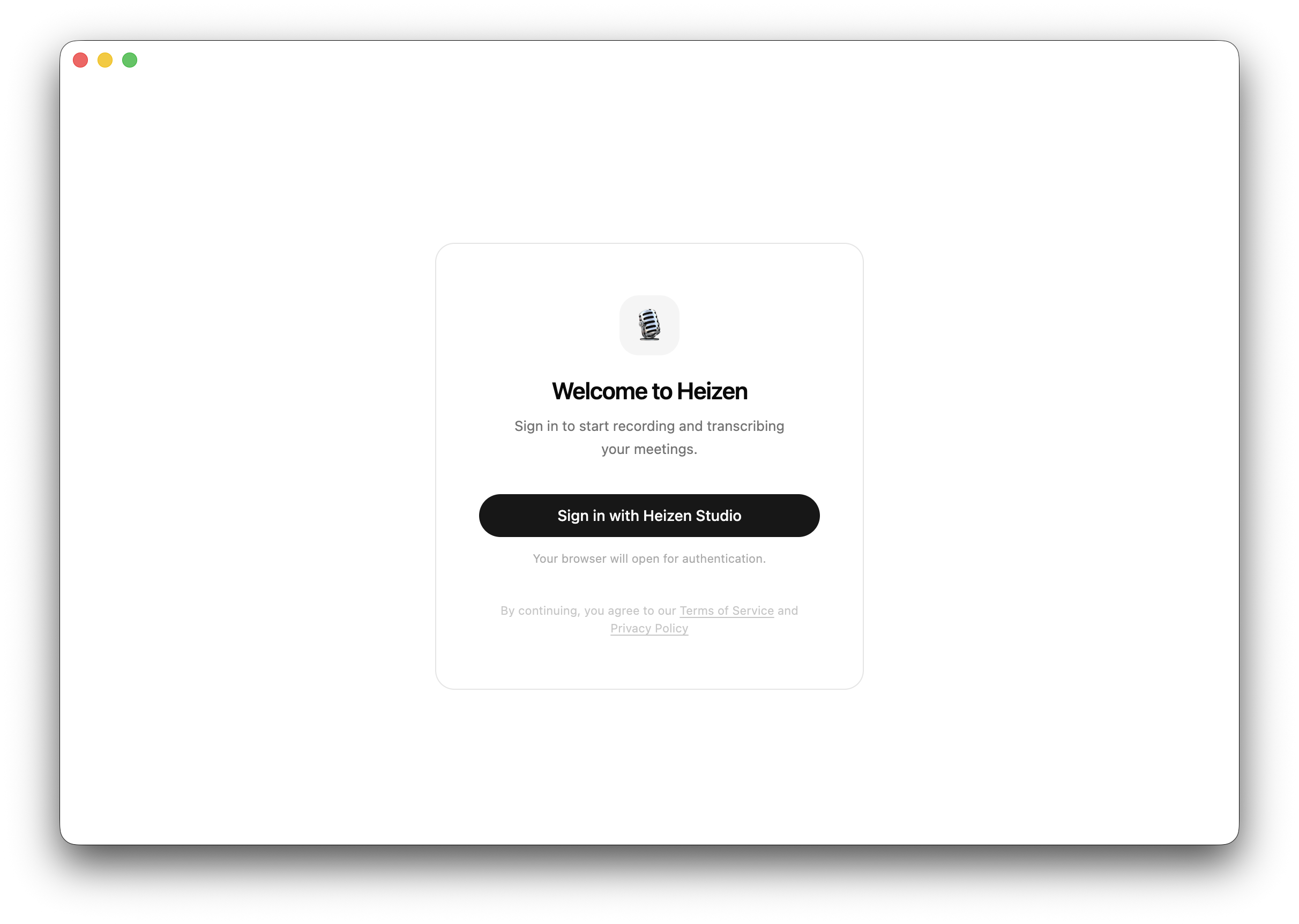
On the welcome screen, select Sign in with Heizen Studio. Your default browser opens for authentication.
Finish authentication in the browser
Sign in with the Heizen Studio account whose meetings you want to access. After authentication, return to the desktop app.
Continue to permissions
The app opens the setup wizard automatically the first time you sign in.
Grant recording permissions
The wizard checks three capabilities in order:
- Microphone records your voice.
- Screen & audio recording lets Heizen automatically capture the detected meeting window, fall back to the entire screen when needed, and record its audio.
- System audio captures the other people and sounds coming from the call.
Microphone
Select Allow microphone, then approve the operating-system prompt. If the status is already granted, select Continue.
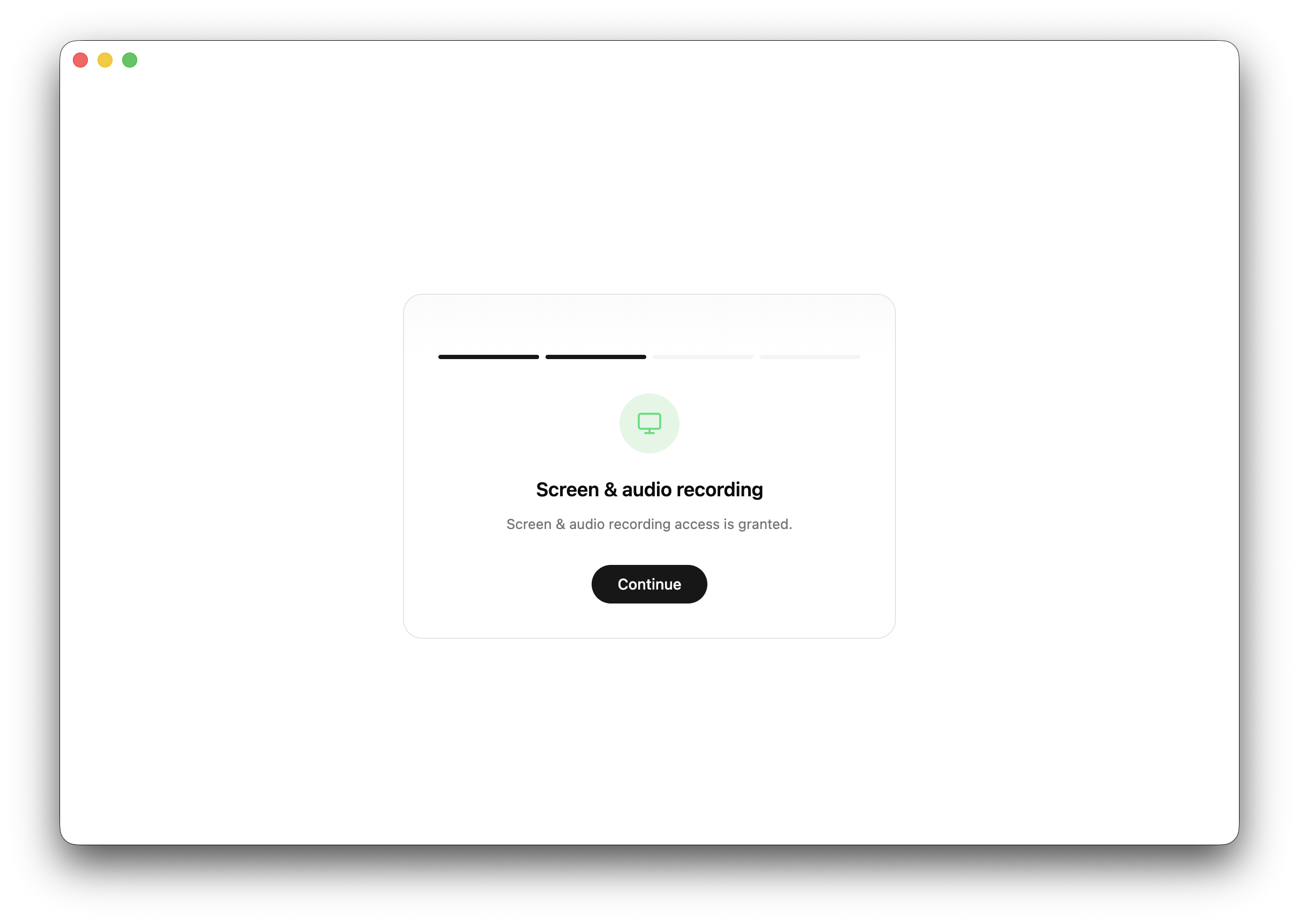
Screen and audio recording
Select Allow screen & audio. On macOS, Heizen may open System Settings. Enable Heizen Meets in the requested privacy section, return to the app, and wait for the wizard to detect the change. Use Open System Settings again if you closed the settings window before enabling access.
System audio
Select Allow system audio and approve the native prompt. If access was previously denied, use Open System Settings, enable it there, and return to Heizen Meets.
Finish setup
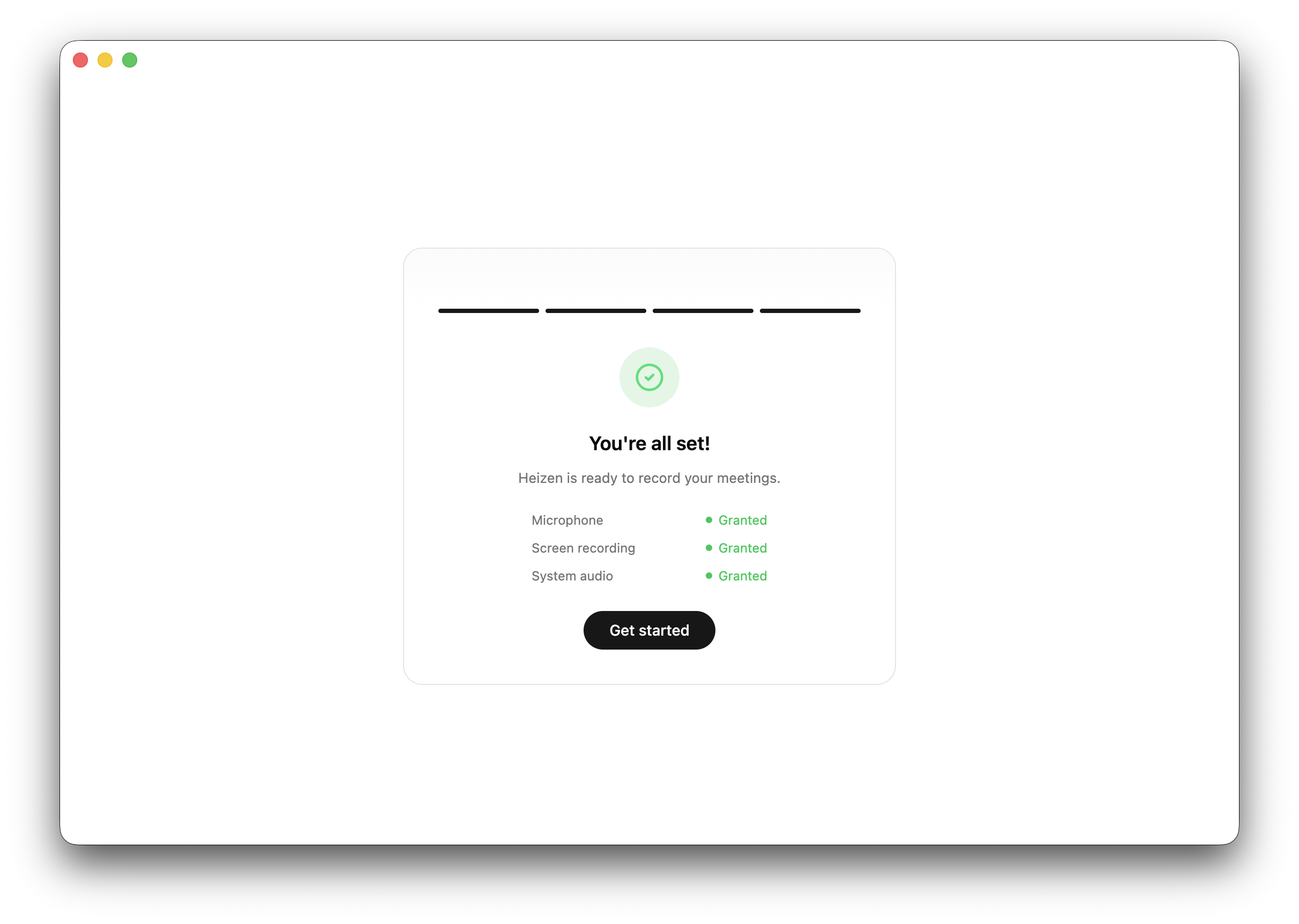
The final screen lists each permission as Granted or Not granted. Select Get started to open Home.
Verify your setup later
Open Settings → Permissions. A green indicator and Granted label should appear beside Microphone and Screen & Audio Recording. Select Grant access beside anything missing.
Next, configure your Home and calendar or record your first meeting.