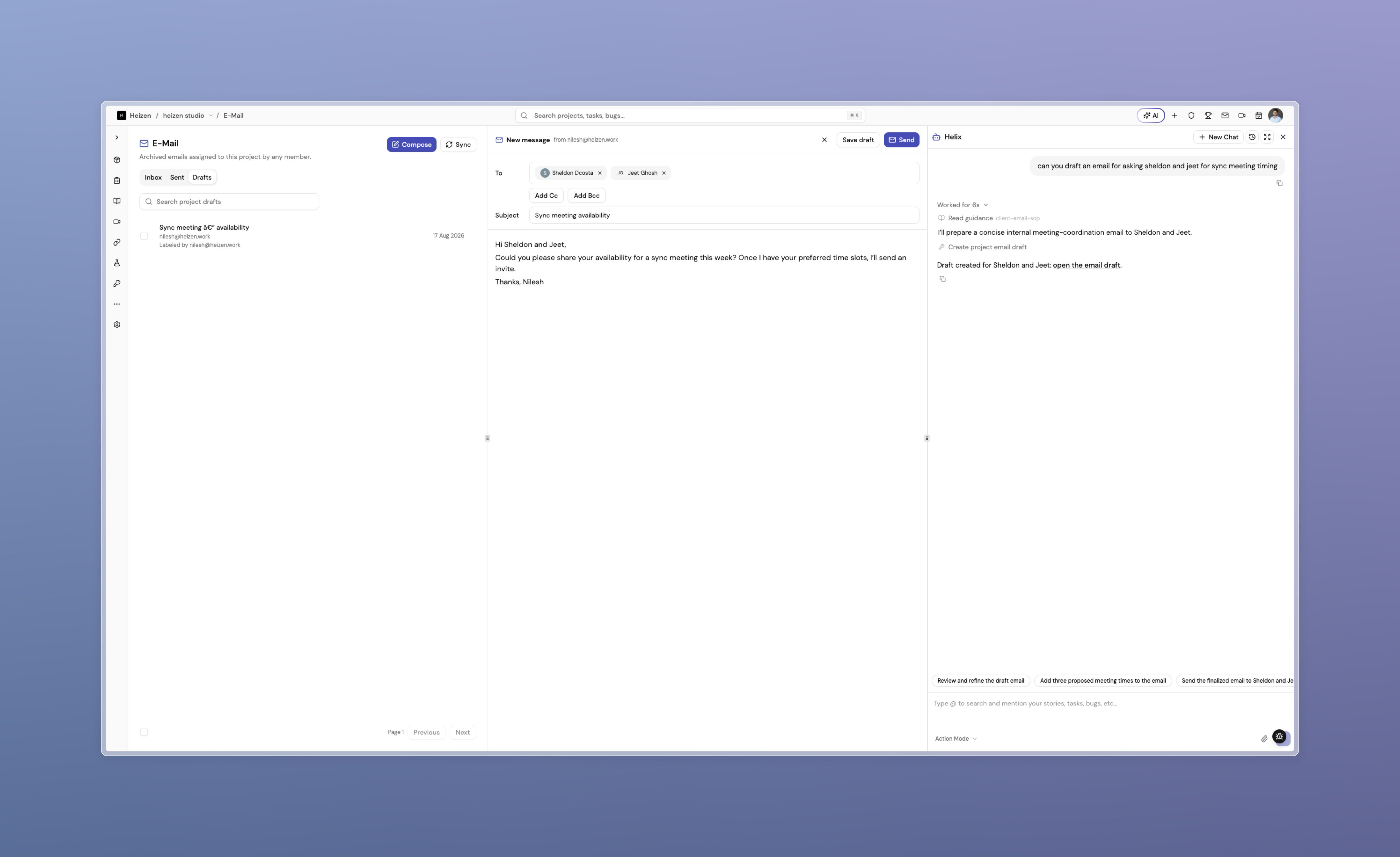
Project email used to be a read-only archive of threads someone had assigned to the project. It is now a working mailbox: the project’s correspondence sits in its own sections, and you can write, reply, and send from inside Studio.
Inbox, Sent, and Drafts
A project’s email opens on Inbox and adds Sent and Drafts alongside it. Every section is shared, so anyone on the project sees the same threads and the same drafts rather than a private copy.
Your personal mailbox stays separate. Threads you have not assigned to a project remain in your own inbox, and assigning one moves it into the project the whole team can see.
Write, reply, and forward
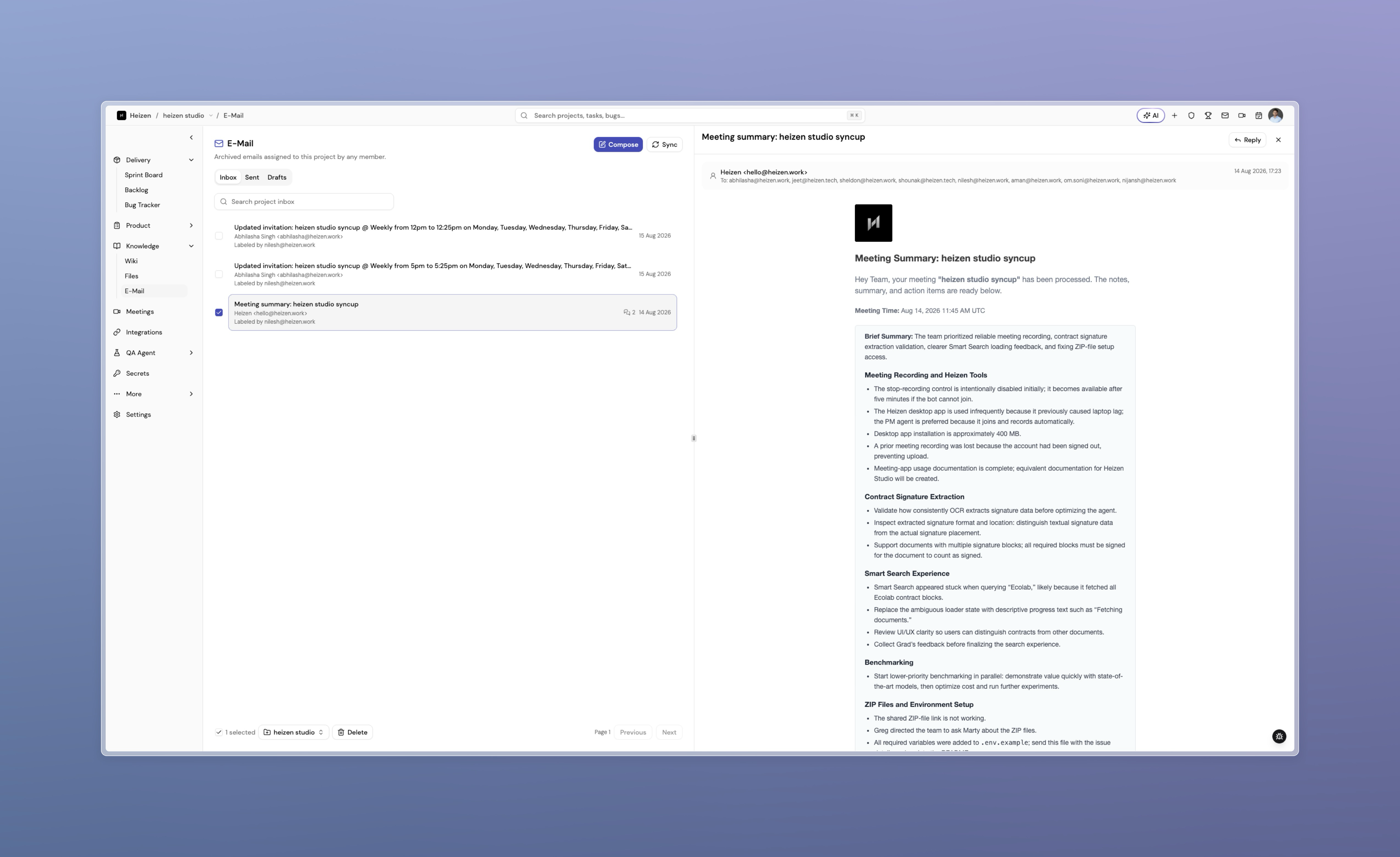
Compose opens beside the thread list. Recipients are entered as chips across To, Cc, and Bcc with addresses validated as you type, and replies and forwards keep the original threading so they land in the same conversation in the recipient’s client.
A draft you save is a project draft: it appears in Drafts for every member, and stays consistent when someone else opens or sends it.
Act on several threads at once
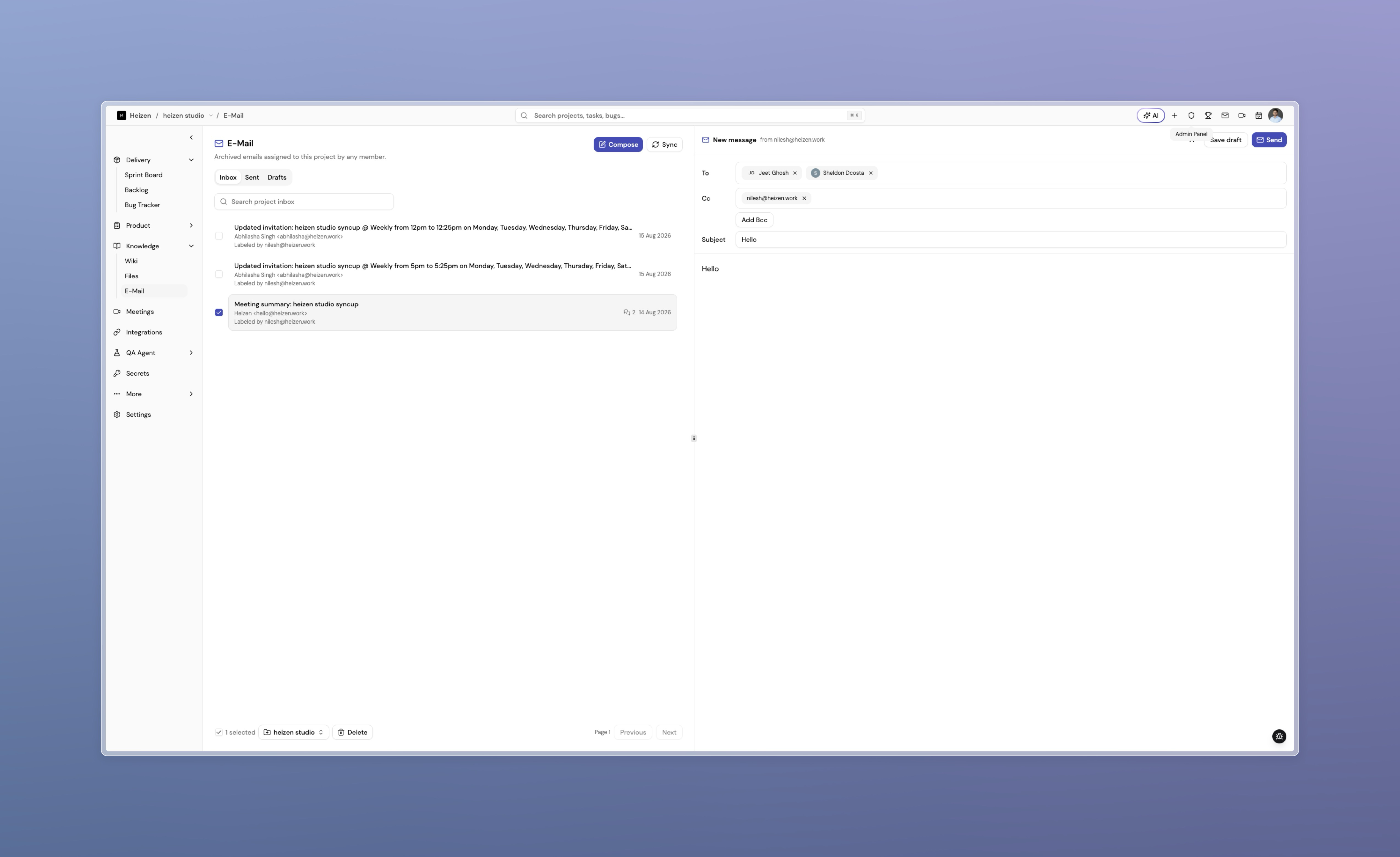
Select threads with the checkbox column and act on the selection: assign them to a project, or delete them. Buttons explain themselves when a selection cannot be acted on, so a mixed selection tells you why instead of failing halfway.
Ask Helix for a first draft
Helix can now write a project email for you. Ask it to follow up on a thread or summarise a decision, and it creates a draft in the project’s Drafts section with the recipients and body filled in. Nothing is sent — you open the draft, edit it, and send it yourself.